Margin Comments icon

Margin Comments

Comment on your Obsidian notes the way you would on a shared document.
Threaded replies, resolve and reopen, and a panel for every conversation. Your Markdown stays untouched.

latest release downloads CI OpenSSF Scorecard Obsidian 1.13.4 or later Desktop and mobile TypeScript CodeMirror 6 unit coverage 98.3% MIT license

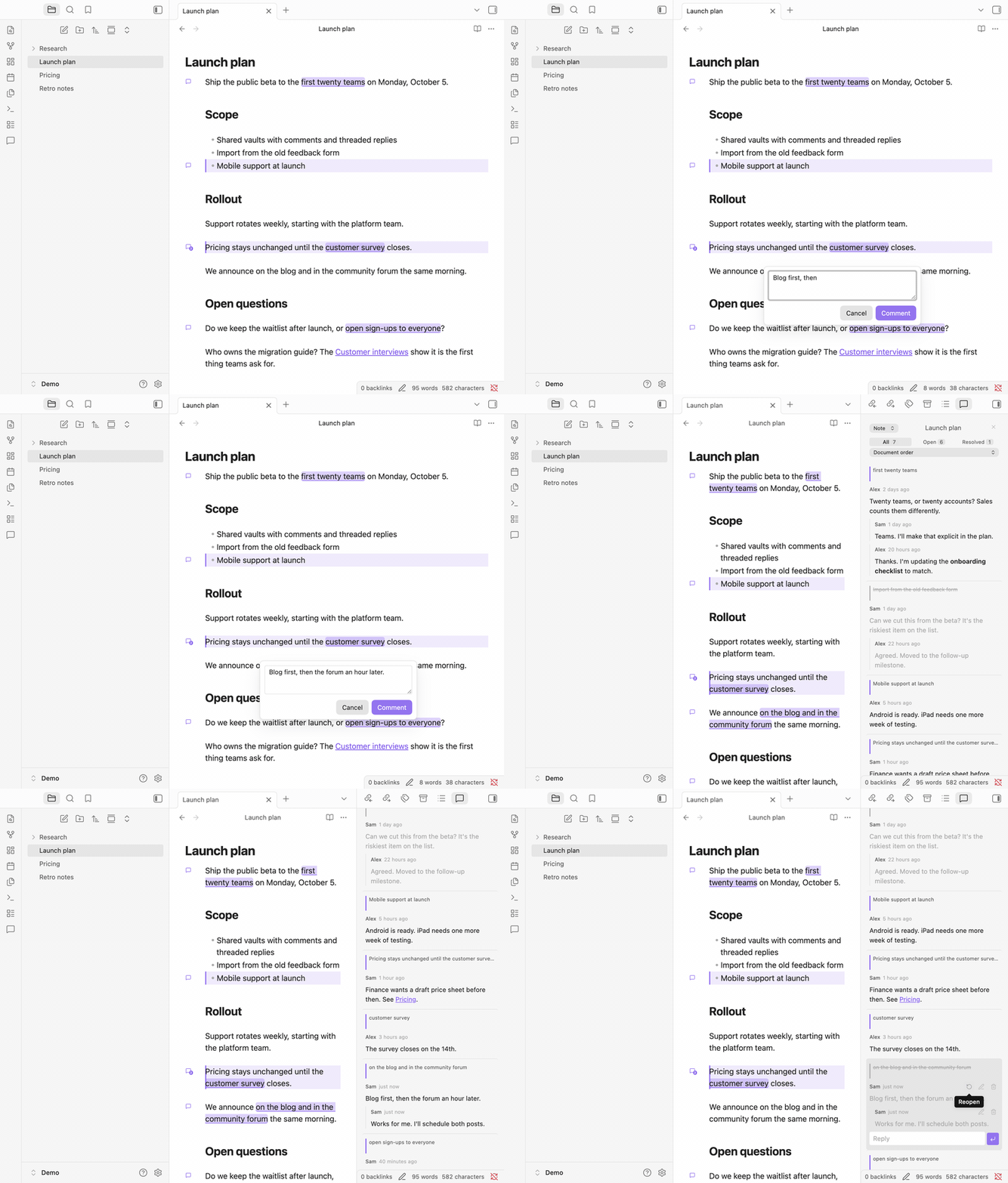
Selecting words in a note, writing a comment, then replying and resolving it from the panel

## What it does
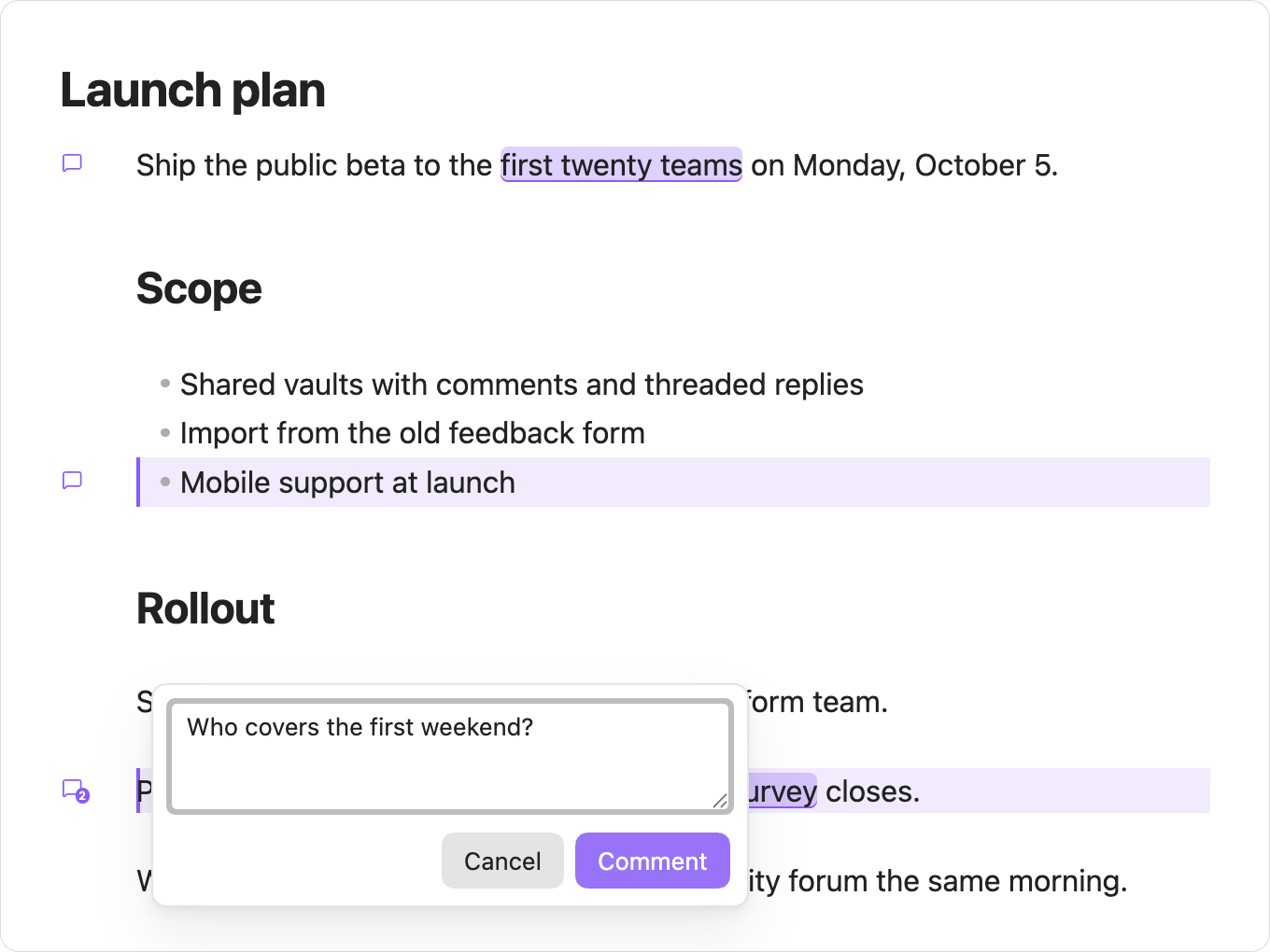
The composer open over a selected phrase

Comment on a line or on a few words
Select text and comment on it, or comment on a whole line from the margin.

A thread with two replies in its popover

Talk it through in threads
Reply, edit in place, resolve when it is settled and reopen if it is not.

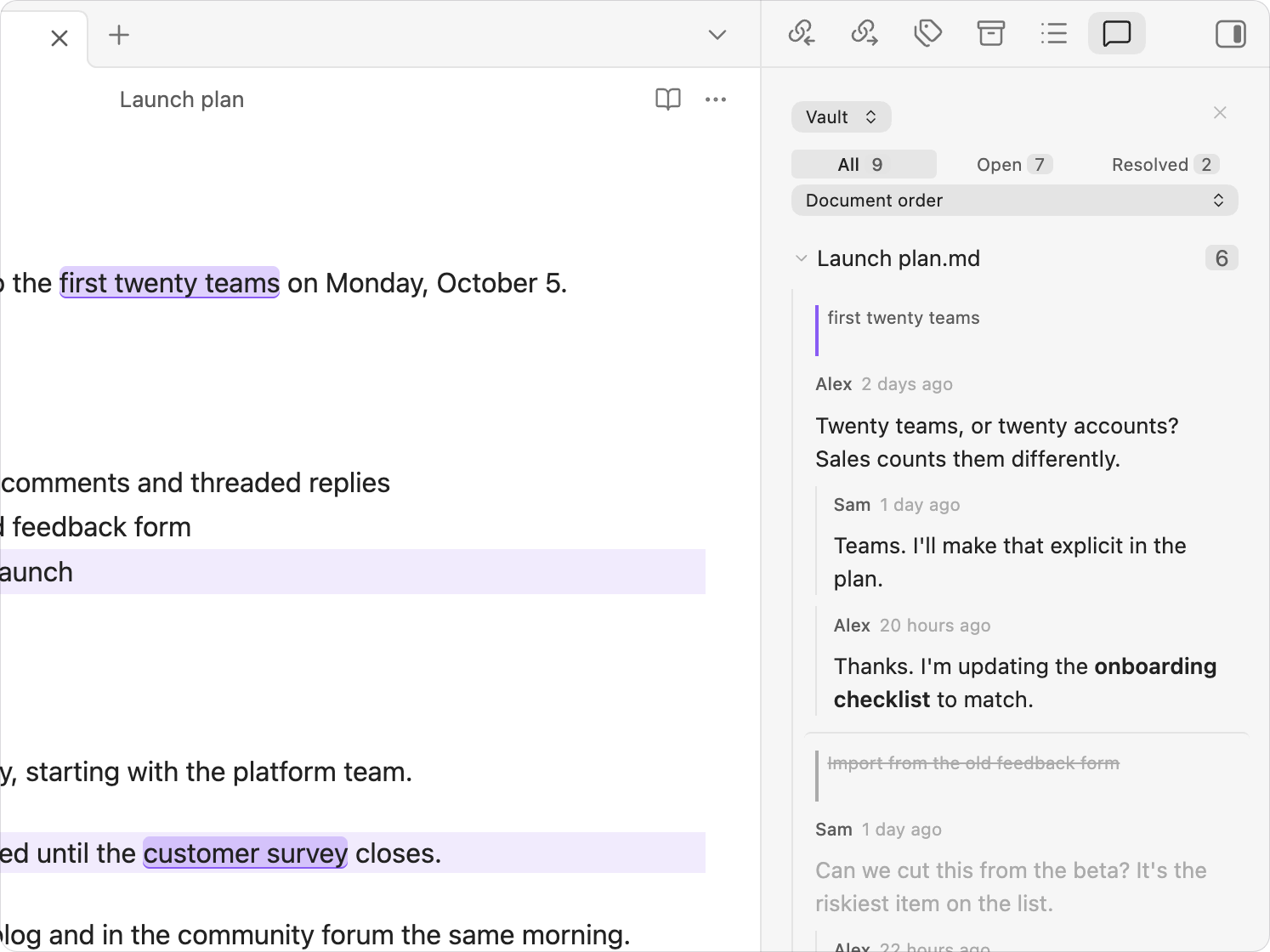
The panel listing every commented note in the vault

See every conversation in one panel
Filter by open or resolved, sort by position or activity, for this note or the whole vault.

Commented words highlighted in reading mode

Read without losing the thread
Commented words stay highlighted in reading mode, and a click opens the conversation.

### On your phone

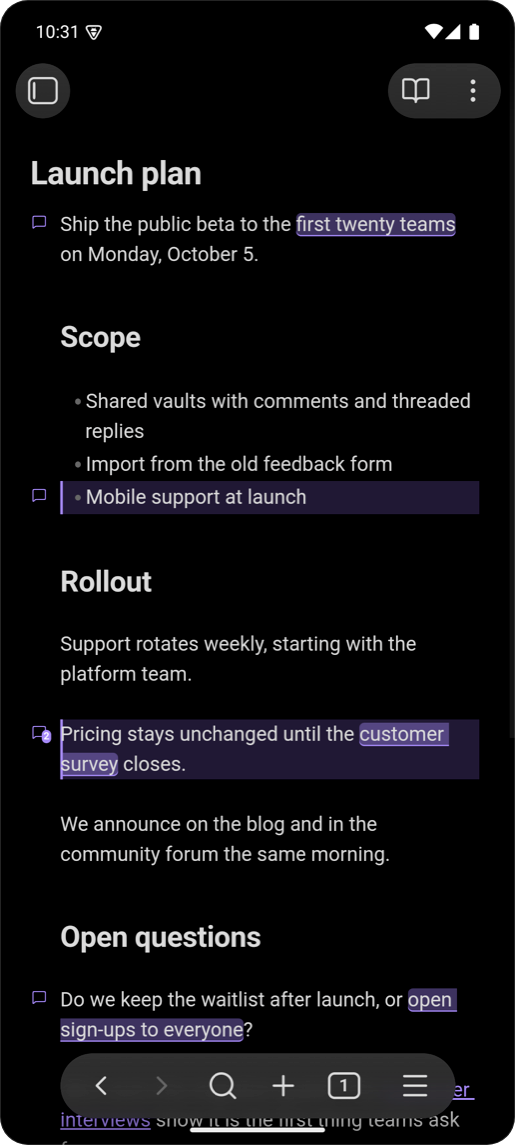
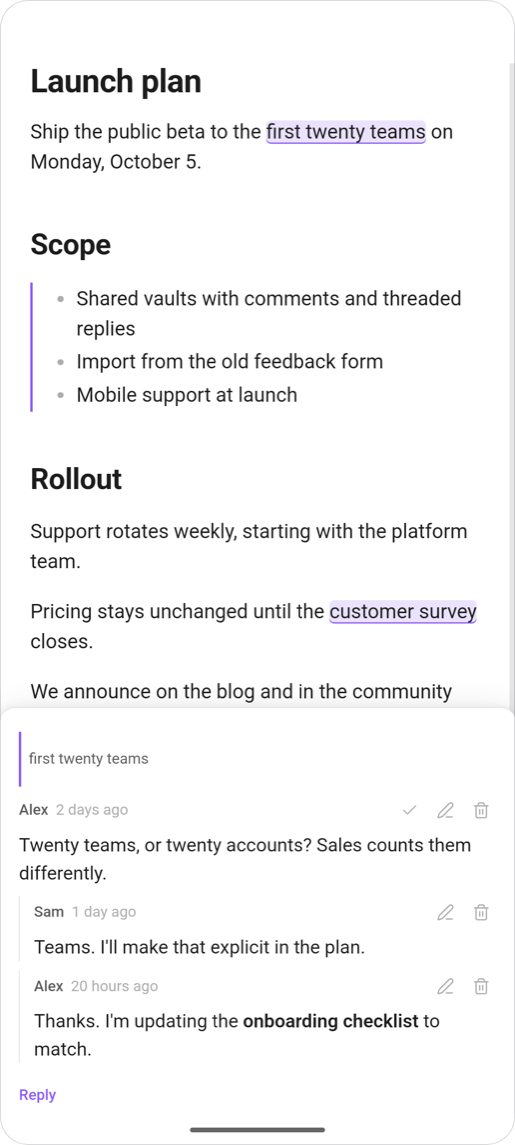
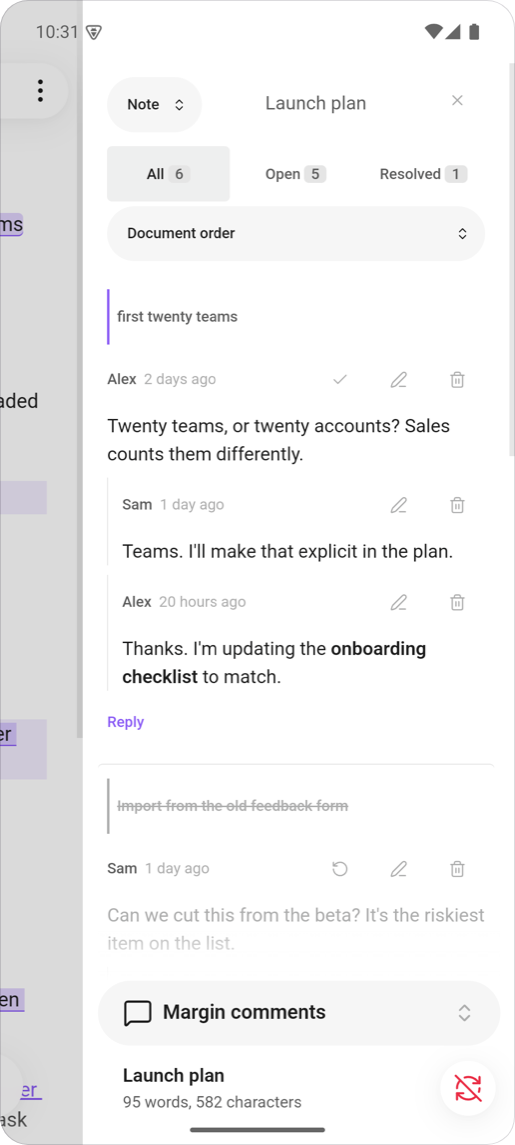
A note with comment markers in the dark theme on a phone A thread opened from reading mode in a bottom sheet The comments panel in the phone's side drawer

Markers stay visible without hover, controls are sized for a thumb, and threads open in a sheet at the bottom of the screen. Colours come from your theme, light or dark. ## Get started 1. In Obsidian, open **Settings → Community plugins → Browse** and search for **Margin Comments**. Select **Install**, then **Enable**. 2. Open a note, hover the left margin of a line and click the marker. To comment on a few words, select them first. 3. Open the panel from the ribbon icon or the **Toggle comments panel** command to see every thread.
Install manually 1. Download `main.js`, `manifest.json` and `styles.css` from the [latest release](https://github.com/jonaas-dev/obsidian-margin-comments/releases/latest). 2. Create the folder `/.obsidian/plugins/margin-comments/` and copy the three files into it. 3. Reload Obsidian, then enable **Margin Comments** in **Settings → Community plugins**.
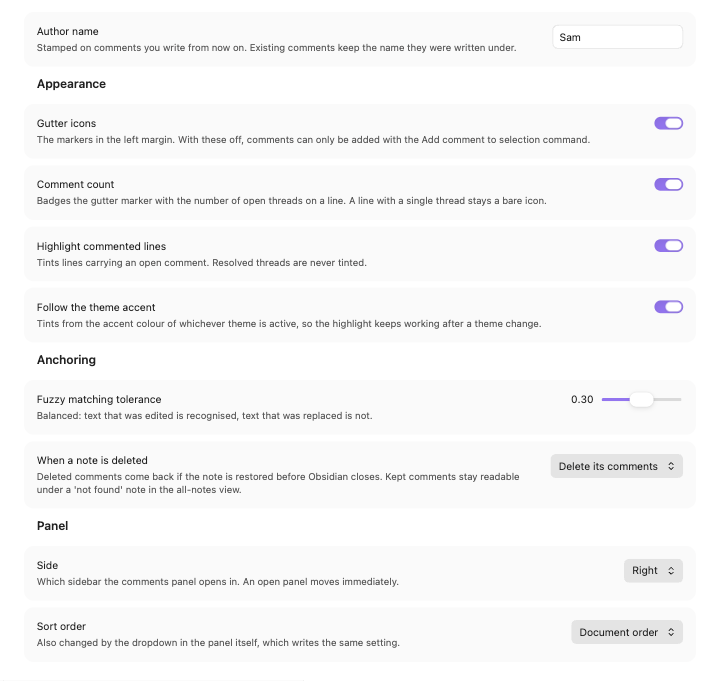
Settings Open **Settings → Margin Comments**. | Setting | Default | What it does | | --- | --- | --- | | Author name | empty | The name stamped on comments you write from now on. | | Gutter icons | on | Shows the markers in the left margin. Without them, add comments with the **Add comment to selection** command. | | Comment count | on | Badges a marker with the number of open threads on its line, when there is more than one. | | Highlight commented lines | on | Tints lines that carry an open comment, in editing and reading mode. | | Follow the theme accent | on | Takes the highlight color from your theme. | | Highlight color | none | Appears when **Follow the theme accent** is off. The color used in every theme. | | Fuzzy matching tolerance | 0.3 | How far edited text may drift before a comment stops finding it. | | When a note is deleted | Delete its comments | Deleted comments are held on disk and come back whenever the note does, including after a restart or a rename made outside Obsidian. Kept comments stay readable in the all-notes view. | | Side | Right | Which sidebar the panel opens in. | | Sort order | Document order | Document order, date created, or last activity. | The Margin Comments settings tab
Commands None has a default hotkey. Bind the ones you use in **Settings → Hotkeys**. | Command | What it does | | --- | --- | | Add comment to selection | Comments on the selected text, or on the line holding the cursor. | | Toggle comments panel | Opens or closes the panel. | | Go to next comment | Moves the cursor to the next commented line. | | Go to previous comment | Moves the cursor to the previous commented line. | | Resolve all comments in this note | Resolves every open thread in the note, after confirming. |
How comments are stored Comments live as JSON files in `.margin-comments/` at the root of your vault: one file per commented note, plus an index. Your Markdown files are never modified. Each comment remembers the words it was made on and the text around them, not a line number. It follows those words as you edit, and moves with the note when you rename it or move its folder. A comment whose words are gone is kept and shown as orphaned. A damaged comment file is set aside and reported, never overwritten. **Syncing.** Git, iCloud and Dropbox sync the folder like any other. Obsidian Sync skips folders that start with a dot, so with Obsidian Sync your comments stay on the device where you wrote them. **Large notes.** The panel draws every thread it shows. A note with a thousand comments takes about a quarter of a second to draw, and scrolling stays smooth.
Privacy Each comment file is plain, unencrypted JSON. For every comment it stores the note's path, the commented words with about 50 characters on either side, the comment itself, the author name from settings, and timestamps. Because the folder holds excerpts of your notes, treat it as part of your vault: - **Publishing a vault** with Git, Quartz or similar tools publishes the folder too, unless you exclude it. That can include excerpts from notes you did not publish. - **Sharing a vault** shares every comment and author name in it. - **Deleting text** from a note does not remove it from a comment until the comment is deleted. To keep comments out of Git, add `.margin-comments/` to `.gitignore`.
## Contributing Bug reports and pull requests are welcome. See [CONTRIBUTING.md](CONTRIBUTING.md) for the development setup. ## License [MIT](LICENSE)