# Ignorance Advanced **The companion plugin for the [Ignorance theme](https://community.obsidian.md/themes/ignorance):** diagrams, tables, images, presentations and exports in one place. [中文](README.zh-CN.md) · [Support](#support) ![License](https://img.shields.io/github/license/ignorance-shiyao/obsidian-ignorance-advanced?color=4D81EF) ![Release](https://img.shields.io/github/v/release/ignorance-shiyao/obsidian-ignorance-advanced?color=4D81EF)
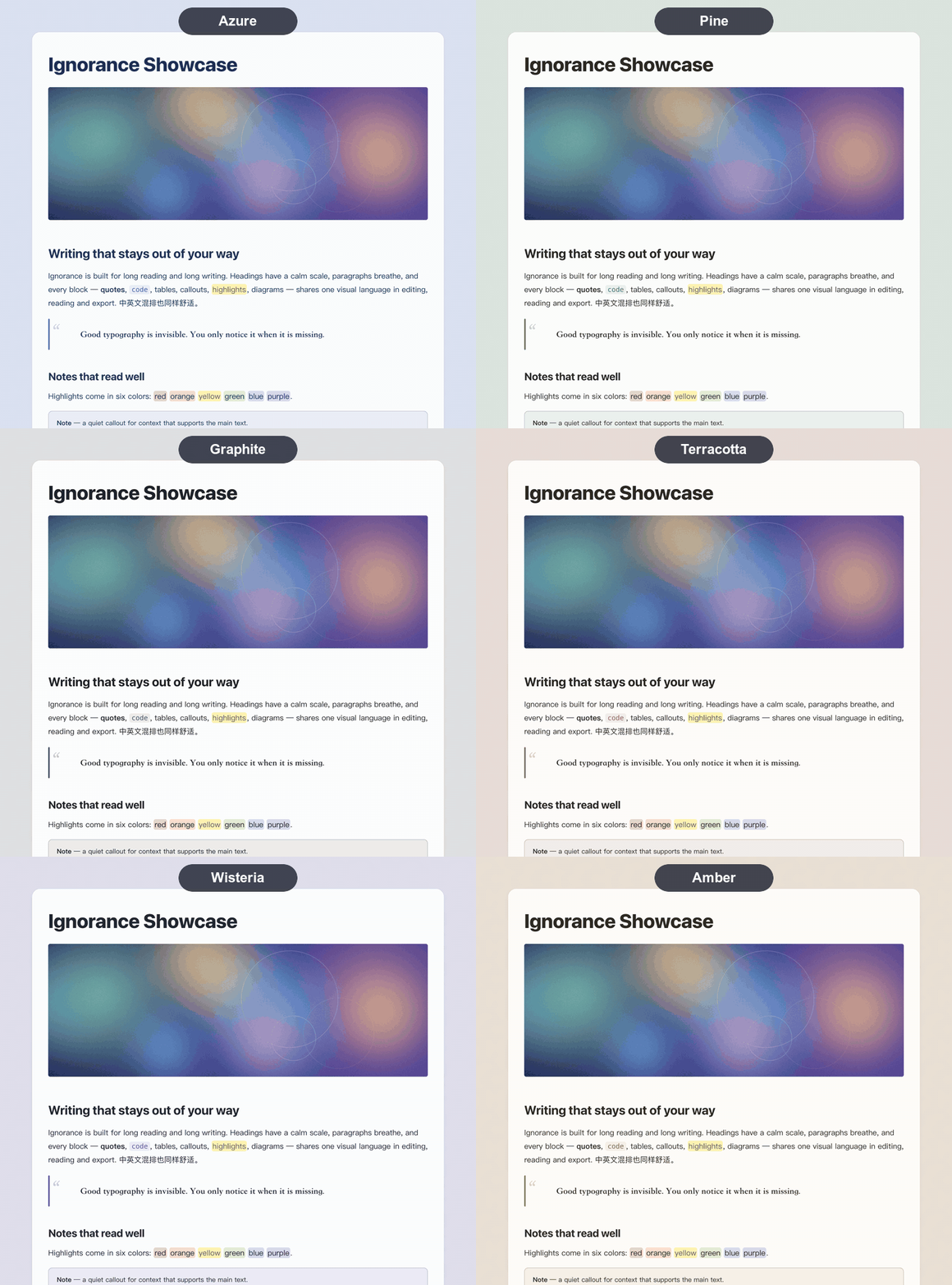
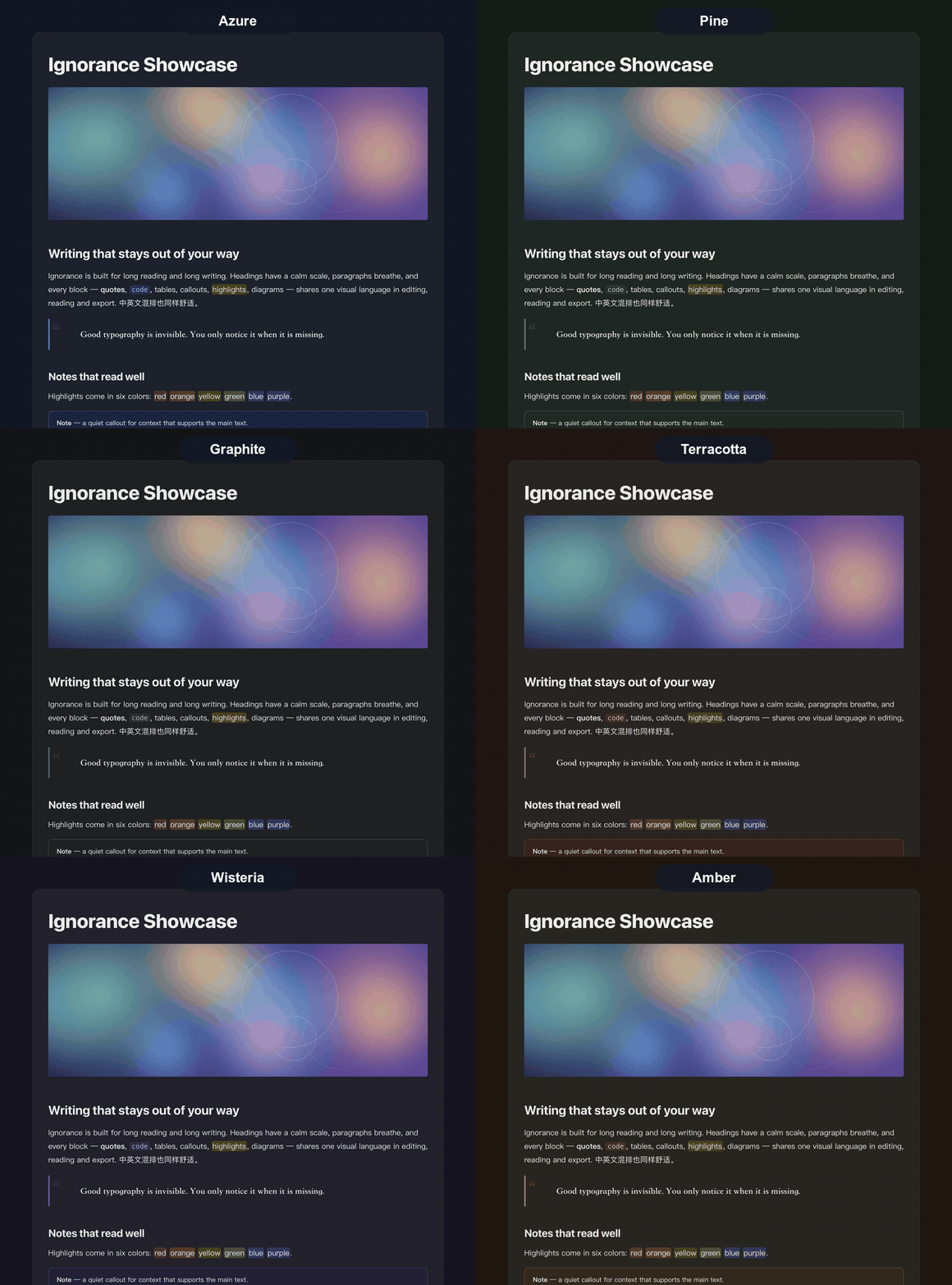
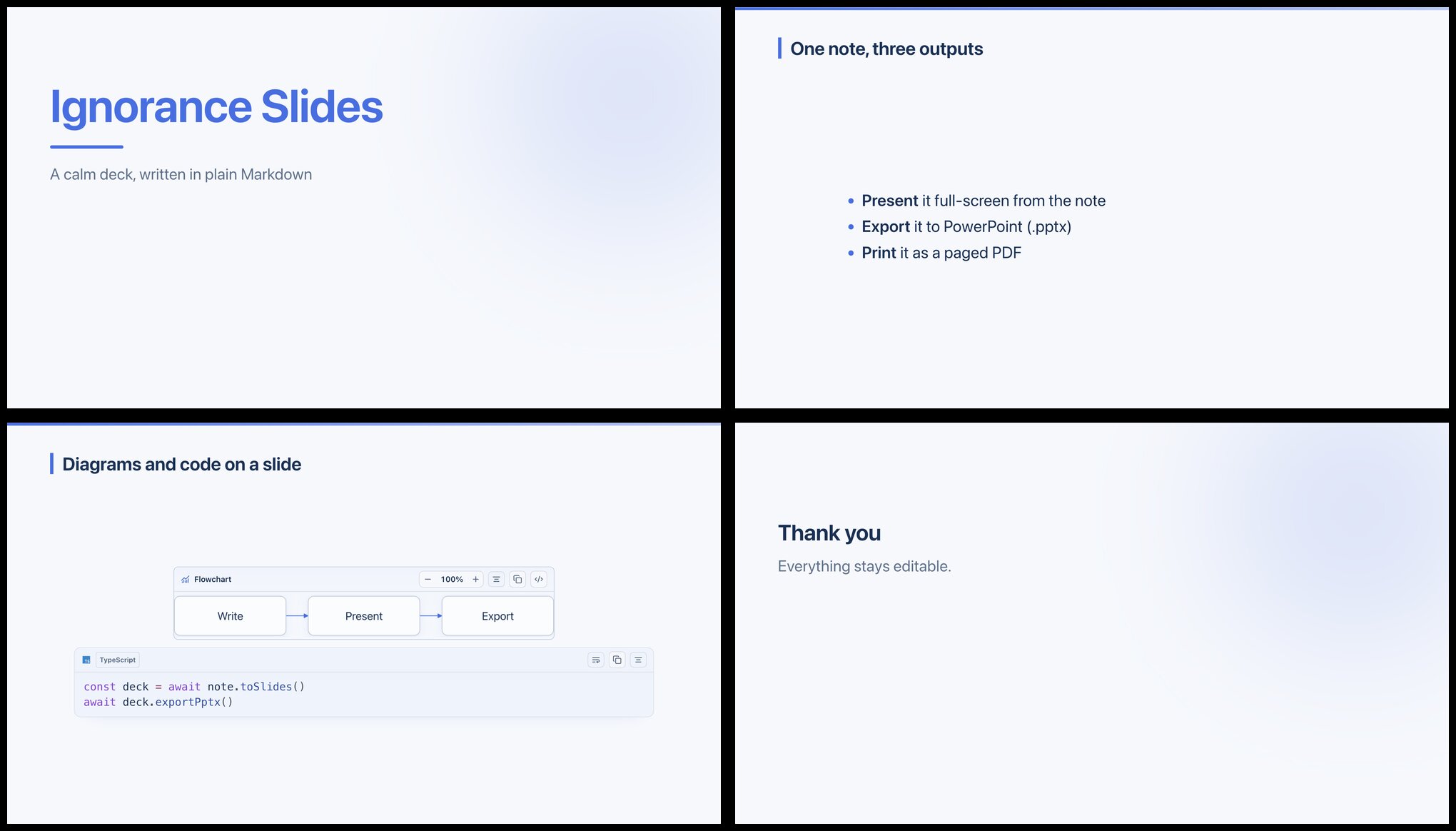
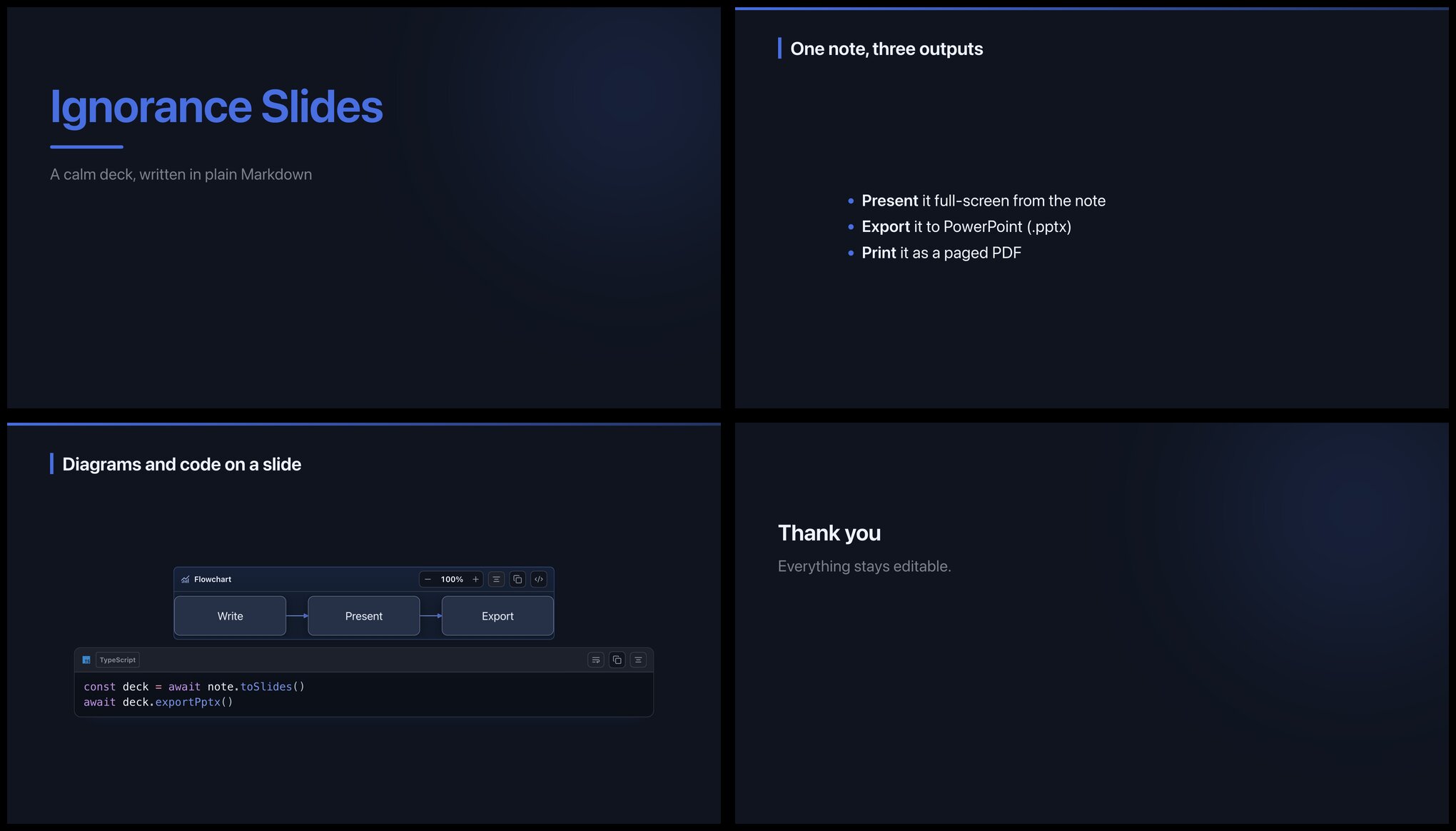
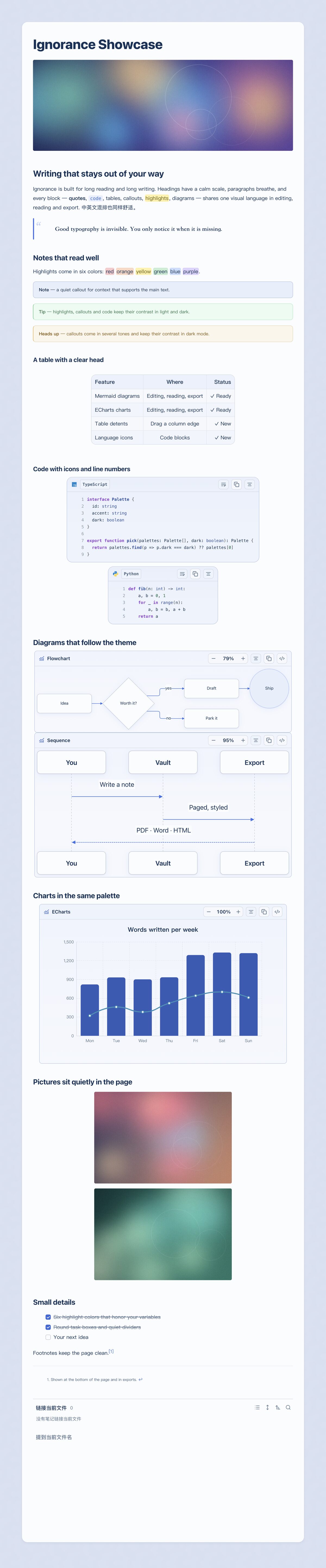
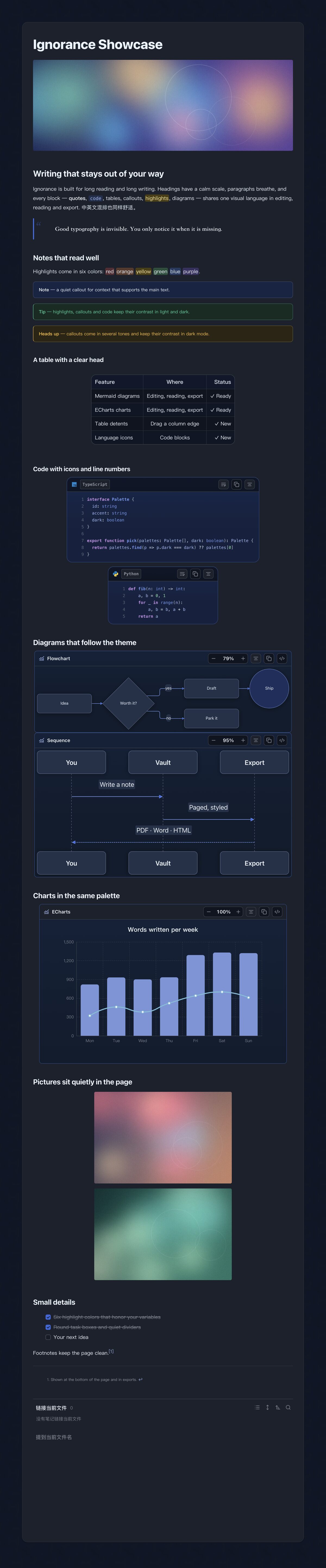
> The theme owns the look; the plugin adds what CSS cannot do. It works with other themes too, but its controls are designed around the theme's tokens and look plainer without it. ## Palettes: eight, one click Choose Azure, Pine, Book, Graphite, Terracotta, Teal, Wisteria or Amber in the plugin settings, each tuned for light and dark (see the animations above). ## Features ### Mermaid enhancement Mermaid 12 (with ELK layout and ZenUML), recolored to the active theme and palette in light and dark. Each diagram has zoom, copy / edit source, left / center / right placement and drag-to-resize width (saved on the fence as `{align=center} {width=560}`). ### ECharts enhancement Apache ECharts blocks render in place, follow the theme palette, and share the same controls as Mermaid. ### Table enhancement Drag column and row edges with detents (fit-to-content or equal share; Alt drags freely, Shift steps by 10 px). A size menu fits all columns, equalizes, fills the text width or resets; double-click an edge to fit it; left / center / right placement. Buttons appear on hover and work on mobile. ### Presentations (PPT) Turn any note into a deck with `---` between slides: full-screen presenting, diagrams and code blocks carried onto the slide as-is, **PPTX export**, or a paged PDF. The note stays plain Markdown and editable.
### Code blocks A searchable language picker (type `py`, `ts`, `sql`), 130+ languages, language icons, line numbers, copy, soft wrap. The file explorer gets Material Icon Theme file icons, with distinct open, closed and empty folders. ### Images Align, resize with eight handles, copy, remove, and **crop** (then replace the original or add a new image). ### Reading and export A page toolbar (content width, paper size, margins, page numbers, a paged view that matches PDF output). Export to PDF, Word, PowerPoint, images, and a standalone offline HTML reader with table of contents, search and a light/dark switch. ### And more Tab reuse, typewriter and focus modes, smart punctuation, `==🟢colored==` highlights, web clipping, and Markdown import from Word, PDF, Excel, PowerPoint and more (desktop). ## Long preview
## Install - **Community plugins**: Settings → Community plugins → Browse → search "Ignorance Advanced". ([plugin page](https://community.obsidian.md/plugins/ignorance-advanced)) - **Manual**: download `main.js`, `manifest.json` and `styles.css` from the [latest release](https://github.com/ignorance-shiyao/obsidian-ignorance-advanced/releases/latest) into `/.obsidian/plugins/ignorance-advanced/`, then enable it. - **Theme**: install [Ignorance](https://community.obsidian.md/themes/ignorance) from Settings → Appearance for the full look. Requires Obsidian 1.8.7 or later. Works on desktop and mobile; Word/PDF import and some exports need the desktop app. ## Usage - **Diagrams and charts**: write a fenced block with the language `mermaid` or `echarts`. It renders in Live Preview and Reading view; hover it for zoom, copy, edit-source and alignment controls, and drag its edges to resize. - **Tables**: drag a column or row edge to resize; Alt drags freely, Shift steps by 10 px, double-click an edge to fit it. - **Images**: click an image to align, resize or crop it. - **Code blocks**: click the language label to search the language list; line numbers and soft wrap are in the block toolbar. - **Presentations**: separate slides with a line containing `---`, then use the *Presentation* button in the page toolbar at the top of the note (or run *Open presentation mode* from the command palette). - **Presenting aids**: the presentation toolbar and the fullscreen bar have a laser pointer (a red dot that follows the mouse) and a spotlight (only the area around the mouse stays bright); click again to turn off. "Step by step" shows the next block of a slide before moving to the next slide, and "Quiet view" hides the toolbar until the mouse reaches the top. - **Inline components**: `((green:build | passed))` two-part badge, `((spoiler:answer))` click to reveal, `((ruby:汉字 | hànzì))` ruby annotation, `((crumb:Settings > Appearance > Themes))` breadcrumb, plus `((bar:72:progress))` and `((spark:3,5,2))`. - **Image compare**: put two images inside `::: compare`; drag the divider in Reading view, and exports show them side by side. - **Click-to-play GIFs**: write `click` in a GIF's alt text (`![click|400](a.gif)`); it shows its first frame with a play badge, plays on click and stops on the next click; exports keep the still frame. - **Image filters**: write `gray`, `sepia`, `invert`, `dark-invert` (inverts only in dark mode) or `blur` (clears on hover) in the image's alt text, for example `![left|gray|400](a.png)`. - **Tabs**: wrap `::: tab Title` blocks in `::: tabs`; click a title in Reading view to switch, and print or export lays every panel out in order. - **Table extras**: a cell holding only `<` joins the cell on its left, only `^` joins the cell above, and `[ ]` / `[x]` show as boxes. In a right-aligned column (`---:`) integers of five or more digits get thousands separators and `72%` draws a bar; a row whose first cell starts with `>` becomes a child of the row above, which gets a fold button; tables over 16 rows scroll inside their own frame with a frozen header in Reading view. - **Captions and cross references**: turn on "Figure and table captions" in settings, or add `ib-captions` to a note's `cssclasses`. An image alone on a line, `![Architecture {#fig-arch}](a.png)`, shows as "Figure 1 Architecture"; a line `Table: Quarterly revenue {#tab-q}` under a table shows as "Table 1 …"; `Listing: …` under a code block and `Equation: …` under a `$$` equation are numbered the same way; refer to either with `((ref:fig-arch))`, which links to it. - **Card layout**: add `ib-cards` to a note's `cssclasses` and every H2 section is drawn as a card in Reading view. - **Table crosshair**: turn it on in settings, or add `ib-crosshair` to a note's `cssclasses`, and pointing at a cell in Reading view lights up its row and column. - **Long code blocks folded**: with the setting on, code blocks over 40 lines show only their start in Reading view with a "Show all" button; paged reading and exports always keep them whole. - **Unpublished content**: strike a whole heading through (`## ~~Draft~~`) and that section, sub-sections included, is dimmed and marked in Reading view, left out of paged reading and exports, and does not take a number. - **Heading numbers**: turn on "Heading numbers" in settings, or add `ib-numbered` to a note's `cssclasses`, to show 1, 1.1, 1.1.1 before headings in Reading view and Live Preview; a setting switches to a Chinese 一、(一) style. - **Navigation**: the "Jump to a heading, figure, table or code block" command lists headings, images, tables, code blocks and diagrams of the current note; type to filter, Enter to jump. - **Navigation sidebar**: the "Open navigation in the sidebar" command keeps the same list open on the right; it follows the current note, filters as you type, and jumps on click. - **Link check**: run "Check links and headings in the current note" from the command palette to list missing notes, missing embeds, broken heading links and duplicate headings; click a row to jump there. - **Batch clipping**: the "Clip web pages in bulk" command takes many links at once and skips ones already clipped; "Sort by site" in settings files clippings into one sub-folder per website. - **Gray mode**: list dates in settings (for example `4-4`) and the whole interface turns grayscale on those days; off by default. - **Reading time**: on desktop the status bar shows the estimated reading time of the current note; turn it off in settings. - **Cover**: add `ib-cover` to a note's `cssclasses` and Reading view opens with a cover built from the properties (`title`, `subtitle` or `description`, `author`, `date` or `created`, `tags`); the inline title is hidden. - **Page footer**: "Footer" in the page settings menu puts text at the bottom left of every page in the paged view and in exports, with `{title}`, `{page}`, `{pages}` and `{date}`. - **Layout presets**: "Layout presets" in the page settings menu fills in paper, margins and page numbers for a paper, a report, an official document or a blog post; every value can still be changed afterwards. - **Export**: use the export button in the page toolbar to produce PDF, Word, PowerPoint, images or an offline HTML reader. - **Settings**: Settings → Ignorance Advanced (palette, page layout, highlight colors, tab behavior). ## Privacy and network use - No telemetry, no analytics, no ads. - Nothing is downloaded or updated by the plugin itself. All libraries (Mermaid, ECharts, the export engines…) are compressed inside `main.js`, which is why it is about 7 MB, and are unpacked only when a feature needs them. - Network requests happen only when you ask for them: fetching a web page you clip, an image URL you export or copy, or a cover image URL you set in a note. - **Files outside the vault (desktop only, and only when you ask):** saving an export to a location you choose; opening a file from your notes in an external app you name; opening and editing Markdown files that live outside the vault; unpacking the Word / PDF import converters into the system temp folder; calling Pandoc for Word export if you have it installed. These features need Node.js and Electron, so they stay off on mobile; everything else works on both. ## Build from source ```bash npm install npm run build # writes dist/main.js, dist/styles.css, dist/manifest.json npm test OBSIDIAN_VAULT=/path/to/vault npm run install:vault # build and copy into a vault ``` ## Feedback If you run into a problem or want a feature, please [open an issue](https://github.com/ignorance-shiyao/obsidian-ignorance-advanced/issues). A screenshot, your Obsidian version and the platform (desktop or mobile) help a lot. ## Support If this is useful to you, you can buy me a coffee. Thank you! | WeChat | Alipay | | --- | --- | | ![WeChat](docs/assets/coffee-wechat.png) | ![Alipay](docs/assets/coffee-alipay.png) | ## License [MIT](LICENSE). Third-party software is listed in [THIRD_PARTY_NOTICES.md](THIRD_PARTY_NOTICES.md); license texts are in [`licenses/`](licenses).