# Cluster Export
An Obsidian plugin for exporting a topic's worth of notes when they aren't in
one folder. Start from a note, shape the cluster in a graph, and export it as
plain Markdown with an `assets/` folder. Clusters
can stay in sync with the vault, much like Better Bibtex's "Keep updated" for
exported bibliographies in Zotero.
Desktop only. It reads and writes files outside the vault, but only in the
export folders you pick. It reads your vault notes and attachments through
Obsidian's API and makes no network requests.
If you, like me, use the something along the lines of Zettelkasten and follow the
recommendations of people like [Steph Ango](https://stephango.com/vault), you
probably have a pretty flat folder structure. I have never been unhappy with
that decision, organic growth of structure is awesome, but there is one thing
that nags me.
Sometimes I want to take some of my notes into a repo for collaborators,
because sharing is caring especially when it comes to knowledge. The first issue
with this is that my notes are organized by links, and there is not really a
folder to copy. Picking them out one by one is crazy tedious to me, so I wont do
it in the end. Second
issue is the moment I carry them over to a repo they are disconnected from my
vault. I also want to share updates with my friends and collaborators, and I
want to be able to pull in their updates (intentionally not automatically).
Here is an attempt of solving this issue, hope you like it.
Little note: This is also a great way to share a cluster of ideas with an
LLM agent if you are also to sceptical to hook this thing directly into your
Vault root.
I think the graph-based approach makes the whole process quite intuitive and a
pleasure to use. It is the mental model of how a densely linked vault works
anyway. Hope you get some value out of it.
## Building a cluster
Open it from the ribbon icon, the command **New cluster from current note**, or
**Export cluster from this note** in a note's context menu.
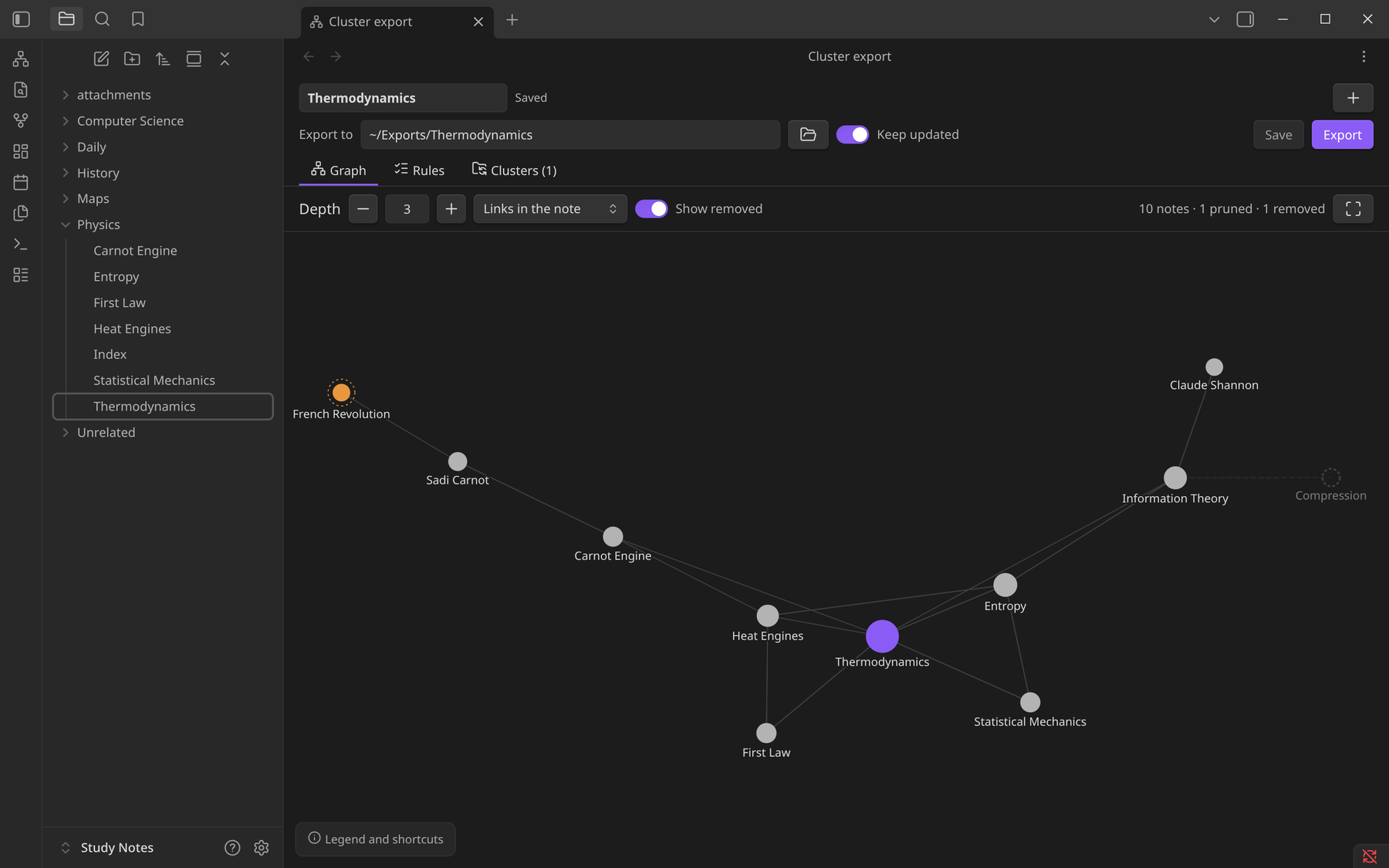
**Graph tab**
- **Depth** sets how many links away from the start note(s) to go.
- **Links in the note / Backlinks / Links and backlinks** sets which
direction links are followed.
- Click a note for its options:
- **Prune** keeps the note but stops following its links (orange).
- **Remove from cluster** leaves the note out and stops the walk through it.
Removed notes stay visible as faded dashed circles; click one to put it back.
- **Use as start note** adds another root.
- Shortcuts: Shift-click prunes, Alt-click removes, double-click opens the note.
- A dashed halo means the note has more links beyond the current depth.
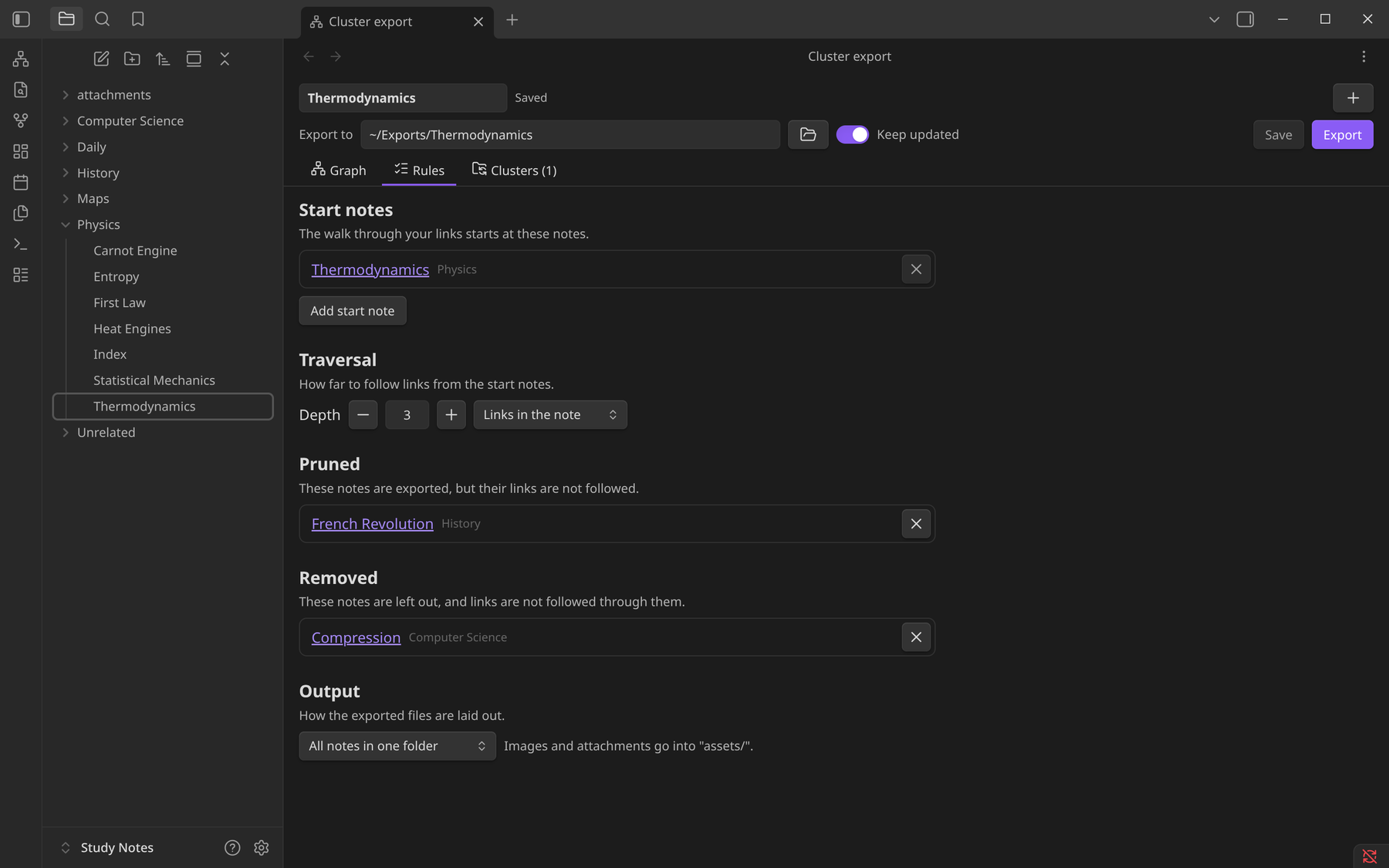
**Rules tab** lists every start note, pruned note and removed note, and lets you
undo any of them. This is also where you choose between a flat layout (all
notes in one folder) and keeping the vault's folder structure.
Set the **Export to** folder (it has to be outside the vault) and press
**Export**. **Save** stores the cluster without exporting it.
## What the export looks like
```
my-export/
├── Topic.md
├── Sub Note.md
└── assets/
└── diagram.png
```
- `[[Note]]`, `[[Note|alias]]` and `[[Note#Heading]]` become relative links such
as `[alias](Note.md#heading)`.
- Links to notes that aren't in the cluster become plain text.
- `![[image.png]]` becomes `` and the image is copied
to `assets/`. Other attachments, such as PDFs, are copied too and linked.
Image sizes (`|300`) are dropped unless **Keep image sizes** is on, which
writes an `![]() ` tag instead.
- Standard Markdown links to notes and attachments are rewritten the same way.
External links, code blocks, inline code and frontmatter are left alone.
## Keeping clusters updated
Turn on **Keep updated** for a cluster, in the editor or in the **Clusters**
tab. From then on:
- When Obsidian starts, every such cluster is checked, which picks up edits
made while Obsidian was closed.
- Whenever a note changes, the export is updated a few seconds later. The rules
are applied again, so notes that newly match the cluster are added, and ones
that no longer match are removed.
- Only files whose content changed are rewritten.
- Renaming a note updates the rules that mention it.
The **Clusters** tab lists every saved cluster with its export folder, when it
was last synced, and any errors. It also has **Sync now**, **Open folder** and
**Delete**. Deleting a cluster never deletes exported files.
Some safety rules:
- The plugin only deletes files it wrote itself. Anything else in the export
folder is left alone.
- If none of the start notes exist any more, or the export folder has gone
missing, nothing is written and the error is shown instead.
- An exported file that was edited outside the vault is never overwritten
without asking (see below).
## Changes made outside the vault
Exported files can be edited in another editor and the changes brought back.
This is never automatic: syncing only looks at changes in the vault.
- When a note changes in the vault but its exported copy was edited too, the
sync leaves that file alone and shows a notice. Its entry in the **Clusters**
tab lists it as well.
- **Check for external changes** looks for edited exported notes, either in all
clusters (top of the **Clusters** tab, or the command **Check all clusters
for changes outside the vault**) or in one cluster (the button on its entry).
It only reports what it finds; nothing is written.
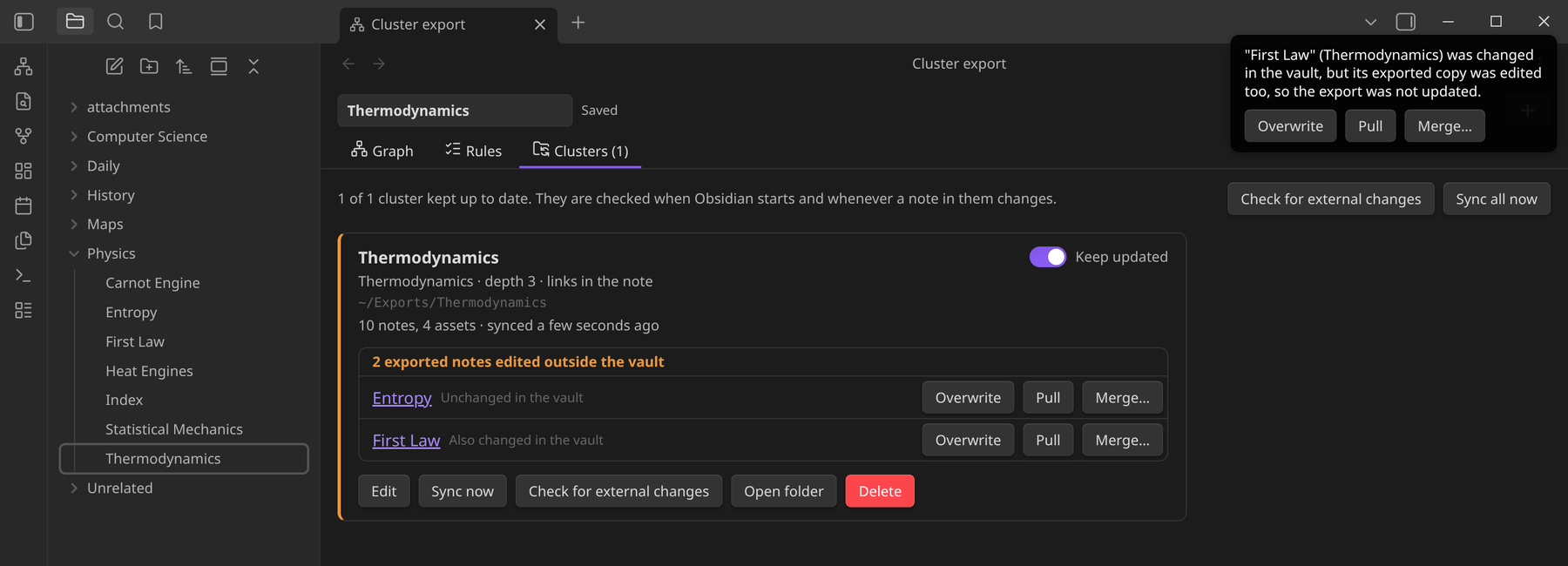
Each edited note gets three buttons:
- **Overwrite** replaces the exported copy with the vault note.
- **Pull** replaces the vault note with the exported copy.
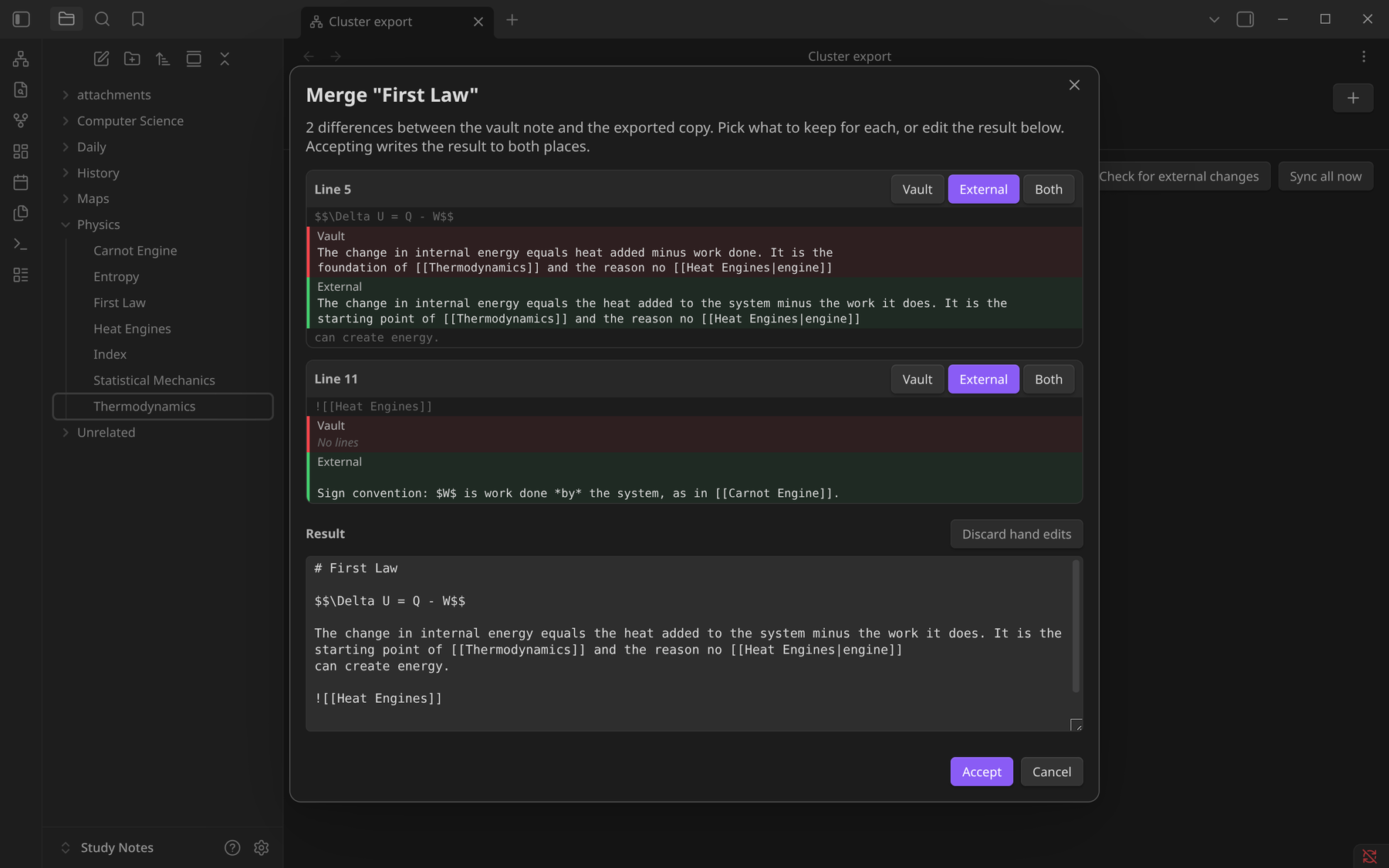
- **Merge…** shows each difference between the two, lets you keep the vault
version, the external one or both, and lets you edit the result by hand.
**Accept** saves the result in the vault and in the export.
When pulling, lines that weren't edited outside the vault keep their original
vault text, so wikilinks and links to notes outside the cluster stay as they
were. In edited lines, links to exported notes and attachments are turned back
into wikilinks. Pulling brings back text only: a new image added to the export
folder is not copied into the vault.
If a note leaves the cluster and its exported copy was edited, the copy is kept
rather than deleted.
## Development
```sh
npm install
npm run dev # watch build to main.js
npm run build # type-check + production build
npm test # converter, graph and exporter tests
```
To release, push a tag named for the version (e.g. `0.2.0`). The workflow in
`.github/workflows/main.yml` writes that version into `manifest.json`,
`versions.json` and `package.json` via `version-bump.mjs`, commits the bump,
moves the tag onto that commit, builds, and attaches `main.js`, `manifest.json`
and `styles.css` to the release.
Every successful build is also installed into `test-vault/`, an example vault
with notes spread across folders, attachments, a long link chain and a
backlink-only note (see `test-vault/_Test Guide.md`). Open that folder as a
vault in Obsidian and enable the plugin under Settings → Community plugins.
With the Hot Reload plugin installed there, each rebuild is picked up
automatically.
To use it in another vault, copy `main.js`, `manifest.json` and `styles.css`
into `/.obsidian/plugins/cluster-export/`.
` tag instead.
- Standard Markdown links to notes and attachments are rewritten the same way.
External links, code blocks, inline code and frontmatter are left alone.
## Keeping clusters updated
Turn on **Keep updated** for a cluster, in the editor or in the **Clusters**
tab. From then on:
- When Obsidian starts, every such cluster is checked, which picks up edits
made while Obsidian was closed.
- Whenever a note changes, the export is updated a few seconds later. The rules
are applied again, so notes that newly match the cluster are added, and ones
that no longer match are removed.
- Only files whose content changed are rewritten.
- Renaming a note updates the rules that mention it.
The **Clusters** tab lists every saved cluster with its export folder, when it
was last synced, and any errors. It also has **Sync now**, **Open folder** and
**Delete**. Deleting a cluster never deletes exported files.
Some safety rules:
- The plugin only deletes files it wrote itself. Anything else in the export
folder is left alone.
- If none of the start notes exist any more, or the export folder has gone
missing, nothing is written and the error is shown instead.
- An exported file that was edited outside the vault is never overwritten
without asking (see below).
## Changes made outside the vault
Exported files can be edited in another editor and the changes brought back.
This is never automatic: syncing only looks at changes in the vault.
- When a note changes in the vault but its exported copy was edited too, the
sync leaves that file alone and shows a notice. Its entry in the **Clusters**
tab lists it as well.
- **Check for external changes** looks for edited exported notes, either in all
clusters (top of the **Clusters** tab, or the command **Check all clusters
for changes outside the vault**) or in one cluster (the button on its entry).
It only reports what it finds; nothing is written.

Each edited note gets three buttons:
- **Overwrite** replaces the exported copy with the vault note.
- **Pull** replaces the vault note with the exported copy.
- **Merge…** shows each difference between the two, lets you keep the vault
version, the external one or both, and lets you edit the result by hand.
**Accept** saves the result in the vault and in the export.

When pulling, lines that weren't edited outside the vault keep their original
vault text, so wikilinks and links to notes outside the cluster stay as they
were. In edited lines, links to exported notes and attachments are turned back
into wikilinks. Pulling brings back text only: a new image added to the export
folder is not copied into the vault.
If a note leaves the cluster and its exported copy was edited, the copy is kept
rather than deleted.
## Development
```sh
npm install
npm run dev # watch build to main.js
npm run build # type-check + production build
npm test # converter, graph and exporter tests
```
To release, push a tag named for the version (e.g. `0.2.0`). The workflow in
`.github/workflows/main.yml` writes that version into `manifest.json`,
`versions.json` and `package.json` via `version-bump.mjs`, commits the bump,
moves the tag onto that commit, builds, and attaches `main.js`, `manifest.json`
and `styles.css` to the release.
Every successful build is also installed into `test-vault/`, an example vault
with notes spread across folders, attachments, a long link chain and a
backlink-only note (see `test-vault/_Test Guide.md`). Open that folder as a
vault in Obsidian and enable the plugin under Settings → Community plugins.
With the Hot Reload plugin installed there, each rebuild is picked up
automatically.
To use it in another vault, copy `main.js`, `manifest.json` and `styles.css`
into `/.obsidian/plugins/cluster-export/`.