# Canvas Folding
Canvas Folding adds hierarchical folding, level views, and branch focus to the
standard Obsidian Canvas. Its own branch, group, and focus states remain outside
the `.canvas` file.
Requires Obsidian 1.13.0 or later. Canvas Folding works on desktop and mobile
and has no dependency on Advanced Canvas.
## Tested platforms
The current plugin has been manually tested on:
- Windows 11;
- macOS;
- iPadOS;
- iOS.
The compact node-control geometry and its neutral highlight states were also
verified with Obsidian's default theme, Minimal 9.0.2, and AnuPpuccin 1.5.0 on
macOS, iPadOS, and iOS. The AnuPpuccin pass used Style Settings 1.0.9 with the
maintained test profile.
If Canvas Folding is useful to you, you can support its continued development
by buying me a coffee.
 ## Features
- Collapse or expand one or more selected branches recursively in one action.
- Collapse every rooted branch while keeping roots and isolated nodes visible.
- Collapse or expand every Canvas group by geometric containment, including
empty and nested groups.
- Show the complete Canvas through a chosen global level.
- Show one node, a limited number of levels, or an entire branch from a node
control.
- Focus any node, group, or complete branch while dimming and protecting the
remaining Canvas context.
- Use folding controls with hidden-item counts on parent nodes and focus
controls on visible, expanded nodes and groups, including leaves.
- Show or hide folding and focus controls independently without changing the
current view state.
- Use a movable, responsive Canvas Folding toolbar.
- Keep state separately for each open Canvas tab.
- Optionally restore states between sessions without modifying Canvas files.
- React to node and edge changes, undo/redo, duplication, and Canvas re-renders.
- Handle multiple roots, multiple parents, shared descendants, cross-links,
cycles, groups, text, file, image, and link nodes.
- Expose an optional versioned API for other plugins.
## Tested alongside Advanced Canvas
Canvas Folding does not require Advanced Canvas, but both plugins can remain
enabled and work alongside each other. Canvas Folding 1.0.0 completed an
extensive coexistence matrix with Advanced Canvas 6.5.4 and Obsidian 1.13.7 on
macOS, iPadOS, and iOS.
The tests covered plugin load order and restarts, node and edge editing,
different node types and shapes, nested groups, shared descendants, cycles,
focus, levels, persistence, multiple Canvas tabs, undo/redo, and desktop and
touch interaction. No unintended mutual interference was found in the
supported standard Canvas features: each plugin retains its own controls and
state, and using one plugin does not silently change the state owned by the
other. See [Using Canvas Folding with Advanced Canvas](#using-canvas-folding-with-advanced-canvas)
for the few details worth knowing when both plugins hide content.
Before the 1.1.0 release, the changed controls, connected groups, branch focus,
shared-parent behavior, editing, undo/redo, and plugin lifecycle also passed a
focused regression test with Advanced Canvas 7.0.0 on macOS.
## Visual guide
### Collapse and expand branches
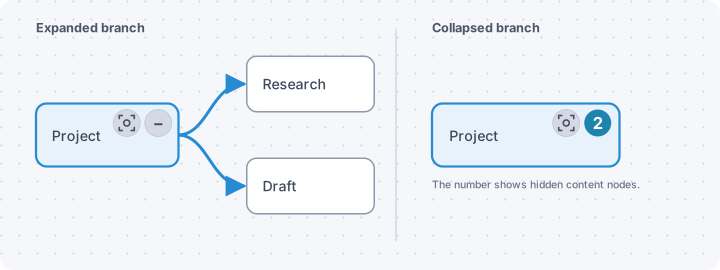
Each eligible node shows its compact controls inside the upper-right corner,
beyond the native resize border. The `−` control collapses the complete directed
branch. Its replacement shows the total number of hidden nodes and groups, so
folded state stays readable across the Canvas. The control grows leftward for
two- or three-digit counts.
### Use the control tooltips
On desktop, pause the pointer over a folding control. Its tooltip states whether
the click will collapse or expand the branch, breaks the hidden total down into
nodes and groups, and points to the branch display menu.
The tooltip is especially useful with Advanced Canvas: if an Advanced Canvas
group currently hides descendants, it says how many are hidden there and
explains that Canvas Folding preserves the group's own collapsed state.
On touch devices, where hover is unavailable, long-press the control; an
Advanced Canvas notice with the hidden-descendant count appears at the top of
the branch display menu.
### Choose visible branch levels
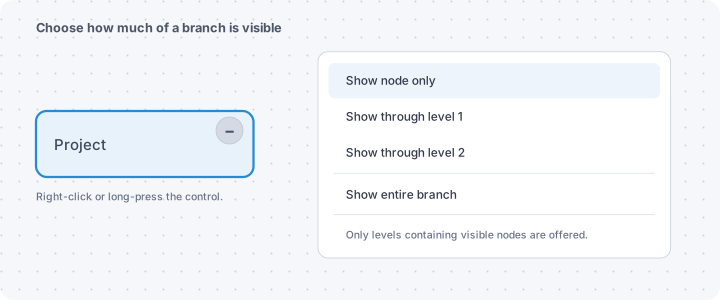
Right-click or long-press a node control to show only the parent, reveal a
specific number of descendant levels, or show the entire branch.
### Focus a branch
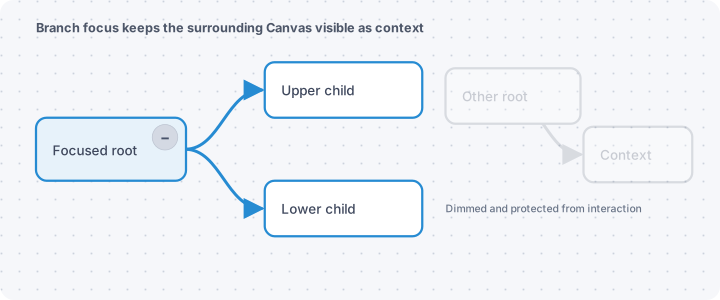
Focus mode keeps the selected branch fully active while dimming and protecting
the surrounding Canvas. The wider context remains visible without distracting
from the branch being worked on.
Use the focus symbol on any node or group to enter focus directly. Items without
children receive the same control, so they can be focused individually. Click
the active focus control again, or use the toolbar focus action, to exit.
Focusing a group keeps the group and every item geometrically contained by it
fully active while unrelated Canvas content is dimmed.
## Quick start
1. [Install Canvas Folding](#installation), enable it, and open a Canvas.
2. Use directed edges from parent to child to define the hierarchy.
3. Click or tap a parent's `−` control, or select the parent and use the Canvas
Folding toolbar. Right-click or long-press the control to choose a visible
branch level.
4. Optionally enable **Remember canvas states between sessions** to restore
folding states after closing a tab or restarting Obsidian.
## How folding works
Canvas Folding interprets directed Canvas edges as hierarchy:
`fromNode` → `toNode`. A node can therefore have multiple parents, and the
Canvas is treated as a general directed graph rather than as a strict tree.
Traversal is deterministic and cycle-safe.
Global Canvas levels are measured from root nodes, meaning nodes without an
incoming edge. Level 0 contains the roots, level 1 their direct children, and
each following level the next generation of directed descendants. If a node is
reachable through multiple roots or paths, its shortest directed distance from
any root determines its level. A Canvas without a root has no global level
view, but its individual branch controls remain available.
Parent nodes receive a directly visible branch-folding control inside their
upper-right corner. When descendants are hidden, it displays the total number
of hidden nodes and groups. The tooltip reports both categories separately:
- Click or tap the control to collapse or expand the complete branch.
- On desktop, hover over it to read its action, descendant count, and any
additional Advanced Canvas collapsed-group information.
- Open its context menu to show only the node, show through a selected level,
or show the entire branch.
- Shared descendants stay visible automatically while another open parent
branch still reaches them. Folding hides only exclusive descendants and the
connections belonging to the collapsed branch.
Every group also receives its own `−`/`+` control in a square, group-colored
frame matching the group-name height directly to the right of its name.
Collapsing it hides every
fully contained node and nested group together with all incident edges and edge
labels. Empty groups can be collapsed too. Group-folding and directed
branch-folding states stay independent; **Expand all branches** clears both.
Every visible, expanded node and group also receives a focus control. A
collapsed parent or group shows only its applicable folding controls; its focus
control returns when it is expanded, provided focus controls are enabled. Folding controls
and focus controls can be hidden independently through the toolbar or command
palette. Hiding either kind of control changes only the interface: it does not
expand branches or end an active focus.
On touch devices, the same compact controls remain directly available without
selection; the Canvas toolbar provides an additional route for selected-branch
actions. Controls occupy only the upper-right interior, leaving the complete
node border available for native resizing. Folded branches keep their count or
`+` indicator visible across the Canvas.
When a group is focused, its geometrically contained items belong to the focus
area even when they have no directed edge from that group.
When the Advanced Canvas plugin is active, its familiar group switches stay
to the left of the group names. Canvas Folding does not show its new right-hand
group switches and internally disables its own group-folding mechanism. It does
not duplicate or override Advanced Canvas controls. Branch folding and focus
remain independent and continue to be available where their nodes are visible.
Hidden nodes also hide every incident edge, including edge labels. A collapsed
branch connection can remain hidden while its shared endpoint stays visible
through another open parent. An unconnected non-empty Canvas group is hidden
when all non-group nodes geometrically contained by it are hidden. A group
connected through directed edges follows its own branch instead: hiding a
separate branch inside it does not hide the group frame. Empty groups remain
visible unless the group itself is a directed descendant of a folded parent.
When a group is hidden as such a descendant, every node geometrically contained
by it is hidden as well, even without a separate parent edge.
If this makes every descendant of another visible node unavailable, that
node's folding control stays in place but is disabled with the explanation
**Branch hidden by folded group**. Its existing branch state is preserved and
the control becomes active again when the group branch is expanded.
## Canvas toolbar
The optional toolbar provides the main Canvas Folding actions directly in the
Canvas. Drag its handle to move it, or focus the handle and use the arrow keys.
On narrow views and mobile devices, the toolbar can be scrolled horizontally.

The toolbar includes actions for:
- one or more selected branches: collapse and expand every applicable branch;
- the whole Canvas: collapse all rooted branches, select a global visible
level, and expand all branches;
- showing or hiding folding controls;
- showing or hiding focus controls, followed by entering or exiting focus;
- inspecting the graph;
- showing the current state;
- hiding the toolbar itself.
Unavailable actions are disabled. The toolbar can always be shown, hidden,
toggled, or reset through the command palette.
## Commands
All commands are available from the command palette when their Canvas context
is valid:
| Command | Purpose |
| --- | --- |
| `Collapse selected branch` | Hide all directed descendants of every applicable selected node. |
| `Expand selected branch` | Reveal every applicable folded branch in the selection. |
| `Focus selected branch` | Keep the selected node and descendants active while dimming the rest. |
| `Exit branch focus` | Remove focus without changing the underlying fold state. |
| `Collapse all branches` | Collapse every rooted branch. |
| `Show canvas through level…` | Set one visible depth for all rooted branches. |
| `Expand all branches` | Clear all folding and level restrictions. |
| `Show branch controls` | Display folding controls on parent nodes. |
| `Hide branch controls` | Hide folding controls in the current session without changing folded branches. |
| `Toggle branch controls` | Switch the branch controls between visible and hidden. |
| `Show focus controls` | Display focus controls on visible, expanded nodes and groups, including leaves. |
| `Hide focus controls` | Hide focus controls without ending an active focus. |
| `Toggle focus controls` | Switch the focus controls between visible and hidden. |
| `Show canvas toolbar` | Display the Canvas Folding toolbar. |
| `Hide canvas toolbar` | Hide the Canvas Folding toolbar. |
| `Toggle canvas toolbar` | Switch the Canvas Folding toolbar between visible and hidden. |
| `Reset canvas toolbar position` | Return the toolbar to its default position. |
| `Inspect active canvas graph` | Report the recognized graph structure. |
| `Show current status` | Report visible-state counts, focus, controls, and persistence status. |
## Keyboard and touch
Node controls follow a depth-first Tab order. On a node, its focus control
comes before its folding control. Upper child branches are visited completely
before lower sibling branches. If exactly one node is selected, navigation
starts at that node's first available control.
- `Enter` or `Space` activates a node control or toolbar action.
- The keyboard context-menu key opens the branch-level menu from a folding
control.
- Arrow keys move the focused toolbar handle.
- Keyboard focus remains on the invoked control after an action.
Node controls keep their compact desktop size on coarse-pointer devices so
they cover less card content; Canvas zoom remains available for closer touch
interaction. The toolbar supports horizontal touch scrolling and dragging.
Canvas node selection remains native on iPhone and iPad. Long-press access to
the branch-level menu depends on
whether the installed Obsidian/WebView version emits a context-menu event.
## State and persistence
By default, fold state, level restrictions, temporary branch-display
exceptions, and branch focus are remembered only in the open Canvas tab.
Navigating to another file and back in that tab restores its state; closing
the tab discards it.
Enable **Remember canvas states between sessions** to also restore state in new
tabs and after restarting Obsidian or the plugin. The data is stored in Canvas
Folding's local `data.json`, never in the `.canvas` file. Entries for deleted or
renamed Canvas files follow actual Vault events, and stale node IDs are cleaned
after actual Canvas modifications. Temporary runtime unavailability during
plugin startup or updates and opening the state manager never remove saved
states. Every entry can be reviewed or removed explicitly from the settings.
Turning persistence off does not delete existing saved states. Changes made
while it is off remain limited to the current tab. Turning persistence on again
discards those temporary changes and restores the previously saved states.
Canvases without an existing saved state return to their default expanded
state.
Canvas Folding does not synchronize settings or persisted states between
devices. They belong to the local Obsidian plugin configuration, so the same
Canvas can intentionally have different folding states on a Mac, iPhone, and
iPad. If Obsidian Sync or another synchronization system is configured to sync
plugin settings and data, it may also transfer Canvas Folding's `data.json`;
that behavior is controlled by the synchronization setup, not by Canvas
Folding.
If an older Canvas Folding version encounters plugin data written by a newer
schema version, it preserves that data and shows a notice instead of
overwriting unknown fields. Existing settings and saved states remain
read-only, while folding continues to work temporarily in open tabs. Reinstall
the newer plugin version to resume persistence.
## Installation
Install Canvas Folding directly from **Settings → Community plugins → Browse**
in Obsidian.
For a manual installation, download `main.js`, `manifest.json`, and `styles.css`
from a GitHub release and place them in:
```text
/.obsidian/plugins/canvas-folding/
```
Then reload Obsidian and enable **Canvas Folding** under Community plugins.
## Demo Canvas
The repository includes a documented demo covering a basic tree, a shared
descendant, a cycle, an isolated node, groups, and different node types:
[`examples/Canvas Folding Demo/`](examples/Canvas%20Folding%20Demo/README.md).
Copy the complete **Canvas Folding Demo** folder to the root of a vault and
open `Canvas Folding Demo/Canvas Folding Demo.canvas`. The explanatory cards
on the Canvas suggest actions and describe the expected result.
Focused regression fixtures and the full manual V1 test matrix remain
separately available under [`manual-tests/`](manual-tests/README.md).
## Settings
The settings page starts with a reminder that Canvas Folding stores its own
folding state outside Canvas files. It also explains the one-time normalization
that can be needed when control returns from a collapsed Advanced Canvas group.
- **Show canvas toolbar initially** controls the toolbar's state when the plugin
loads. Commands can change it at any time.
- **Show branch controls initially** controls node buttons when the plugin
loads. Commands can change them at any time.
- **Show focus controls initially** controls the focus symbols on all visible
nodes and groups. Commands can change them at any time.
- **Background opacity during branch focus** controls how strongly unrelated
Canvas content is dimmed.
- **Remember canvas states between sessions** enables persistent state.
- **Show status notices** enables action confirmations.
- **Manage persisted canvas states** lists the Canvas name, full path and remove
action for every cross-session state. Click **Canvas** or **Path** to sort in
either direction. Longer lists scroll vertically while the column header and
**Remove all** action remain available. Opening the manager is read-only;
entries change only after an actual Vault event or an explicit **Remove** or
**Remove all** action. Currently open tabs keep their session state.
- **Debug logging** writes diagnostic details to the developer console.
## Update Description
After an update with new user-facing features, Canvas Folding opens a
Markdown-rendered `What's new` view once. Closing it removes the view
completely; no release-note file is created in the Vault and it does not reopen
on every Obsidian start.
Use **Show last update** at the bottom of the plugin settings to open the
description again at any time. Use **Show readme** beside it to open this
complete documentation locally inside Obsidian. The repository keeps the same
text in [`Last Update.md`](Last%20Update.md).
## Privacy and data handling
Canvas Folding works entirely locally and sends no Canvas or vault data to
external services. The Ko-fi image in this README is documentation content and
is not loaded or contacted by the installed plugin.
When persistence is enabled, local plugin data contains vault-relative Canvas
paths, node IDs, and visibility settings. Canvas Folding does not write its own
folding state or layout into Canvas files. If Advanced Canvas is disabled while
one of its groups is collapsed, Canvas Folding may normalize that external
collapsed representation once so the original nodes and edges remain available.
## Compatibility and limitations
- Obsidian Canvas currently exposes only some extension points through public
TypeScript APIs. Private runtime access is isolated in a compatibility layer
and guarded defensively.
- Advanced Canvas portals and presentations are not part of this compatibility
guarantee because those experimental features currently have upstream
limitations of their own.
- Long-press context menus depend on the mobile platform and WebView behavior.
- Canvas Folding does not perform automatic layout, graph navigation, or branch
styling.
### Using Canvas Folding with Advanced Canvas
Canvas Folding keeps directed branch folds and its own group folds only in the
current view or, optionally, in Canvas Folding's `data.json`. Advanced Canvas'
collapsible groups have their own controls, history, copy behavior and drag
preview, and store their group state in the Canvas data. When that Advanced
Canvas control is present, Canvas Folding defers group folding for the affected
group to Advanced Canvas instead of showing a duplicate switch.
When both mechanisms are used, check which control owns the hidden content:
- A numbered Canvas Folding control means that Folding currently hides that
many nodes and groups below the branch. Its tooltip separates both counts.
- A Canvas Folding group `−`/`+` appears only when no external group control is
already responsible for that group.
- A Canvas Folding `−` can remain visible while an Advanced Canvas group hides
descendants inside it; the control's tooltip explains this case.
- On touch devices, long-press that control to see an Advanced Canvas notice
with the hidden-descendant count at the top of the branch display menu.
- Expanding one mechanism does not automatically expand the other.
Enabling or disabling Advanced Canvas is handled in the open Canvas. Canvas
Folding removes duplicate controls, restores complete group content when
control returns from a collapsed Advanced Canvas group, and recalculates its
compact edge geometry. This hand-off requires substantial internal coordination
because both plugins use different group-state and rendering models, but it
introduces no dependency between them.
## Public API
Other plugins can optionally discover Canvas Folding by the stable plugin ID
`canvas-folding`. The read-only `CanvasFoldingApi` v1 returns effective hidden
node and edge IDs for a vault-relative Canvas path. It exposes no DOM elements,
Canvas views, workspace leaves, or internal state classes.
See [`docs/api.md`](docs/api.md) for the complete contract and a defensive
discovery example. Consumers must remain functional when Canvas Folding is not
installed, disabled, or exposes an incompatible API version.
## Development
Requires Node.js 20.19 or later.
```bash
npm ci
npm test
npm run build:prod
```
For a local runtime test, explicitly set `OBSIDIAN_PLUGINS_DIR` to the target
vault's `.obsidian/plugins` directory:
```bash
OBSIDIAN_PLUGINS_DIR="/path/to/TestVault/.obsidian/plugins" npm run deploy:test-vault
```
The production release contains `main.js`, `manifest.json`, and `styles.css`.
See [`CONTRIBUTING.md`](CONTRIBUTING.md) and
[`docs/release-checklist.md`](docs/release-checklist.md) for development and
release checks.
## Support and feedback
Please report reproducible problems and feature requests through the
[GitHub issue tracker](https://github.com/HKohlhoff/canvas-folding/issues).
## License
Canvas Folding is licensed under the
[GNU General Public License v3.0 or later](LICENSE).
## Features
- Collapse or expand one or more selected branches recursively in one action.
- Collapse every rooted branch while keeping roots and isolated nodes visible.
- Collapse or expand every Canvas group by geometric containment, including
empty and nested groups.
- Show the complete Canvas through a chosen global level.
- Show one node, a limited number of levels, or an entire branch from a node
control.
- Focus any node, group, or complete branch while dimming and protecting the
remaining Canvas context.
- Use folding controls with hidden-item counts on parent nodes and focus
controls on visible, expanded nodes and groups, including leaves.
- Show or hide folding and focus controls independently without changing the
current view state.
- Use a movable, responsive Canvas Folding toolbar.
- Keep state separately for each open Canvas tab.
- Optionally restore states between sessions without modifying Canvas files.
- React to node and edge changes, undo/redo, duplication, and Canvas re-renders.
- Handle multiple roots, multiple parents, shared descendants, cross-links,
cycles, groups, text, file, image, and link nodes.
- Expose an optional versioned API for other plugins.
## Tested alongside Advanced Canvas
Canvas Folding does not require Advanced Canvas, but both plugins can remain
enabled and work alongside each other. Canvas Folding 1.0.0 completed an
extensive coexistence matrix with Advanced Canvas 6.5.4 and Obsidian 1.13.7 on
macOS, iPadOS, and iOS.
The tests covered plugin load order and restarts, node and edge editing,
different node types and shapes, nested groups, shared descendants, cycles,
focus, levels, persistence, multiple Canvas tabs, undo/redo, and desktop and
touch interaction. No unintended mutual interference was found in the
supported standard Canvas features: each plugin retains its own controls and
state, and using one plugin does not silently change the state owned by the
other. See [Using Canvas Folding with Advanced Canvas](#using-canvas-folding-with-advanced-canvas)
for the few details worth knowing when both plugins hide content.
Before the 1.1.0 release, the changed controls, connected groups, branch focus,
shared-parent behavior, editing, undo/redo, and plugin lifecycle also passed a
focused regression test with Advanced Canvas 7.0.0 on macOS.
## Visual guide
### Collapse and expand branches
Each eligible node shows its compact controls inside the upper-right corner,
beyond the native resize border. The `−` control collapses the complete directed
branch. Its replacement shows the total number of hidden nodes and groups, so
folded state stays readable across the Canvas. The control grows leftward for
two- or three-digit counts.

### Use the control tooltips
On desktop, pause the pointer over a folding control. Its tooltip states whether
the click will collapse or expand the branch, breaks the hidden total down into
nodes and groups, and points to the branch display menu.
The tooltip is especially useful with Advanced Canvas: if an Advanced Canvas
group currently hides descendants, it says how many are hidden there and
explains that Canvas Folding preserves the group's own collapsed state.
On touch devices, where hover is unavailable, long-press the control; an
Advanced Canvas notice with the hidden-descendant count appears at the top of
the branch display menu.
### Choose visible branch levels
Right-click or long-press a node control to show only the parent, reveal a
specific number of descendant levels, or show the entire branch.

### Focus a branch
Focus mode keeps the selected branch fully active while dimming and protecting
the surrounding Canvas. The wider context remains visible without distracting
from the branch being worked on.
Use the focus symbol on any node or group to enter focus directly. Items without
children receive the same control, so they can be focused individually. Click
the active focus control again, or use the toolbar focus action, to exit.
Focusing a group keeps the group and every item geometrically contained by it
fully active while unrelated Canvas content is dimmed.

## Quick start
1. [Install Canvas Folding](#installation), enable it, and open a Canvas.
2. Use directed edges from parent to child to define the hierarchy.
3. Click or tap a parent's `−` control, or select the parent and use the Canvas
Folding toolbar. Right-click or long-press the control to choose a visible
branch level.
4. Optionally enable **Remember canvas states between sessions** to restore
folding states after closing a tab or restarting Obsidian.
## How folding works
Canvas Folding interprets directed Canvas edges as hierarchy:
`fromNode` → `toNode`. A node can therefore have multiple parents, and the
Canvas is treated as a general directed graph rather than as a strict tree.
Traversal is deterministic and cycle-safe.
Global Canvas levels are measured from root nodes, meaning nodes without an
incoming edge. Level 0 contains the roots, level 1 their direct children, and
each following level the next generation of directed descendants. If a node is
reachable through multiple roots or paths, its shortest directed distance from
any root determines its level. A Canvas without a root has no global level
view, but its individual branch controls remain available.
Parent nodes receive a directly visible branch-folding control inside their
upper-right corner. When descendants are hidden, it displays the total number
of hidden nodes and groups. The tooltip reports both categories separately:
- Click or tap the control to collapse or expand the complete branch.
- On desktop, hover over it to read its action, descendant count, and any
additional Advanced Canvas collapsed-group information.
- Open its context menu to show only the node, show through a selected level,
or show the entire branch.
- Shared descendants stay visible automatically while another open parent
branch still reaches them. Folding hides only exclusive descendants and the
connections belonging to the collapsed branch.
Every group also receives its own `−`/`+` control in a square, group-colored
frame matching the group-name height directly to the right of its name.
Collapsing it hides every
fully contained node and nested group together with all incident edges and edge
labels. Empty groups can be collapsed too. Group-folding and directed
branch-folding states stay independent; **Expand all branches** clears both.
Every visible, expanded node and group also receives a focus control. A
collapsed parent or group shows only its applicable folding controls; its focus
control returns when it is expanded, provided focus controls are enabled. Folding controls
and focus controls can be hidden independently through the toolbar or command
palette. Hiding either kind of control changes only the interface: it does not
expand branches or end an active focus.
On touch devices, the same compact controls remain directly available without
selection; the Canvas toolbar provides an additional route for selected-branch
actions. Controls occupy only the upper-right interior, leaving the complete
node border available for native resizing. Folded branches keep their count or
`+` indicator visible across the Canvas.
When a group is focused, its geometrically contained items belong to the focus
area even when they have no directed edge from that group.
When the Advanced Canvas plugin is active, its familiar group switches stay
to the left of the group names. Canvas Folding does not show its new right-hand
group switches and internally disables its own group-folding mechanism. It does
not duplicate or override Advanced Canvas controls. Branch folding and focus
remain independent and continue to be available where their nodes are visible.
Hidden nodes also hide every incident edge, including edge labels. A collapsed
branch connection can remain hidden while its shared endpoint stays visible
through another open parent. An unconnected non-empty Canvas group is hidden
when all non-group nodes geometrically contained by it are hidden. A group
connected through directed edges follows its own branch instead: hiding a
separate branch inside it does not hide the group frame. Empty groups remain
visible unless the group itself is a directed descendant of a folded parent.
When a group is hidden as such a descendant, every node geometrically contained
by it is hidden as well, even without a separate parent edge.
If this makes every descendant of another visible node unavailable, that
node's folding control stays in place but is disabled with the explanation
**Branch hidden by folded group**. Its existing branch state is preserved and
the control becomes active again when the group branch is expanded.
## Canvas toolbar
The optional toolbar provides the main Canvas Folding actions directly in the
Canvas. Drag its handle to move it, or focus the handle and use the arrow keys.
On narrow views and mobile devices, the toolbar can be scrolled horizontally.

The toolbar includes actions for:
- one or more selected branches: collapse and expand every applicable branch;
- the whole Canvas: collapse all rooted branches, select a global visible
level, and expand all branches;
- showing or hiding folding controls;
- showing or hiding focus controls, followed by entering or exiting focus;
- inspecting the graph;
- showing the current state;
- hiding the toolbar itself.
Unavailable actions are disabled. The toolbar can always be shown, hidden,
toggled, or reset through the command palette.
## Commands
All commands are available from the command palette when their Canvas context
is valid:
| Command | Purpose |
| --- | --- |
| `Collapse selected branch` | Hide all directed descendants of every applicable selected node. |
| `Expand selected branch` | Reveal every applicable folded branch in the selection. |
| `Focus selected branch` | Keep the selected node and descendants active while dimming the rest. |
| `Exit branch focus` | Remove focus without changing the underlying fold state. |
| `Collapse all branches` | Collapse every rooted branch. |
| `Show canvas through level…` | Set one visible depth for all rooted branches. |
| `Expand all branches` | Clear all folding and level restrictions. |
| `Show branch controls` | Display folding controls on parent nodes. |
| `Hide branch controls` | Hide folding controls in the current session without changing folded branches. |
| `Toggle branch controls` | Switch the branch controls between visible and hidden. |
| `Show focus controls` | Display focus controls on visible, expanded nodes and groups, including leaves. |
| `Hide focus controls` | Hide focus controls without ending an active focus. |
| `Toggle focus controls` | Switch the focus controls between visible and hidden. |
| `Show canvas toolbar` | Display the Canvas Folding toolbar. |
| `Hide canvas toolbar` | Hide the Canvas Folding toolbar. |
| `Toggle canvas toolbar` | Switch the Canvas Folding toolbar between visible and hidden. |
| `Reset canvas toolbar position` | Return the toolbar to its default position. |
| `Inspect active canvas graph` | Report the recognized graph structure. |
| `Show current status` | Report visible-state counts, focus, controls, and persistence status. |
## Keyboard and touch
Node controls follow a depth-first Tab order. On a node, its focus control
comes before its folding control. Upper child branches are visited completely
before lower sibling branches. If exactly one node is selected, navigation
starts at that node's first available control.
- `Enter` or `Space` activates a node control or toolbar action.
- The keyboard context-menu key opens the branch-level menu from a folding
control.
- Arrow keys move the focused toolbar handle.
- Keyboard focus remains on the invoked control after an action.
Node controls keep their compact desktop size on coarse-pointer devices so
they cover less card content; Canvas zoom remains available for closer touch
interaction. The toolbar supports horizontal touch scrolling and dragging.
Canvas node selection remains native on iPhone and iPad. Long-press access to
the branch-level menu depends on
whether the installed Obsidian/WebView version emits a context-menu event.
## State and persistence
By default, fold state, level restrictions, temporary branch-display
exceptions, and branch focus are remembered only in the open Canvas tab.
Navigating to another file and back in that tab restores its state; closing
the tab discards it.
Enable **Remember canvas states between sessions** to also restore state in new
tabs and after restarting Obsidian or the plugin. The data is stored in Canvas
Folding's local `data.json`, never in the `.canvas` file. Entries for deleted or
renamed Canvas files follow actual Vault events, and stale node IDs are cleaned
after actual Canvas modifications. Temporary runtime unavailability during
plugin startup or updates and opening the state manager never remove saved
states. Every entry can be reviewed or removed explicitly from the settings.
Turning persistence off does not delete existing saved states. Changes made
while it is off remain limited to the current tab. Turning persistence on again
discards those temporary changes and restores the previously saved states.
Canvases without an existing saved state return to their default expanded
state.
Canvas Folding does not synchronize settings or persisted states between
devices. They belong to the local Obsidian plugin configuration, so the same
Canvas can intentionally have different folding states on a Mac, iPhone, and
iPad. If Obsidian Sync or another synchronization system is configured to sync
plugin settings and data, it may also transfer Canvas Folding's `data.json`;
that behavior is controlled by the synchronization setup, not by Canvas
Folding.
If an older Canvas Folding version encounters plugin data written by a newer
schema version, it preserves that data and shows a notice instead of
overwriting unknown fields. Existing settings and saved states remain
read-only, while folding continues to work temporarily in open tabs. Reinstall
the newer plugin version to resume persistence.
## Installation
Install Canvas Folding directly from **Settings → Community plugins → Browse**
in Obsidian.
For a manual installation, download `main.js`, `manifest.json`, and `styles.css`
from a GitHub release and place them in:
```text
/.obsidian/plugins/canvas-folding/
```
Then reload Obsidian and enable **Canvas Folding** under Community plugins.
## Demo Canvas
The repository includes a documented demo covering a basic tree, a shared
descendant, a cycle, an isolated node, groups, and different node types:
[`examples/Canvas Folding Demo/`](examples/Canvas%20Folding%20Demo/README.md).
Copy the complete **Canvas Folding Demo** folder to the root of a vault and
open `Canvas Folding Demo/Canvas Folding Demo.canvas`. The explanatory cards
on the Canvas suggest actions and describe the expected result.
Focused regression fixtures and the full manual V1 test matrix remain
separately available under [`manual-tests/`](manual-tests/README.md).
## Settings
The settings page starts with a reminder that Canvas Folding stores its own
folding state outside Canvas files. It also explains the one-time normalization
that can be needed when control returns from a collapsed Advanced Canvas group.
- **Show canvas toolbar initially** controls the toolbar's state when the plugin
loads. Commands can change it at any time.
- **Show branch controls initially** controls node buttons when the plugin
loads. Commands can change them at any time.
- **Show focus controls initially** controls the focus symbols on all visible
nodes and groups. Commands can change them at any time.
- **Background opacity during branch focus** controls how strongly unrelated
Canvas content is dimmed.
- **Remember canvas states between sessions** enables persistent state.
- **Show status notices** enables action confirmations.
- **Manage persisted canvas states** lists the Canvas name, full path and remove
action for every cross-session state. Click **Canvas** or **Path** to sort in
either direction. Longer lists scroll vertically while the column header and
**Remove all** action remain available. Opening the manager is read-only;
entries change only after an actual Vault event or an explicit **Remove** or
**Remove all** action. Currently open tabs keep their session state.
- **Debug logging** writes diagnostic details to the developer console.
## Update Description
After an update with new user-facing features, Canvas Folding opens a
Markdown-rendered `What's new` view once. Closing it removes the view
completely; no release-note file is created in the Vault and it does not reopen
on every Obsidian start.
Use **Show last update** at the bottom of the plugin settings to open the
description again at any time. Use **Show readme** beside it to open this
complete documentation locally inside Obsidian. The repository keeps the same
text in [`Last Update.md`](Last%20Update.md).
## Privacy and data handling
Canvas Folding works entirely locally and sends no Canvas or vault data to
external services. The Ko-fi image in this README is documentation content and
is not loaded or contacted by the installed plugin.
When persistence is enabled, local plugin data contains vault-relative Canvas
paths, node IDs, and visibility settings. Canvas Folding does not write its own
folding state or layout into Canvas files. If Advanced Canvas is disabled while
one of its groups is collapsed, Canvas Folding may normalize that external
collapsed representation once so the original nodes and edges remain available.
## Compatibility and limitations
- Obsidian Canvas currently exposes only some extension points through public
TypeScript APIs. Private runtime access is isolated in a compatibility layer
and guarded defensively.
- Advanced Canvas portals and presentations are not part of this compatibility
guarantee because those experimental features currently have upstream
limitations of their own.
- Long-press context menus depend on the mobile platform and WebView behavior.
- Canvas Folding does not perform automatic layout, graph navigation, or branch
styling.
### Using Canvas Folding with Advanced Canvas
Canvas Folding keeps directed branch folds and its own group folds only in the
current view or, optionally, in Canvas Folding's `data.json`. Advanced Canvas'
collapsible groups have their own controls, history, copy behavior and drag
preview, and store their group state in the Canvas data. When that Advanced
Canvas control is present, Canvas Folding defers group folding for the affected
group to Advanced Canvas instead of showing a duplicate switch.
When both mechanisms are used, check which control owns the hidden content:
- A numbered Canvas Folding control means that Folding currently hides that
many nodes and groups below the branch. Its tooltip separates both counts.
- A Canvas Folding group `−`/`+` appears only when no external group control is
already responsible for that group.
- A Canvas Folding `−` can remain visible while an Advanced Canvas group hides
descendants inside it; the control's tooltip explains this case.
- On touch devices, long-press that control to see an Advanced Canvas notice
with the hidden-descendant count at the top of the branch display menu.
- Expanding one mechanism does not automatically expand the other.
Enabling or disabling Advanced Canvas is handled in the open Canvas. Canvas
Folding removes duplicate controls, restores complete group content when
control returns from a collapsed Advanced Canvas group, and recalculates its
compact edge geometry. This hand-off requires substantial internal coordination
because both plugins use different group-state and rendering models, but it
introduces no dependency between them.
## Public API
Other plugins can optionally discover Canvas Folding by the stable plugin ID
`canvas-folding`. The read-only `CanvasFoldingApi` v1 returns effective hidden
node and edge IDs for a vault-relative Canvas path. It exposes no DOM elements,
Canvas views, workspace leaves, or internal state classes.
See [`docs/api.md`](docs/api.md) for the complete contract and a defensive
discovery example. Consumers must remain functional when Canvas Folding is not
installed, disabled, or exposes an incompatible API version.
## Development
Requires Node.js 20.19 or later.
```bash
npm ci
npm test
npm run build:prod
```
For a local runtime test, explicitly set `OBSIDIAN_PLUGINS_DIR` to the target
vault's `.obsidian/plugins` directory:
```bash
OBSIDIAN_PLUGINS_DIR="/path/to/TestVault/.obsidian/plugins" npm run deploy:test-vault
```
The production release contains `main.js`, `manifest.json`, and `styles.css`.
See [`CONTRIBUTING.md`](CONTRIBUTING.md) and
[`docs/release-checklist.md`](docs/release-checklist.md) for development and
release checks.
## Support and feedback
Please report reproducible problems and feature requests through the
[GitHub issue tracker](https://github.com/HKohlhoff/canvas-folding/issues).
## License
Canvas Folding is licensed under the
[GNU General Public License v3.0 or later](LICENSE).