# Page Lock
Lock a note so it cannot be edited until you unlock it — like Notion's "lock page", but for
Obsidian. A locked note shows a lock icon in the view header and an optional slim banner; unlock with a
click, a command, or the file menu.
Page Lock is deliberately small and local-first. It does not collect telemetry or make network
requests. It writes the lock property and, by default, lets Obsidian's automatic link updates
keep references current when files are renamed or moved.
## Features
- Locks a note against every edit: typing, paste, drag-and-drop, cut, and undo are all blocked
in Live Preview and Source mode.
- Blocks rendered task checkboxes, Meta Bind fields/buttons, and property controls in
Reading view and Live Preview, while keeping note links and unlocking available.
- Blocks writes from other plugins too (Templater, linters, formatters) while a note is locked.
- Allows automatic link updates after file renames or moves, without unlocking the note or
allowing unrelated changes. This can be disabled in settings.
- Stores the lock as a frontmatter property (`locked: true` by default), so it syncs to your
other devices along with the note itself.
- Locks the inline title too, so a locked note cannot be renamed from the editor.
- Theme-aware pill banner at the top of the editor with a one-click/tap unlock.
- Lock/unlock icon in the view header of every note — an open lock to lock, a closed lock to
unlock — visible in Reading view too.
- Reading view stays completely clean: no banner, so PDF exports are untouched.
- Lock or unlock via the command palette (hotkeyable), the file menu / three-dots menu, the
banner, or the view-header icon.
- Works on desktop and mobile; the keyboard does not pop up on a locked note.
- Optional confirmation prompt before unlocking.
 ## See it in action
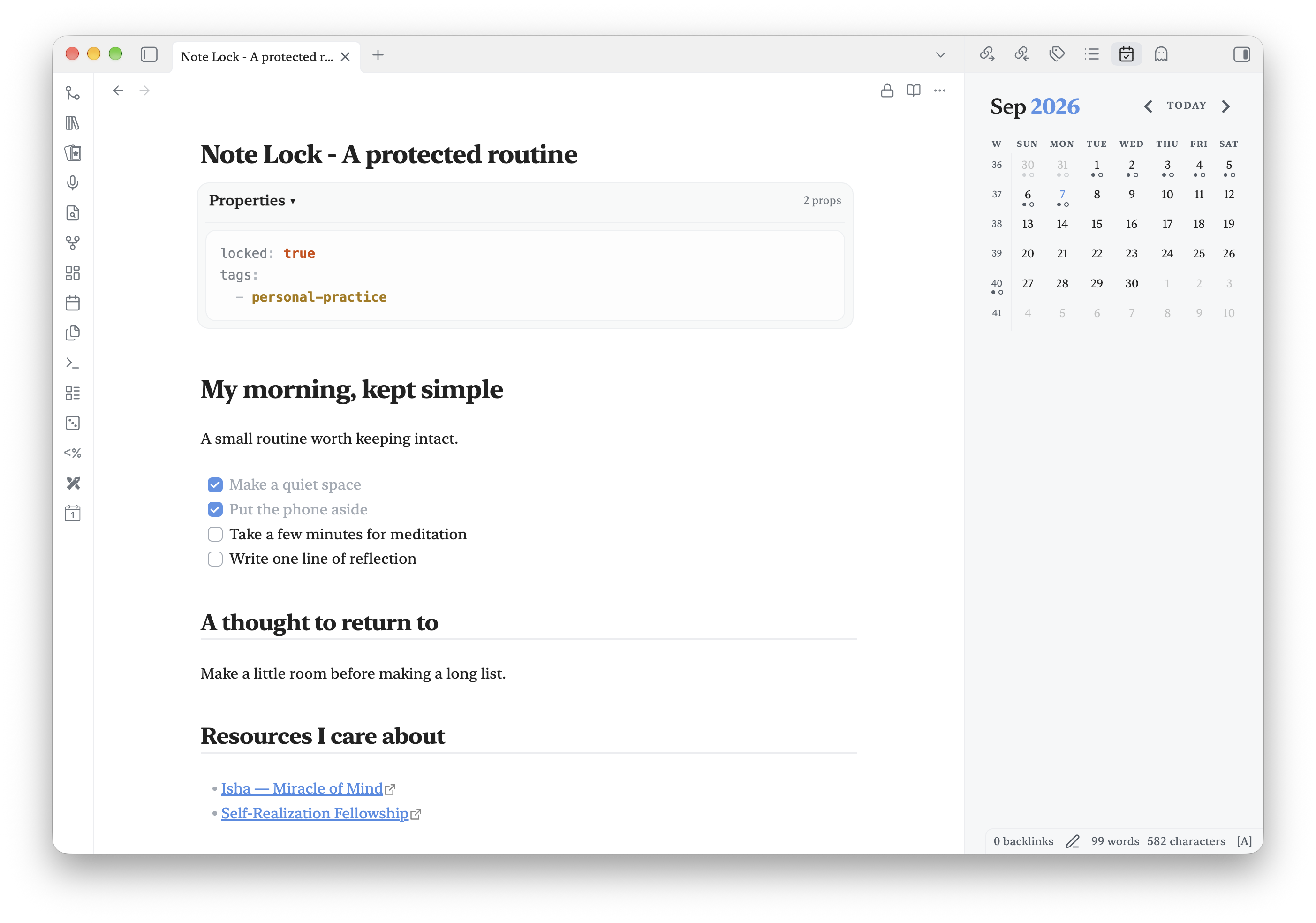
### Notion-style page locking
Keep a routine protected against accidental edits, with the lock available in the note header.
## See it in action
### Notion-style page locking
Keep a routine protected against accidental edits, with the lock available in the note header.
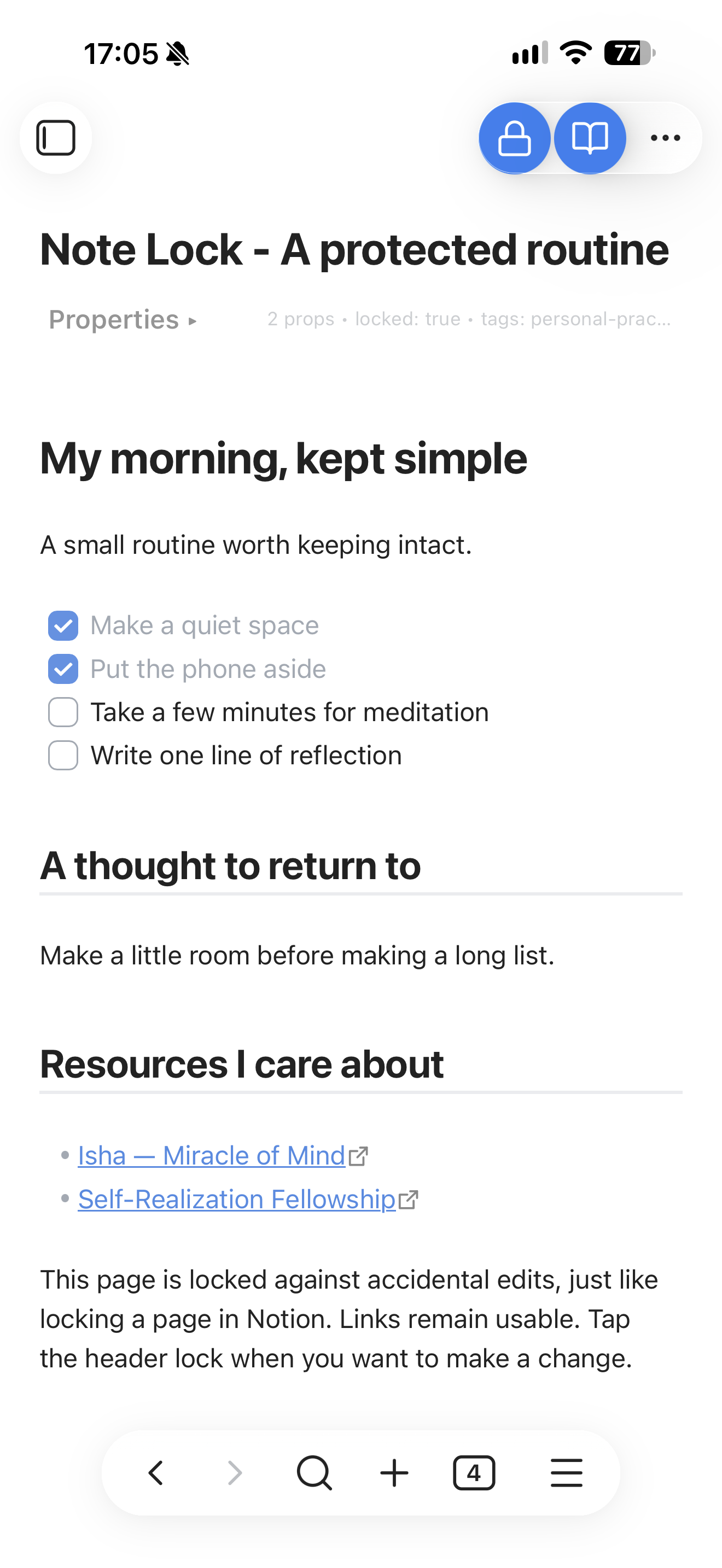
### A clean mobile note
The header lock remains visible below the status area, with the optional banner hidden.
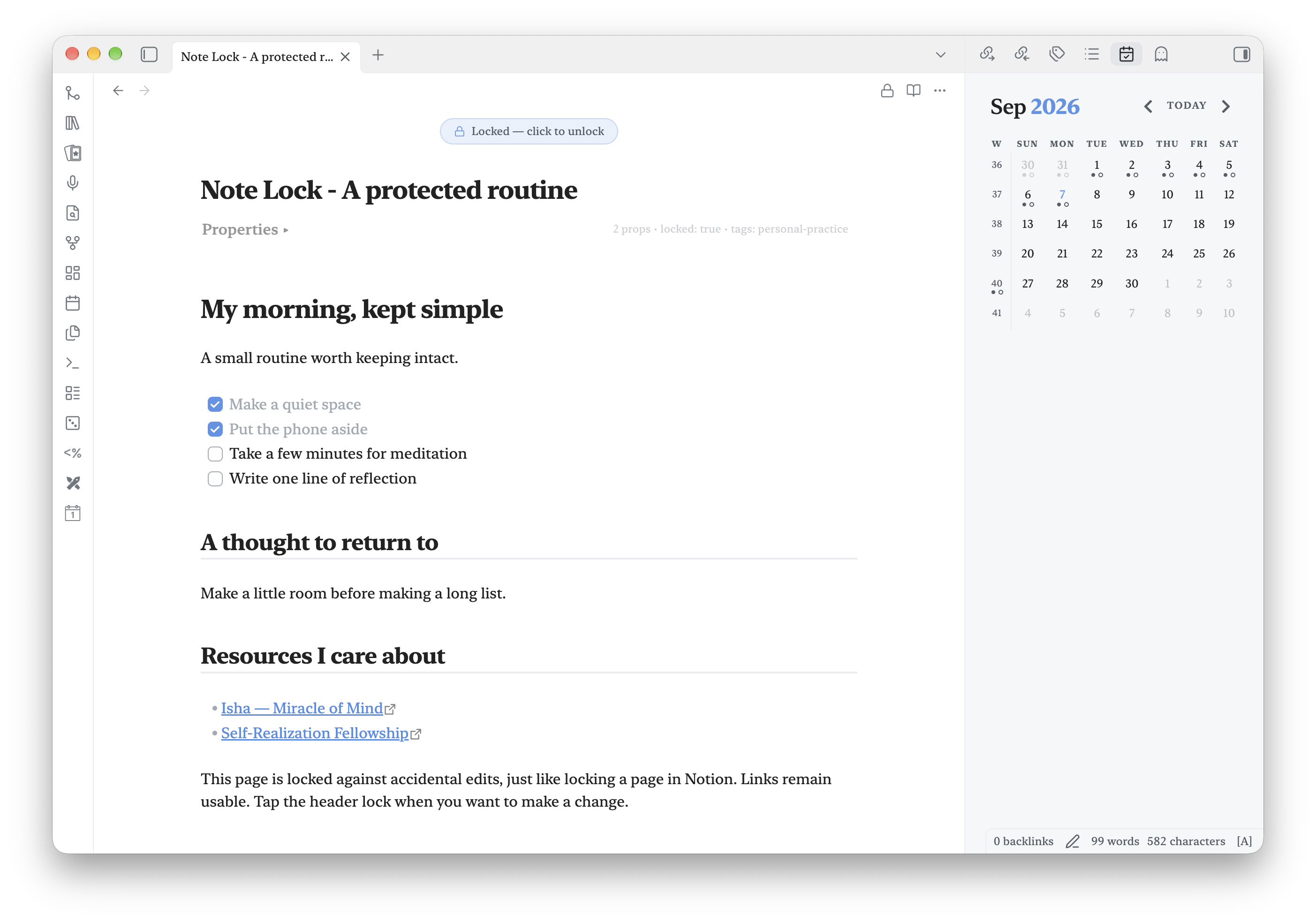
### An optional unlock banner
Show a visible unlock reminder above the note when you want it.
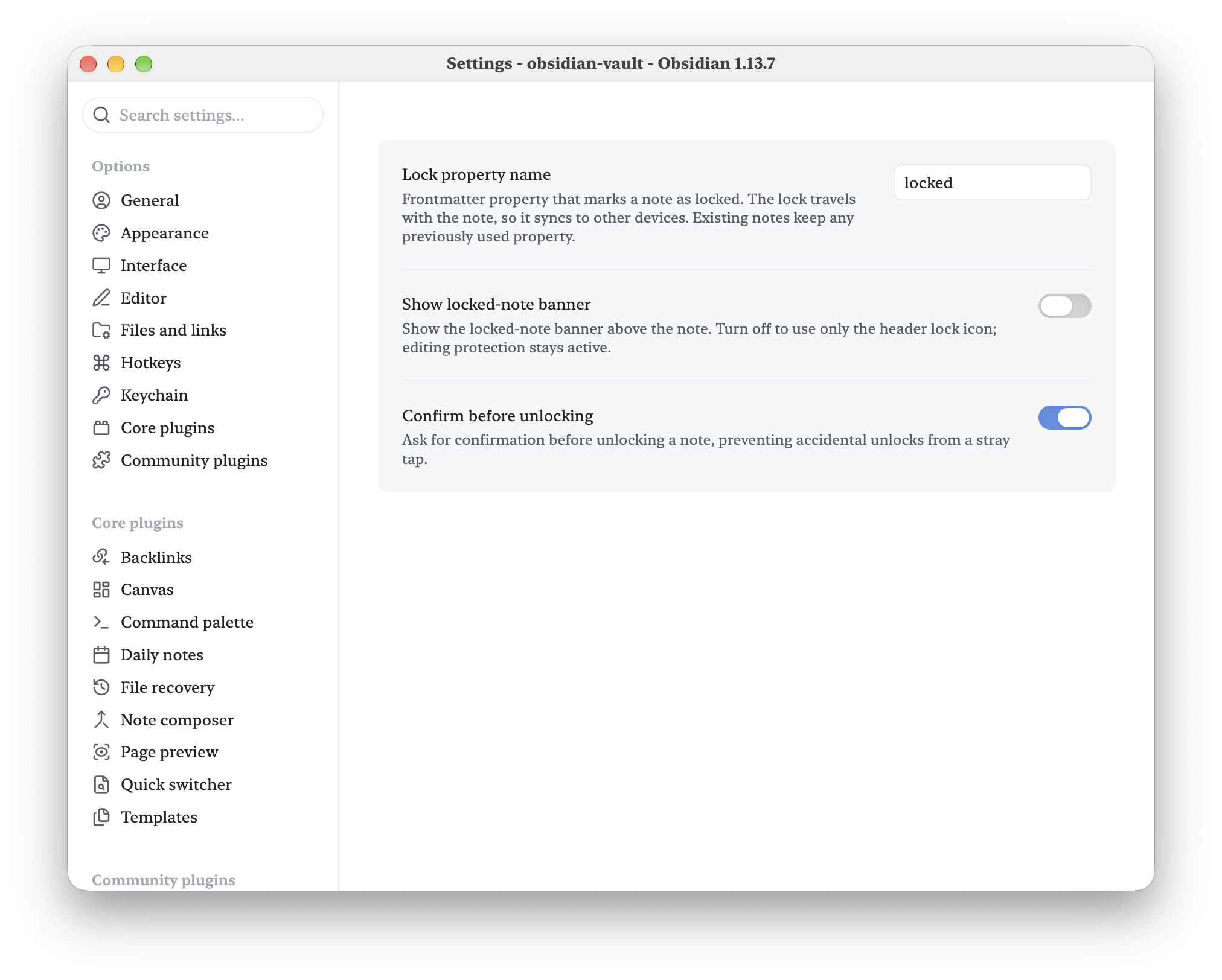
### Choose how locking looks
Hide the banner while keeping protection active, and require confirmation before unlocking.
## Usage
- **Lock** — click/tap the open-lock icon in the view header, run *Toggle lock on current note*
from the command palette, or choose **Lock note** from the three-dots menu or the file
explorer's context menu.
- **Unlock** — click/tap the banner, the lock icon in the view header, or use the same command
or menu item again.
- Assign a hotkey to *Toggle lock on current note* under **Settings → Hotkeys** for one-keystroke
locking.
## How it works
The lock lives in the note's frontmatter (default property: `locked`). While it is set:
- The editor becomes read-only at the CodeMirror level, so no edit can reach the document.
- Frontmatter writes are checked before a plugin’s callback can change metadata.
- Obsidian's file-write API refuses changes to the note from any plugin, with a notice.
- Automatic link updates apply only Obsidian's calculated reference replacements. Note text,
task states, unrelated properties, and surrounding formatting stay unchanged. Wikilinks,
Markdown links, embeds, and property links are supported. Obsidian's own update-links
preference or confirmation still controls whether a rename triggers updates.
- Sync and external tools can still update the file — locking protects against edits inside
Obsidian, not against your sync service.
Unlocking simply removes the property. Because the lock is a plain frontmatter property, it
travels with the note through sync, backups, and vault moves.
## Scope
Markdown notes only. The lock applies wherever the note is edited — tabs, split panes, popout
windows, and embedded editors. Canvas files and other non-markdown files are not affected.
## Settings
- **Show locked-note banner** — Turn off to remove the banner and use only the header
lock icon. Editing protection stays active. This applies immediately to open notes.
- **Lock property name** — the frontmatter property that marks a note as locked
(default `locked`).
- **Allow automatic link updates** — update references in locked notes when linked files
are renamed or moved (default on, including existing installations). Turn off to keep those
links unchanged while locked. This does not allow manual link edits or unlock the note.
- **Confirm before unlocking** — ask before unlocking, preventing accidental unlocks from a
stray tap (default off).
Automatic link updates use a feature-detected Obsidian internal hook. If a future version
removes that hook, the note remains protected and automatic updates stay blocked. If reference
positions or property values changed before an update, Page Lock leaves that note unchanged
and shows a notice rather than risk changing unrelated content. Requires Obsidian 1.5.7 or newer.
## Migrating from Note Lock
Page Lock replaces this project's former `note-lock` plugin ID. Disable the old plugin before installing this version; do not enable both copies. Preserve its `data.json` in the new `page-lock` folder and update command hotkeys to the new prefix. The `locked` frontmatter property is unchanged, so existing locked notes stay locked.
For an existing installation of Robert Fleming's Note Lock, close Obsidian and run `python3 scripts/migrate-install.py /path/to/vault` from the source repository before deploying Page Lock. The script backs up the old installation and preserves settings, enabled state, and command hotkeys. Restart Obsidian afterward. This migration is not for the unrelated community plugin also named Note Lock.
The screenshots were captured before the rename and still show the former name; the locking interface is unchanged.
## Installation
### Community Plugins
Once accepted, install **Page Lock** from **Settings → Community plugins → Browse**.
### Manual installation
Copy `main.js`, `manifest.json`, and `styles.css` from a release into:
```text
/.obsidian/plugins/page-lock/
```
Then reload Obsidian and enable **Page Lock** under Community plugins.
## Development
Requires Node.js 20 or newer.
```bash
npm install
npm run dev # esbuild watch mode
npm run build # type-check + production build
npm run lint
```
## Release checklist
1. Run `npm run build` and `npm run lint`.
2. Test locking and unlocking in Live Preview, Source mode, and Reading view, on desktop and
mobile if available.
3. Run `npm version patch`, `npm version minor`, or `npm version major`. The version script keeps
`manifest.json` and `versions.json` in sync.
4. Push the resulting numeric tag (for example `1.0.1`). GitHub Actions builds the plugin and
attaches `main.js`, `manifest.json`, and `styles.css` to the GitHub Release.
On the maintainer workstation, use the USA OS plugin release command. It pushes the exact
`main` commit to private Forgejo and public GitHub, verifies both tips, and atomically updates
the primary vault's runtime copy while preserving its settings.
## Contributing
Bug reports and pull requests are welcome. Please keep the plugin focused: it should remain a
simple, dependable note lock that respects local-first Obsidian workflows. Before opening a
pull request, run `npm run build` and `npm run lint`.
## Support
If Page Lock improves your workflow, you can support its continued development on
[Buy Me a Coffee](https://www.buymeacoffee.com/robertfleming).
## Acknowledgements
Robert Fleming directed and reviewed this work. Recent refinements, documentation, and screenshot preparation were developed in collaboration with OpenAI Codex, powered by GPT-6. Thank you to the AI collaborators who helped bring these ideas into a usable community plugin.
## License
MIT
## Screenshot demo
A [ready-to-use screenshot kit](bootstrap/README.md) includes demo notes and capture instructions.
## Feedback
Bug reports are welcome in this repository’s issue tracker when available. Include your Obsidian and plugin versions, desktop or mobile, a short reproduction, and expected versus actual behavior. Use a small sample note without personal content. This is a spare-time project; fixes and replies have no guaranteed schedule. Contributions and forks are welcome; donations are optional.