# Git Sync Desktop
An Obsidian plugin for synchronizing a vault with Git on **macOS, Windows, and
Linux**. Use the ribbon button or **Git Sync Desktop: Sync vault with Git**
in the command palette. It saves a local commit, merges server updates without
rebasing, uploads, and checks that the server and computer have the same commit.
This is the desktop companion to [VaultBridge](https://github.com/haivri/VaultBridge)
for iPhone. Both use your own repository. No VaultBridge service is required;
GitHub, Forgejo/Gitea, and other Git hosts work through your existing Git setup.
This plugin is distributed on GitHub and has not been submitted to the Obsidian
community directory.
## Features
- One-click sync from the ribbon or command palette.
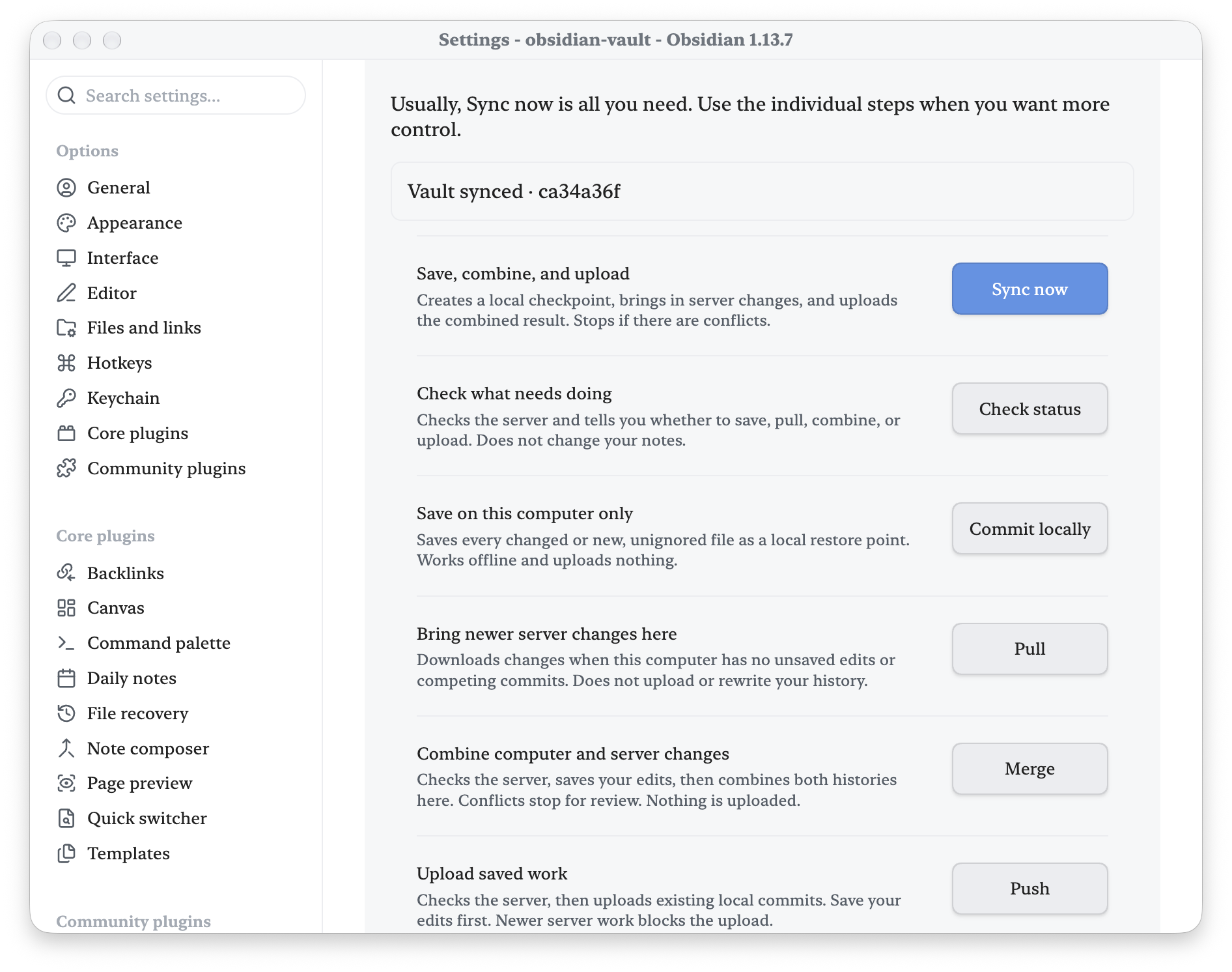
- Separate Commit locally, Pull, Merge, and Push controls with plain-language explanations.
- Persistent progress, status, and failure feedback.
- Git LFS support and compatibility with your existing Git credentials and remote.
- Conflict checkpoints and explicit confirmation for advanced merge choices.
- Runs on macOS, Windows, and Linux; pairs with VaultBridge on iPhone.
 ## See it in action
### Manual Git tools
Save, pull, merge, and push with plain-language explanations and persistent sync feedback.
## See it in action
### Manual Git tools
Save, pull, merge, and push with plain-language explanations and persistent sync feedback.
## Install
1. Install Git and Git LFS using [Git downloads](https://git-scm.com/downloads)
and [Git LFS](https://git-lfs.com/), then restart Obsidian.
2. Install `main.js`, `manifest.json`, and `styles.css` from the
[latest release](https://github.com/haivri/obsidian-git-sync-desktop/releases/latest)
into `/.obsidian/plugins/git-sync-desktop/`, then enable the plugin.
3. Open **Settings → Git Sync Desktop → Set up vault sync** or the command
**Set up vault sync**. The sync ribbon also opens setup for an uninitialized vault.
4. **Prepare this vault:** review your author name/email, attachment extensions,
and exclusions, then click **Set up this vault**. This creates a local Git
repository on `main`, enables LFS locally, and saves the first checkpoint.
5. **Connect your repository:** create an empty private repository on GitHub,
Forgejo, or another Git host. Do not initialize it with a README, license,
or `.gitignore`. Set up authentication in your Git client/system credential
manager, paste the HTTPS or SSH clone URL, and click **Connect and check**.
6. **Upload and verify:** review the actual destination, branch, and included
files, then click **Upload vault**. After success, use the normal sync ribbon.
Setup includes **all unignored vault files**, including PNGs, JPEGs, PDFs,
arbitrary attachment formats, hidden files, Obsidian settings, themes, and
plugins. LFS extensions choose storage format; they do not limit which files
sync. Default exclusions cover trash, workspace layouts, caches, and OS metadata.
Existing `.gitignore`, global Git ignore rules, and `.git/info/exclude` also
apply; inspect the exclusion preview and included-file list before uploading.
The editable LFS preset covers common images, audio, video, PDFs, and archives,
including mixed-case extensions. Git LFS must already be installed; the setup
button configures it for this repository without changing global Git settings.
Author identity is saved only to the local repository. URLs must contain no
passwords or tokens; authentication remains with your system Git credentials.
A connection check verifies read access; the upload checks write access and LFS
transfer. Your host must support Git LFS.
Existing repositories keep their rules, hooks, branch, and history. Setup does
not migrate old attachments into LFS or combine unrelated histories. It refuses
to initialize a vault inside a parent repository. A failed preparation can be
retried after resolving the reported issue. Local commits remain available if
remote setup or upload fails. Changing an existing remote requires the explicit
**Replace remote** action. Use **Sync now** for an existing related remote;
**Upload vault** is for an empty remote.
The plugin ID is now `git-sync-desktop` (previously `vault-git-sync`). Existing users should disable the old plugin, move its settings into the new plugin folder, enable Git Sync Desktop, and update any command hotkeys. Do not enable both copies. The repository includes `scripts/migrate-install.py` to preserve the old installation and migrate settings, enabled state, and hotkeys before installing the new runtime. Restart Obsidian after migrating. Existing Git checkpoint refs retain their original namespace so earlier recovery points remain available.
Version 1.2.0 includes the complete sync implementation; the former Mac-only
`Sync Obsidian Vault.command` script is no longer required by the plugin.
The plugin saves automatically after editing settles and checks the server periodically.
For syncing while Obsidian is closed, use the same installed runtime:
`node main.js --watch /path/to/vault` (or `--sync` for one run). Replace old
independent sync scripts with this entry point; the helper and plugin share a
lock and status, and the plugin defers to a running helper.
## Everyday saving and recovery
The status bar opens **Save status**. **All saved — you’re all set** means the
working copy is clean, attachments passed verification, and the server has the
same commit. Offline work stays saved locally and retries with backoff.
Automatic successes are quiet; a review remains visible until you resolve it.
**Review your files** lists the affected files directly. Compare computer and
server previews, inspect differing Obsidian settings, choose a version, combine
text, or keep both note copies. Settings keep one active configuration. Finish
with **Save and finish syncing**. A choice is rejected if the file changed while
you were reading it. Git tools remain available separately.
Both integration parents are protected in local Git history. Incoming notes
that suddenly disappear or revert, and large deletion batches (20 files, or
5 files comprising at least 20% of tracked files), stop for exact approval or
restoration. **Recover previous work** restores an individual historical file
and protects its current bytes first; restoration does not upload by itself.
These local restore points complement an independent backup.
## Sync behavior
- All tracked changes and unignored new files are staged and committed.
Configure `.gitignore` before syncing. Local commits remain safe if networking fails.
- Attachments use Git LFS hooks and filters. Staging failure stops before pull or push.
- Only one cooperating local sync runs at a time. Existing merge/rebase recovery
states stop sync before staging. A forcibly stopped process can leave a lock;
it is never removed automatically while another sync may still be running.
- Normal sync and merge open a guided file review for conflicts. The explicit
advanced force-merge action can prefer one side for conflicts. No force push, reset,
or implicit autostash is performed.
- Mobile is excluded by the manifest and runtime guard. iPhone sync is handled
by VaultBridge. A vault copied to Windows must use Windows-compatible filenames.
## Computer and iPhone setup
Use the same remote and branch in this plugin and VaultBridge. Sync before
switching devices, then sync the receiving device. Matching commits establish
agreement on the tracked Git tree; LFS attachments must also be downloaded.
Folder sizes can differ because Git history, LFS caches, ignored files, and
filesystem allocation are local to each device. Git sync does not replace backups.
## Troubleshooting
- **Git LFS required:** install Git LFS and retry. Do not disable filters to bypass
an attachment error. Restart Obsidian after changing PATH on Windows or Linux.
- **Unfinished operation/conflicts:** preserve your work and finish recovery in
a terminal. The plugin leaves recovery decisions to you.
- **Another sync running:** allow it to finish. After a crash, verify no sync
process is active before removing the empty `sync.lock` directory under
`~/Library/Application Support/ObsidianVaultSync` on macOS,
`%LOCALAPPDATA%/ObsidianVaultSync` on Windows, or
`${XDG_STATE_HOME:-~/.local/state}/ObsidianVaultSync` on Linux.
- **Authentication/network error:** fetch and push from a terminal to diagnose
the connection. Interactive credential prompts are disabled inside Obsidian.
## Development and releases
No dependencies or transpilation are required. Run `npm run lint`, `npm test`,
and `npm run build`. Tests use temporary local Git repositories and mocked
Obsidian UI, never a real vault or remote account. CI runs the suite on macOS,
Windows, and Linux; check the Actions results for the release commit. Obsidian
UI testing is performed locally on macOS.
Publish the same clean source commit to private Forgejo and public GitHub, then
deploy runtime artifacts into each local vault while preserving `data.json`.
Tag releases with the manifest version (e.g. `1.2.0`) and attach `main.js`,
`manifest.json`, `styles.css`, and `git-sync-desktop.zip`. Never publish vault content, credentials,
or machine-specific configuration.
MIT licensed. This independently implemented plugin contains no VaultBridge
or GitSync.md application code.
## Manual Git tools (1.3.0)
Open **Settings → Git Sync Desktop → Manual Git actions**, or the command
**Open manual Git tools**. The ribbon still runs the familiar complete sync.
Every action shows live progress, a result, and actionable failure details.
Buttons are disabled while another operation is running.
| Button | What it does | Uploads? |
| --- | --- | --- |
| Check status | Fetches the latest server history and recommends the next step. Leaves note files unchanged. | No |
| Commit locally | Stages all unignored changes, including deletions, and saves a local checkpoint. Works without a remote. | No |
| Pull | Receives server changes only when local files are saved and there are no competing local commits. | No |
| Merge | Checks the server, saves local edits, protects the local commit, and combines both histories. Conflicts stop for review. | No |
| Push | Uploads existing saved commits after checking for newer server work. Does not commit unsaved edits. | Yes |
| Finish merge | Commits a merge after you resolve and stage conflicts in a Git client. | No |
| Sync now | Saves locally, merges server changes, then uploads and verifies. | Yes |
**Advanced → Force merge** opens a confirmation dialog. Choose whether the
computer or server wins conflicting text edits; Git retains non-conflicting
changes from both histories. For binary conflicts, Git selects the whole file
from that side. Some conflicts still require manual resolution. The action
never force-pushes, resets the vault, or bypasses an unfinished Git operation.
Manual Merge and Force merge protect the pre-merge local checkpoint under
`refs/vault-git-sync/checkpoints/` and display its short commit ID. These refs
keep the checkpoint reachable for recovery in a Git client. Server history is
also retained through the merge; nothing uploads until you choose Push.
If files keep changing while a checkpoint is being created, the action stops
so you can let editing settle and retry.
## Screenshot demo
A [ready-to-use screenshot kit](bootstrap/README.md) includes demo notes and capture instructions.
## Acknowledgements
Robert Fleming directed and reviewed this work. Recent refinements, documentation, and screenshot preparation were developed in collaboration with OpenAI Codex, powered by GPT-6. Thank you to the AI collaborators who helped bring these ideas into a usable community plugin.
## Feedback
Bug reports are welcome in this repository’s issue tracker when available. Include your Obsidian and plugin versions, desktop or mobile, a short reproduction, and expected versus actual behavior. Use a small sample note without personal content. This is a spare-time project; fixes and replies have no guaranteed schedule. Contributions and forks are welcome; donations are optional.