Control, monitor, and visualize your Syncthing synchronization directly inside Obsidian.


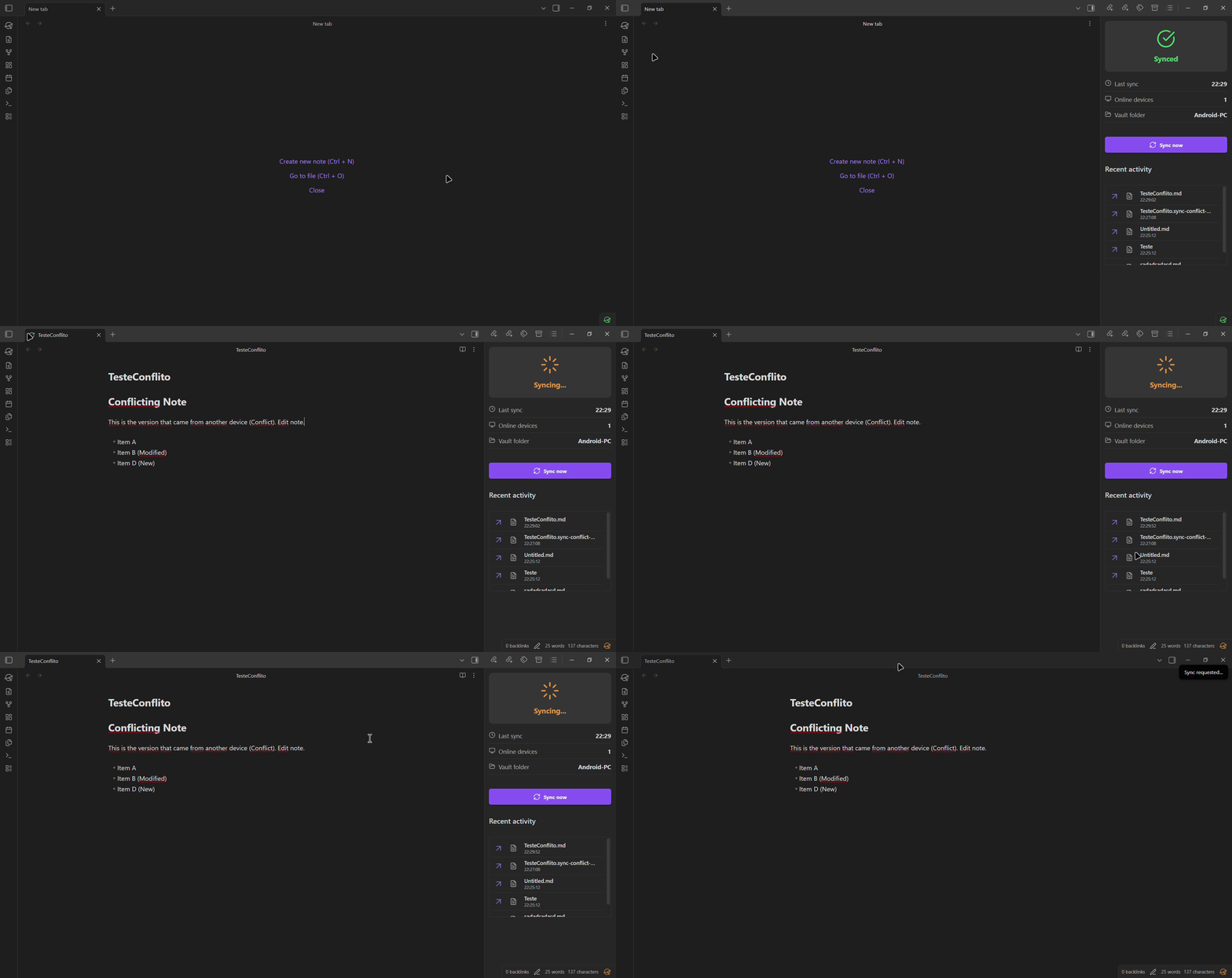
This plugin acts as a bridge to your local Syncthing API, providing real-time file status, a powerful conflict resolver, and tools to keep your vault healthy across Desktop and Mobile devices.
## 📚 Documentation
For full usage guides, installation instructions, and troubleshooting, visit the **[Official Documentation](https://gustjose.github.io/obsidian-syncthing-manager/)**.
---
## ✨ What's New (v1.2 - v1.4)
Syncthing Manager is constantly evolving. Here are the latest highlights:
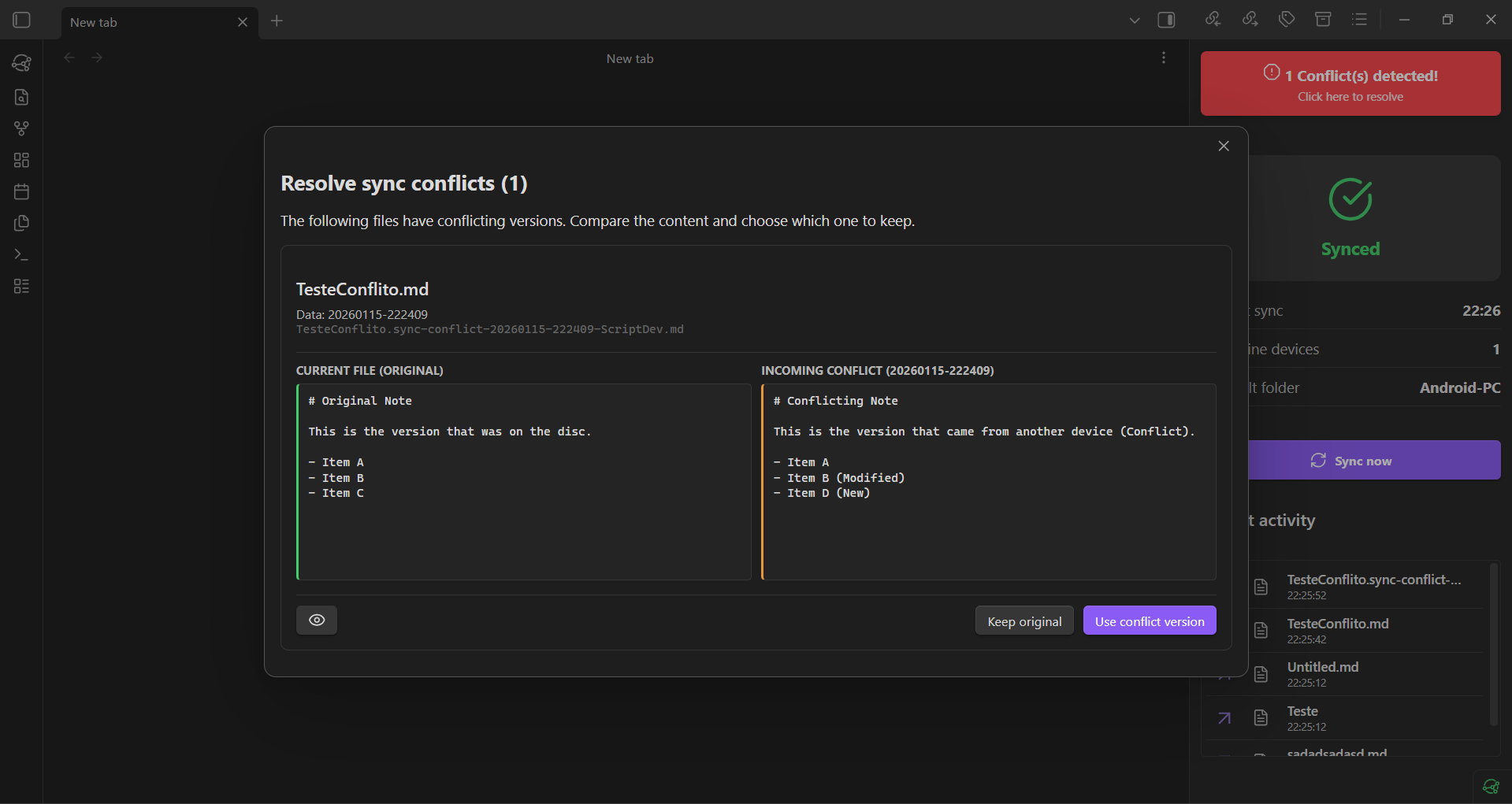
- **Visual Conflict Resolver:** Safely compare and merge `.sync-conflict` files with a side-by-side diff view powered by CodeMirror 6.
- **Sync Progress Bar:** Monitor real-time file transfer progress directly from the side panel.
- **Quick Ignore:** Right-click any file or folder and select _"Don't sync this"_ to instantly add it to your `.stignore`.
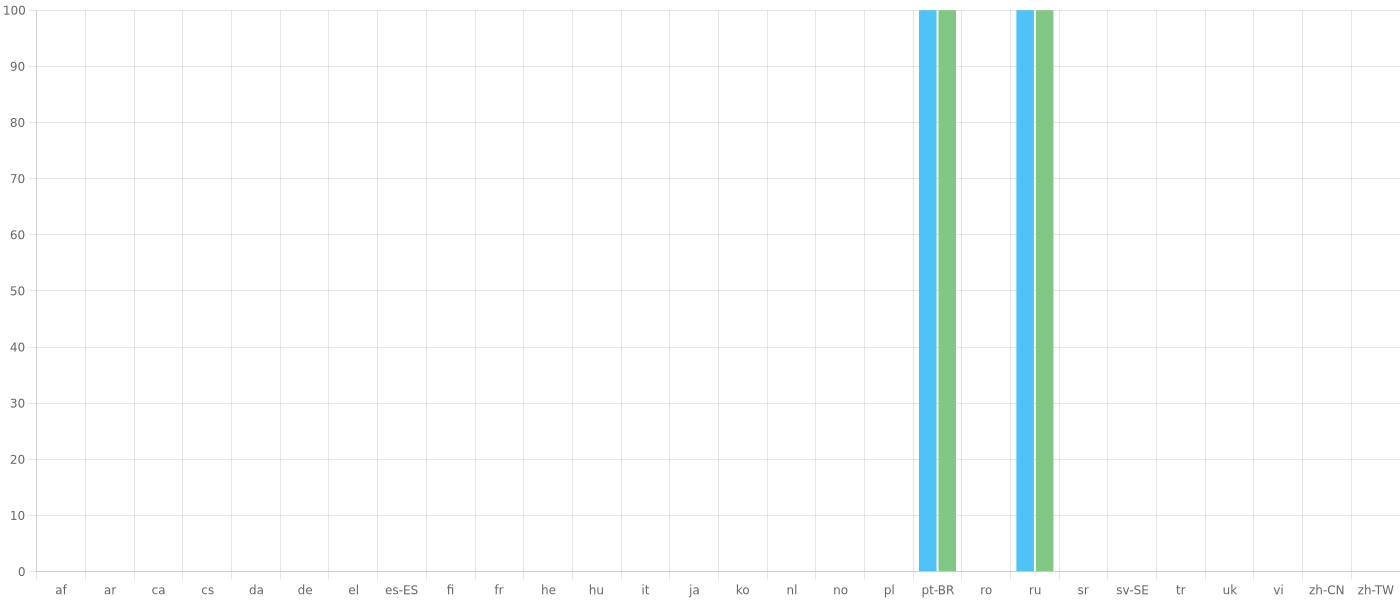
- **Global Localization:** Support for over 20 languages (thanks to our community on Crowdin!).
- **Security & Stability:** API keys are now securely stored in the Obsidian native Keychain. Enhanced connection resiliency with a new long-polling architecture, plus a built-in Debug Console.
_Note: The **Visual Sync** feature (spinning 🟠 and checkmark 🟢 icons on active tabs) introduced in v1.1 remains one of our core capabilities!_
---
## 🚀 Features
- **Real-Time Monitoring:** View your vault status (Synced, Syncing, Disconnected) via the Status Bar or a dedicated Side Panel.
- **Visual Sync:** Tabs show specific icons when files are syncing (🟠) or fully synced (🟢).
- **Control Center:** Pause/Resume specific folders and see connected devices by name directly in the plugin view.
- **File Versioning:** Configure versioning strategies (Trashcan, Simple, Staggered) and **restore previous versions** of files directly within Obsidian.
- **Conflict Resolver:** Intelligent detection of `.sync-conflict` files with a **side-by-side diff view** for safe resolution.
- **Context Menu Integration:** Right-click any file to force a sync or view its version history.
- **.stignore Editor:** Manage ignored files (like `workspace.json` or `.DS_Store`) directly within Obsidian using built-in templates.
- **History Filter:** Keep your activity log clean by hiding system files from the history view.
- **Mobile Optimized:** Responsive design built to work perfectly on Android.
- **Localization:** Fully translated into 🇺🇸 English, 🇧🇷 Portuguese (BR), and 🇷🇺 Russian.
---
## Quick Start
1. **Install:** Search for **Syncthing Manager** in the Obsidian Community Store and install it, or use [BRAT](#2-brat-beta).
2. **Get API Key:** In Syncthing, navigate to **Actions** > **Settings** > **General** and copy the **API Key**.
3. **Configure:**
- Open Obsidian Settings > **Syncthing Manager**.
- Paste your API Key and click **Test Connection**.
- **Important:** Select your **Vault Folder** from the dropdown menu to track events.
---
## 📱 Android Setup (Critical)
To use this plugin on Android (via _Syncthing-Fork_ or the official app), you must allow local HTTP connections.
> [!WARNING] > **HTTPS Restriction:** Obsidian Mobile cannot connect to self-signed HTTPS certificates on localhost. You **must disable HTTPS** in the Syncthing App settings. Since the address is restricted to `127.0.0.1`, your traffic remains local and secure.
1. Open Syncthing App > **Settings** > **GUI**.
2. Set **GUI Listen Address** to `127.0.0.1:8384`.
3. **Disable** "Use HTTPS for GUI".
- _Note: Ensure you have cleared "GUI Authentication User/Password" fields, otherwise the app may enforce HTTPS._
4. Restart the Syncthing App.
5. In Obsidian Plugin Settings, ensure **Use HTTPS** is toggled **OFF**.
### Alternative: Force HTTP (Environment Variable)
If the above method resets or fails, you can force Syncthing to use HTTP using an environment variable.
> [!CAUTION]
> **Side Effect:** This may cause the Syncthing Android App's native UI to stop loading (showing a blank screen or loading spinner). However, the **background service will still run**, and you can access the full Web UI via your browser at `http://127.0.0.1:8384`.
1. Go to **Settings** > **Troubleshooting** > **Environment Variables**.
2. Add the following variable:
- **Key:** `STGUIADDRESS`
- **Value:** `http://127.0.0.1:8384`
3. Restart the App.
4. If you need to revert, simply delete this variable.
---
## Features Guide
### ⚔️ Conflict Resolution
When a sync conflict occurs, a red alert will appear in the Syncthing View.
1. Click the alert to open the **Conflict Resolver**.
2. Select **Compare Content** for a side-by-side comparison.
3. Choose:
- **Keep Original:** Deletes the conflict file.
- **Use Conflict Version:** Overwrites your local file with the remote version.
### 📂 Ignoring Files (.stignore)
Prevent layout issues by ignoring workspace configuration files.
1. Open **Settings** > **Syncthing Manager** > **Edit .stignore**.
2. Use "Add Common Patterns" to quickly ignore `workspace.json`, `.obsidian/workspace`, or OS files like `.DS_Store`.
---
## FAQ & Troubleshooting
**Q: The tab icon is spinning but never turns green.**
- This usually means Syncthing is still scanning or the file is large. Check the Syncthing GUI web panel for detailed progress.
**Q: Plugin status shows "Disconnected".**
- Verify that the Syncthing service is running.
- Ensure the API Key matches exactly.
- On Android, double-check that HTTPS is disabled in the Syncthing App.
**Q: Is it secure to disable HTTPS on Android?**
- Yes. By setting the **GUI Listen Address** to `127.0.0.1`, access is restricted exclusively to applications running locally on that specific device.
---
## Installation
### 1. Obsidian Community Store (Recommended)
You can search for and install **Syncthing Manager** directly from the Obsidian Community Store:
1. Open **Settings** > **Community plugins** in Obsidian.
2. Click **Browse** and search for `Syncthing Manager`.
3. Click **Install**, then **Enable**.
Alternatively, you can open the plugin page directly using [this link](https://community.obsidian.md/plugins/syncthing-manager).
### 2. BRAT (Beta)
If you want to test the latest beta releases:
1. Install the **BRAT** plugin from the Obsidian Community Store.
2. Add this repository URL: `https://github.com/gustjose/obsidian-syncthing-manager`.
3. Enable **Syncthing Manager**.
---
## Contributing
Contributions are welcome! If you encounter bugs or have feature requests, please open an issue.
- **Build:** `npm run build`
- **Dev:** `npm run dev`
### 🌍 Translations
Help us make the plugin accessible to everyone! We use **[Crowdin](https://crowdin.com/project/obsidian-syncthing-manager)** to manage translations. You don't need to be a developer to contribute. Just create a free account and start translating strings to your language directly in the browser!
---
## License
This project is licensed under the [MIT License](LICENSE).
Copyright © 2025 Gustavo Carreiro.