## Quick capture
Open **FlowTask: Quick capture** from the Command Palette or assign your own hotkey under **Settings > Hotkeys**.
Enter a task using this syntax:
```text
Buy milk +Home #shopping @tomorrow 15m
```
The modal provides:
- Project autocomplete after `+`.
- Tag autocomplete after `#`.
- Date suggestions after `@`.
- Keyboard navigation with Up, Down, and Tab to select; Enter submits the capture.
- A live preview showing the resolved date and estimate.
- An option to attach an `obsidian://` link to the current note.
- A collapsed **Subtasks** section with `+ Add subtask` for creating child tasks before the parent is submitted.
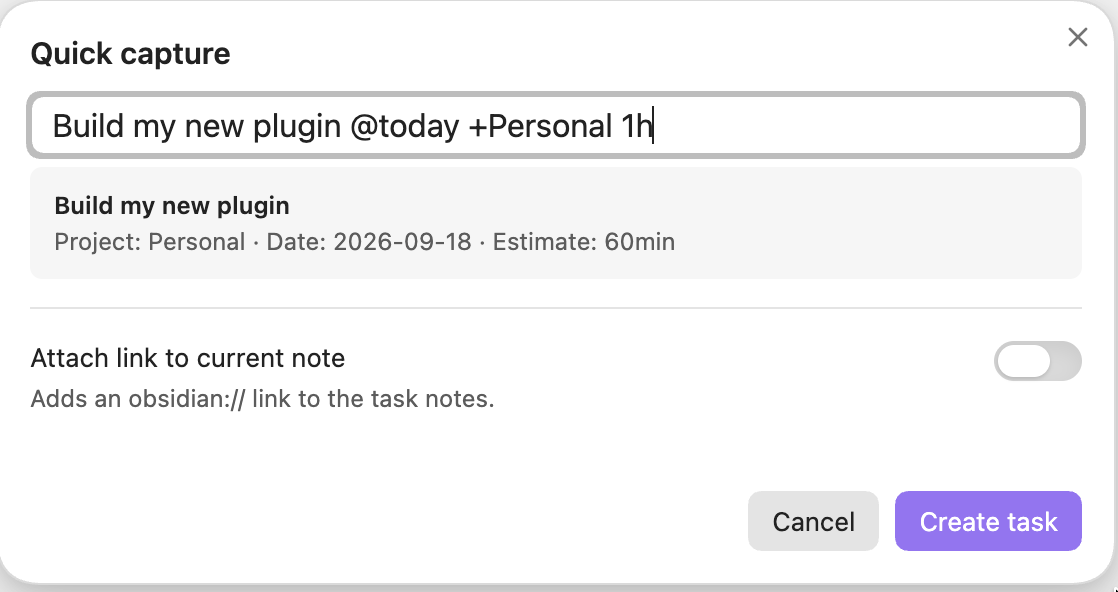
Quick Capture with a live project, date, and estimate preview.
Quick capture uses `#tag` because it is an isolated modal. Note import uses the configured routing tag and remains compatible with normal Obsidian note syntax.
## Task panel
Open the panel with the ribbon icon, the Command Palette, or **FlowTask: Open panel**.
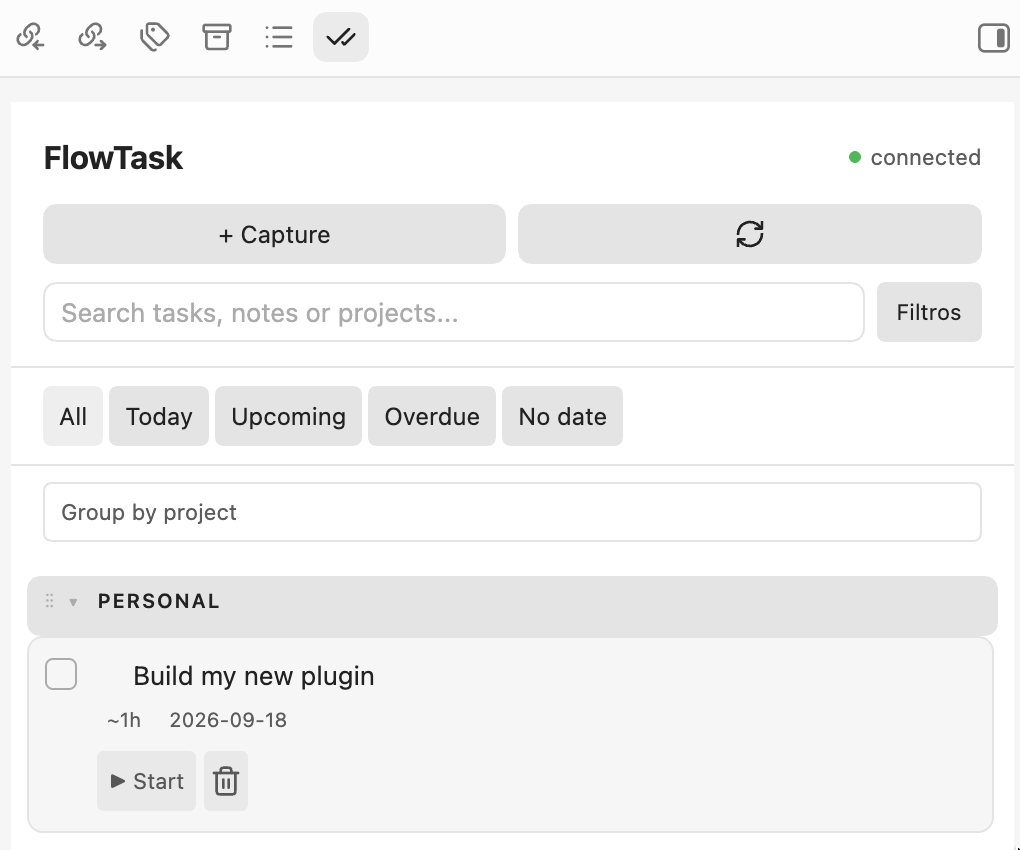
Search, filter, group, and track tasks from the sidebar.
### Views
- **All** shows active tasks.
- **Today** shows tasks due today.
- **Upcoming** shows future scheduled tasks.
- **Overdue** shows tasks whose due date has passed.
- **No date** shows tasks without a due date.
### Filters
The **Filters** menu provides:
- All tasks.
- Inbox.
- Archived tasks.
- Include completed tasks.
### Search
The search field uses fuzzy matching across:
- Task titles.
- Task notes.
- Project names.
- Tag names.
Searching `rpr` can match a task such as `Review pull request` without requiring an exact phrase.
### Grouping
Use the grouping selector to group tasks by:
- Project.
- Due date.
- Tag.
Click a group header to collapse or expand it. Use the `⋮⋮` handle to drag project groups into a preferred order. Inbox is always placed first. Custom project order is stored in FlowTask settings and affects only the FlowTask presentation.
### Task cards
Each card can show:
- Completion checkbox.
- Due date.
- Tags.
- Time already invested.
- Start, pause, or resume action.
- Delete action.
Tasks with subtasks display a `▾` or `▸` control beside the title. The control collapses or expands the child tasks without hiding the parent.
Parent cards and Quick Capture both use a dedicated **Subtasks (n)** section with an **Add subtask** action, following the Super Productivity workflow.
## Tracking tasks
The tracking action reflects the actual current task reported by Super Productivity:
- `Start` starts tracking a task with no recorded time.
- `Resume (time)` starts tracking a task that already has recorded time.
- `Pause` stops the current task through `POST /task-control/stop`.
Time values are read in the millisecond format used by Super Productivity and displayed as seconds, minutes, or hours.
Starting a task does not guarantee starting a Pomodoro or focus session. Super Productivity does not expose a guaranteed external focus-session API; focus behavior depends on the application's own configuration.
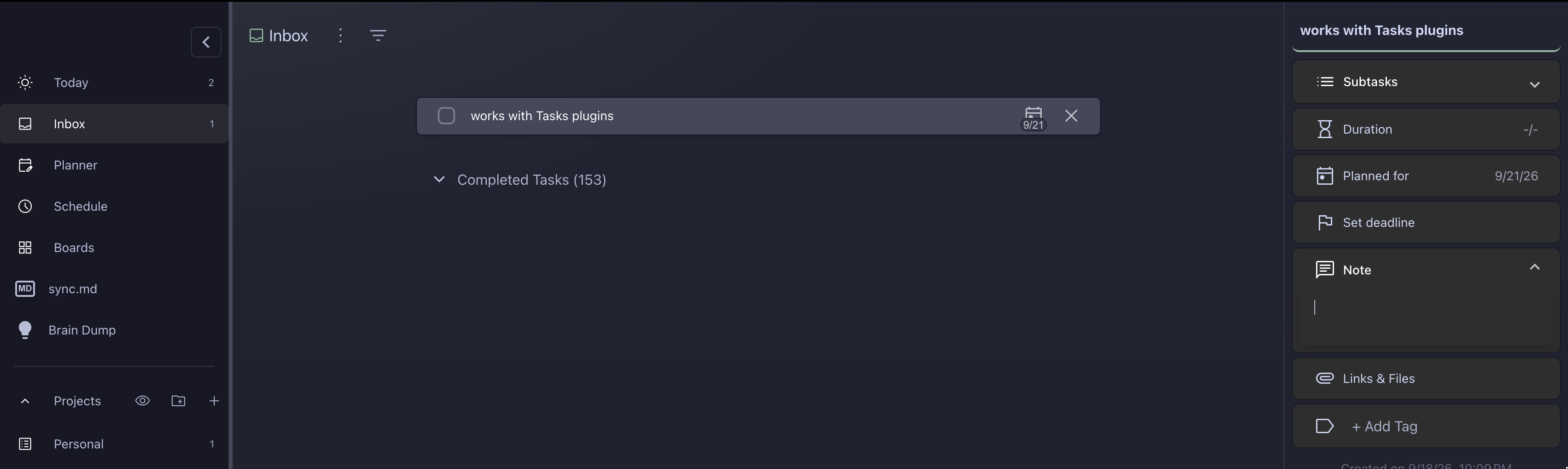
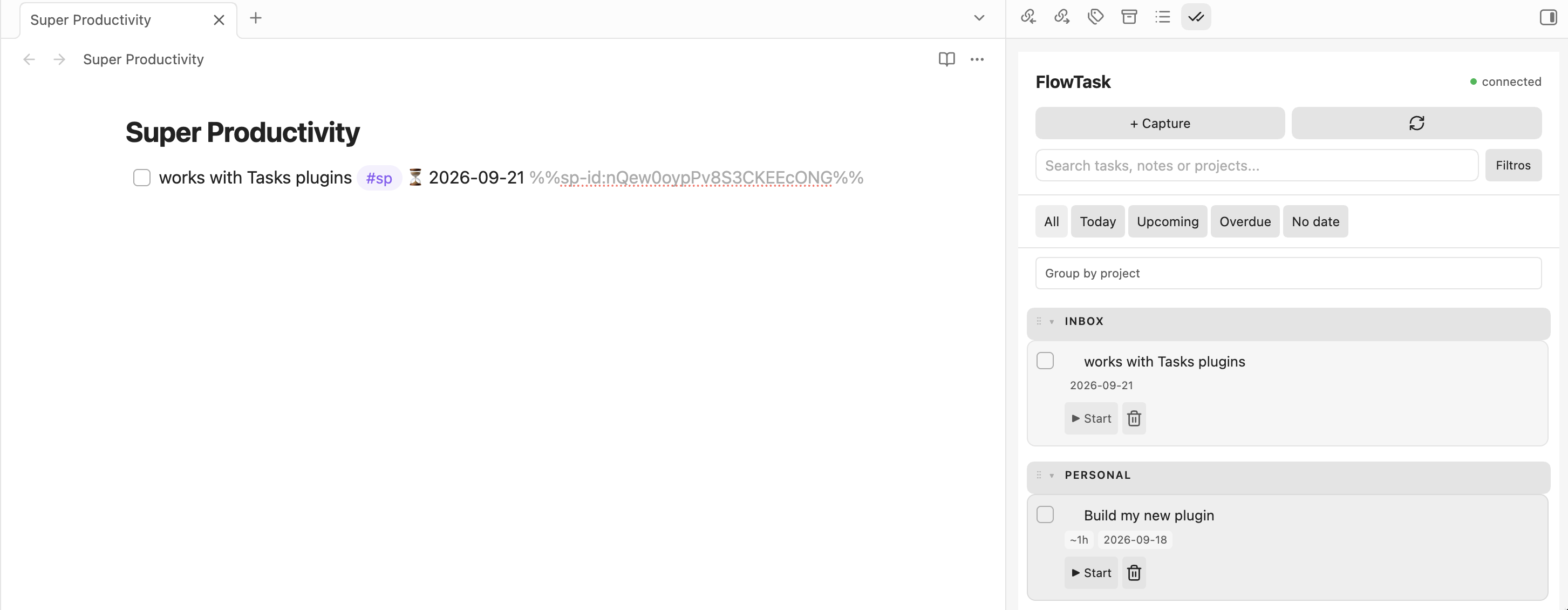
The linked task in Super Productivity's Inbox.
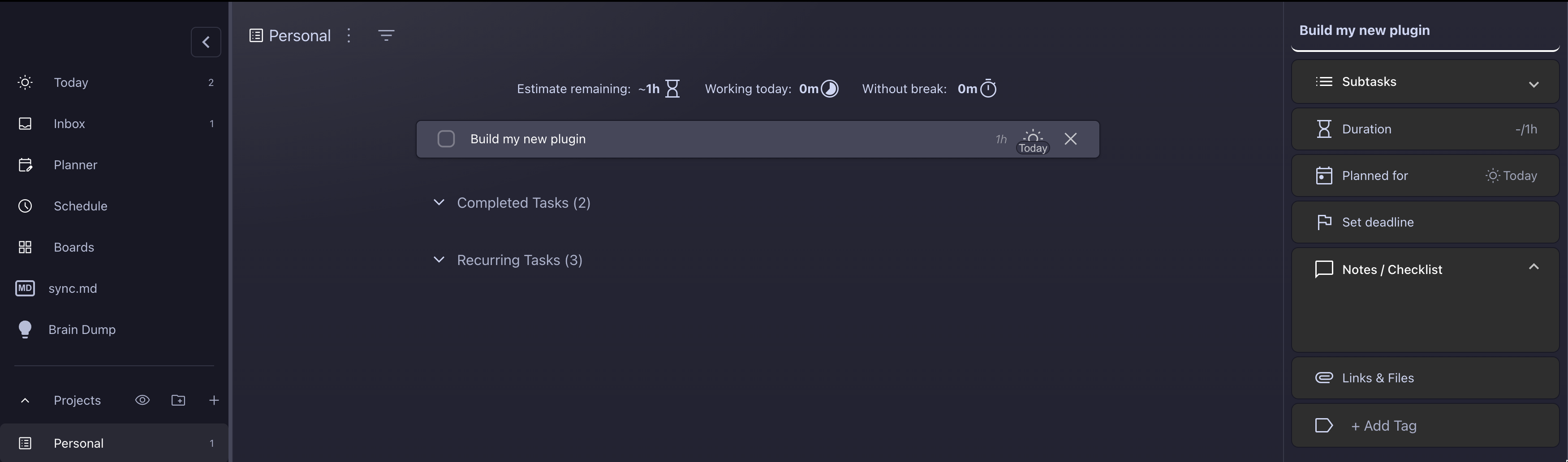
Tracking and scheduling the task inside a Super Productivity project.
## Command Palette commands
FlowTask registers independent commands so each can receive its own Obsidian hotkey:
- **FlowTask For Super Productivity: Quick capture**
- **FlowTask For Super Productivity: Sync current line**
- **FlowTask For Super Productivity: Open panel**
- **FlowTask For Super Productivity: Refresh tasks**
- **FlowTask For Super Productivity: View today's tasks**
Configure hotkeys under **Settings > Hotkeys**.
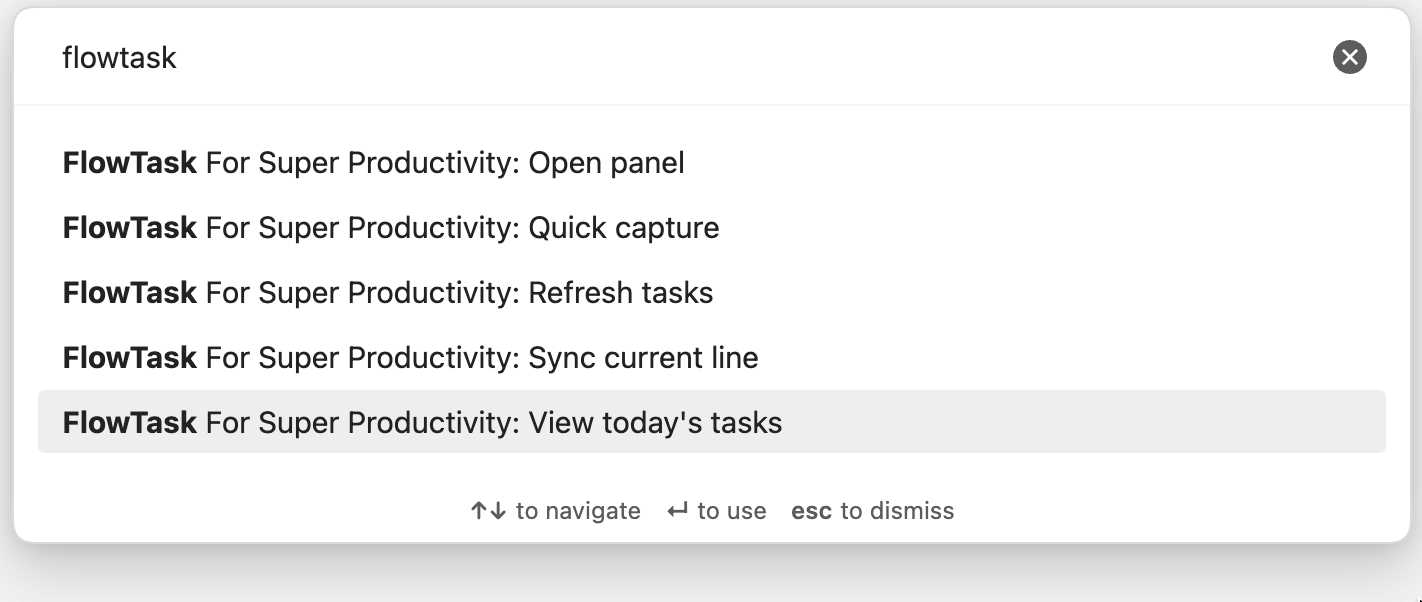
FlowTask commands are independently available in the Obsidian Command Palette.
## Connection and fallback
### Local REST transport
FlowTask uses Obsidian's `requestUrl()` API rather than browser `fetch()`. This avoids sending an `Origin` header that the Super Productivity local API rejects.
The REST transport uses these endpoints:
- `GET /health`
- `GET /tasks`
- `POST /tasks`
- `PATCH /tasks/:id`
- `DELETE /tasks/:id`
- `GET /projects`
- `GET /tags`
- `POST /tasks/:id/start`
- `GET /task-control/current`
- `POST /task-control/stop`
### File fallback
When enabled, offline task operations are written atomically below the configured folder:
```text
FlowTask/
commands/
events/
processed/
state/snapshot.json
```
The fallback is intended for an optional companion integration or a synchronized vault workflow. It does not pretend that a local REST operation succeeded.
## Settings reference
### Base URL
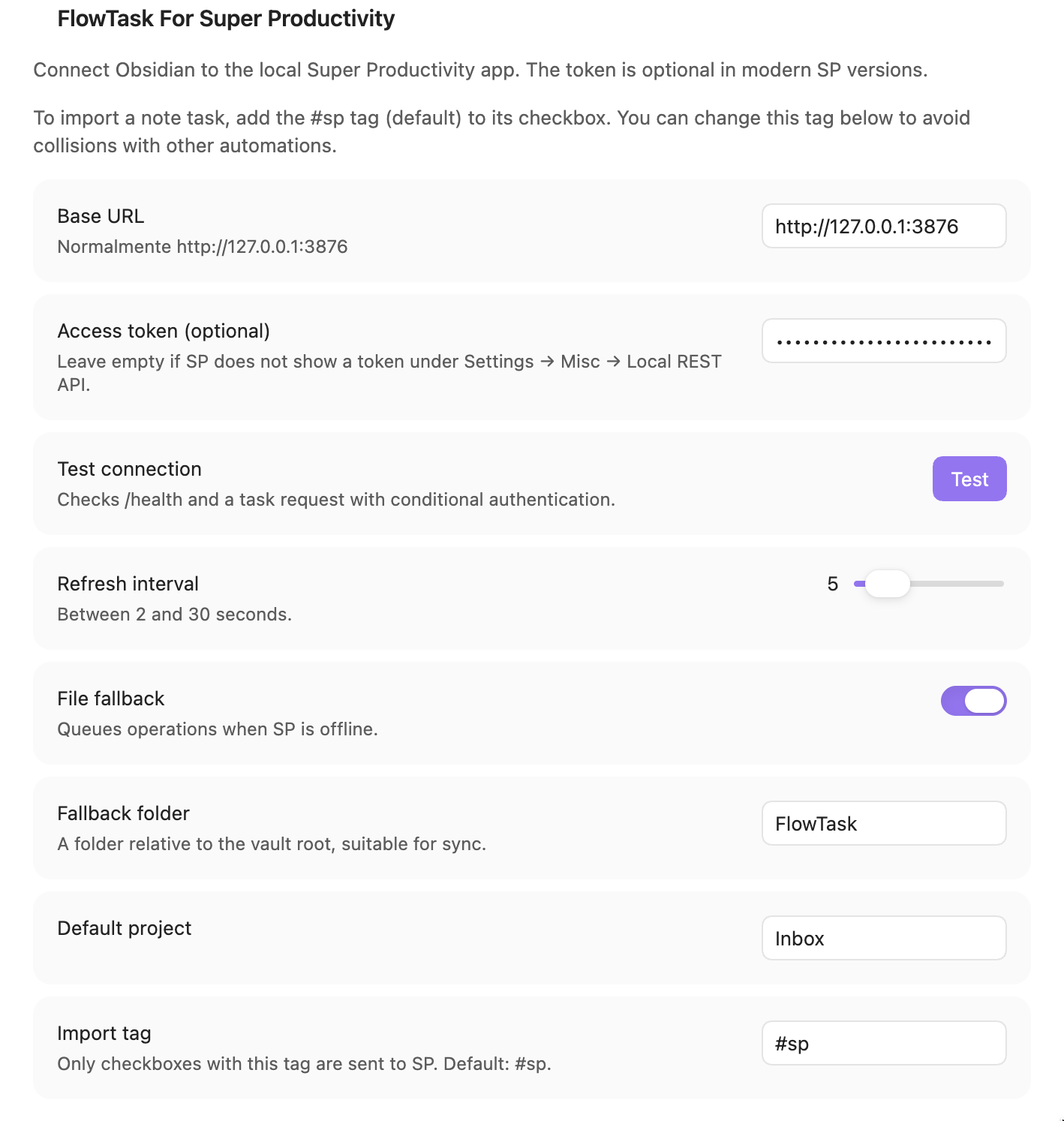
The Super Productivity Local REST API URL. Default: `http://127.0.0.1:3876`.
### Access token
Optional. Leave empty when your local SP API does not require authentication. If your SP version displays or requires a token, enter it here. FlowTask sends `Authorization: Bearer ` on authenticated task, project, tag, and task-control requests; `GET /health` is always unauthenticated.
### Refresh interval
Polling interval from 2 to 30 seconds. The default is 5 seconds. FlowTask also refreshes when the Obsidian window regains focus.
### File fallback
Enables or disables the JSON command queue used while Super Productivity is unavailable.
### Fallback folder
Vault-relative folder used by the file transport. The default is `FlowTask`.
### Default project
Optional existing Super Productivity project name used when a newly created task does not specify a project.
### Import tag
The routing tag used by the checkbox watcher. Default: `#sp`.
## Troubleshooting
### The panel says that Super Productivity is unavailable
1. Confirm that Super Productivity is running.
2. Confirm the Base URL and port.
3. Run `curl http://127.0.0.1:3876/health`.
4. Add the access token if your SP version requires one.
5. Click **Test connection** in FlowTask settings.
### Tasks are not imported from a note
1. Confirm that the checkbox contains the configured import tag, normally `#sp`.
2. Confirm that the line starts with an Obsidian checkbox such as `- [ ]`.
3. Use **FlowTask: Sync current line** to process the current line immediately.
4. Check the note source for the hidden `%%sp-id:...%%` marker.
### The task has no date in Super Productivity
Use a supported date marker:
```markdown
- [ ] Task #sp 📅 2026-09-20
```
Do not use a locale-formatted date such as `20/09/2026` when creating a task from the note.
### The task shows `##sp`
Update to the latest plugin build. FlowTask normalizes legacy tag settings and prevents the routing tag from being appended as a second hash-prefixed tag. Existing tasks already containing `##sp` must be edited once in Super Productivity.
### The panel does not show completed tasks
Open **Filters** and enable **Include completed**.
## Development
### Prerequisites
- Node.js 18 or later.
- npm.
- Obsidian Desktop for manual runtime testing.
- A local Super Productivity instance for API integration testing.
### Install dependencies
```bash
npm install
```
### Run checks
```bash
npm run typecheck
npm test
npm run build
```
The test suite covers:
- Multi-timezone date parsing.
- Obsidian Tasks date syntax.
- REST response envelopes.
- Bearer header presence and omission.
- Super Productivity task field mapping.
- Start and pause endpoint mapping.
- Fuzzy search and task presentation.
- File fallback writes.
- Tag normalization and autocomplete.
### Build output
`npm run build` creates the Obsidian distribution bundle at the repository root:
```text
main.js
manifest.json
```
Do not commit `node_modules`. The generated `main.js` is part of a release and should be committed with the release tag.
### Versioning
FlowTask follows [Semantic Versioning](https://semver.org/). Use the version scripts from the repository root:
```bash
npm run version:patch # bug fixes and compatible changes
npm run version:minor # backwards-compatible features
npm run version:major # breaking changes
```
Each script updates the version in `package.json`, `package-lock.json`, and `manifest.json`. Run the validation suite, commit the version change, and create a tag matching the new version. Pushing a `major.minor.patch` tag triggers the GitHub release workflow.
### Project structure
```text
src/domain/ Pure parsing, dates, search, tags, and presentation logic
src/transport/ REST and file transports
src/ui/ Sidebar and Quick Capture UI
src/watcher.ts Checkbox import and bidirectional synchronization
src/main.ts Obsidian lifecycle, commands, settings, and polling
tests/ Unit and integration-seam tests
```
## Contributing
Before opening an issue, search existing issues and confirm that you are using the latest release.
### Report a bug
Open a [bug report](https://github.com/giba0/obisidan-flowtask-sp/issues/new) with:
- Obsidian version.
- Super Productivity version.
- Operating system.
- FlowTask version.
- Whether a token is configured.
- Minimal note/task input that reproduces the issue.
- Expected behavior and actual behavior.
- Relevant console output with secrets removed.
Never include an access token, private note contents, or personal task data in an issue.
### Request an improvement
Describe the user problem before proposing the implementation. Include:
- The workflow that is currently difficult.
- The smallest useful behavior.
- How the behavior should work offline.
- Whether it affects the REST API, note syntax, panel, or settings.
### Pull requests
1. Fork the repository.
2. Create a focused branch from `main`.
3. Keep changes small and explain the user-facing behavior.
4. Add or update tests for behavior changes.
5. Run `npm run typecheck`, `npm test`, and `npm run build`.
6. Update the README when settings, commands, syntax, or limitations change.
7. Open a pull request with a clear summary and validation results.
Pull requests should not include secrets, vault data, `node_modules`, or unrelated formatting changes. A maintainer may request changes before merging.
See [CONTRIBUTING.md](CONTRIBUTING.md) for the full development and review policy.
## Privacy and security
FlowTask does not use a hosted account or telemetry service. It sends task data to the configured Super Productivity Local REST API and writes fallback commands to the configured vault folder.
Do not publish:
- Super Productivity access tokens.
- Private vault content.
- Private task data.
- Personal API request logs containing authorization headers.
For security reports, see [SECURITY.md](SECURITY.md) instead of opening a public issue.
## Limitations
- Project and tag creation through the Super Productivity API is not supported.
- Focus/Pomodoro sessions cannot be guaranteed through the external task API.
- The file fallback requires a companion process or integration to consume its command queue.
- Project ordering is a FlowTask presentation preference and does not reorder projects in Super Productivity.
- The plugin is desktop-only.
## License
FlowTask For Super Productivity is distributed under the [MIT License](LICENSE).
## Support the project
If FlowTask improves your workflow, you can support development: