# Git File Sync
[](https://github.com/firstsun-dev/git-files-sync/actions/workflows/ci.yml)
[](https://github.com/firstsun-dev/git-files-sync/releases)
[](https://github.com/firstsun-dev/git-files-sync/releases)
[](https://obsidian.md)
[](https://www.typescriptlang.org/)
[](https://conventionalcommits.org)
[](LICENSE)
**Git File Sync** is a powerful Obsidian plugin that enables seamless synchronization of individual notes with GitLab or GitHub repositories. Unlike full-vault sync solutions, it gives you granular control over what gets pushed and pulled, making it perfect for shared projects, selective backups, and cross-platform workflows.
[繁體中文使用說明](USAGE_zh.md)
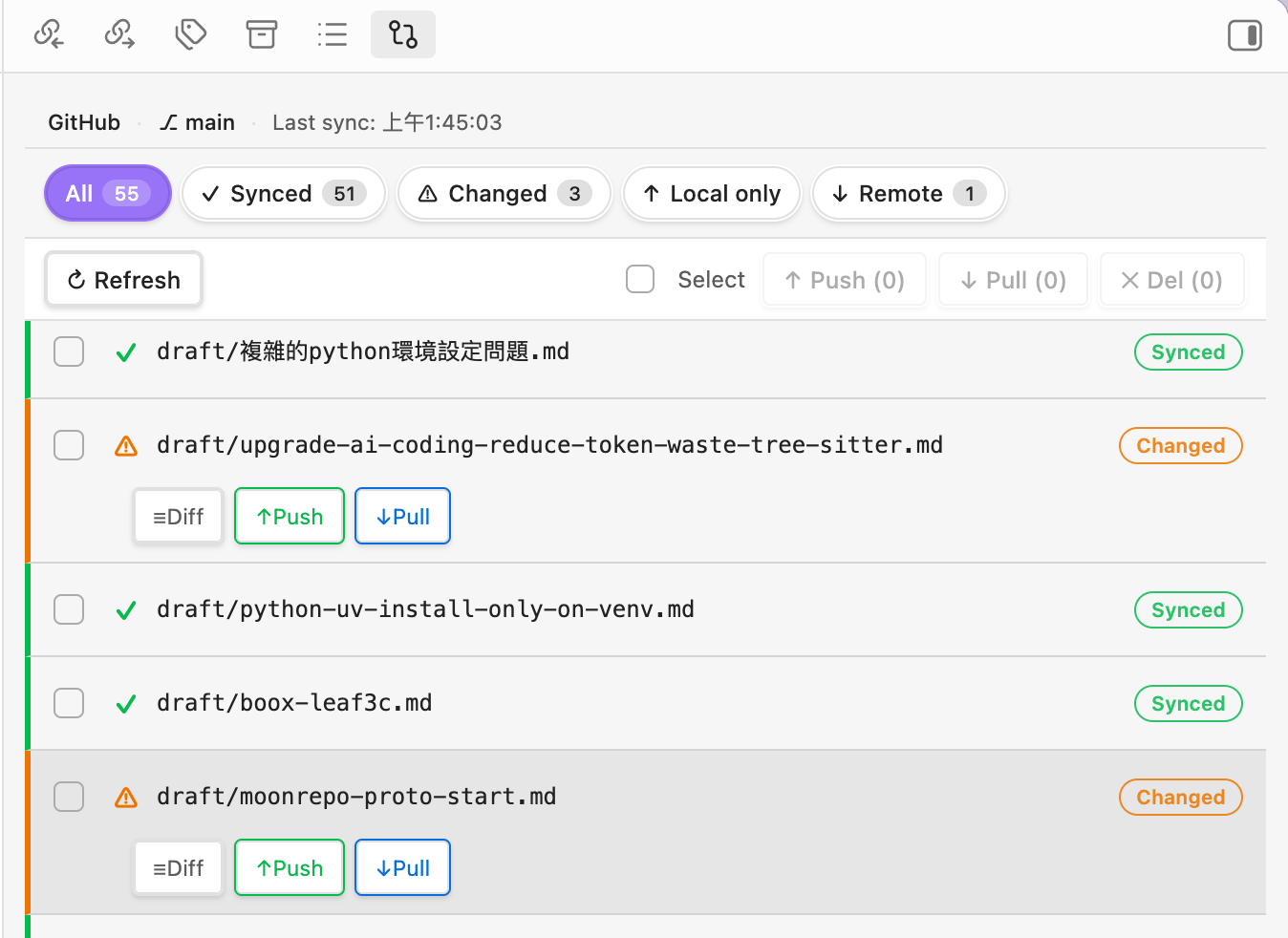
*The Sync Status View provides a clear overview of your files, allowing you to selectively push, pull, or view diffs for modified files.*
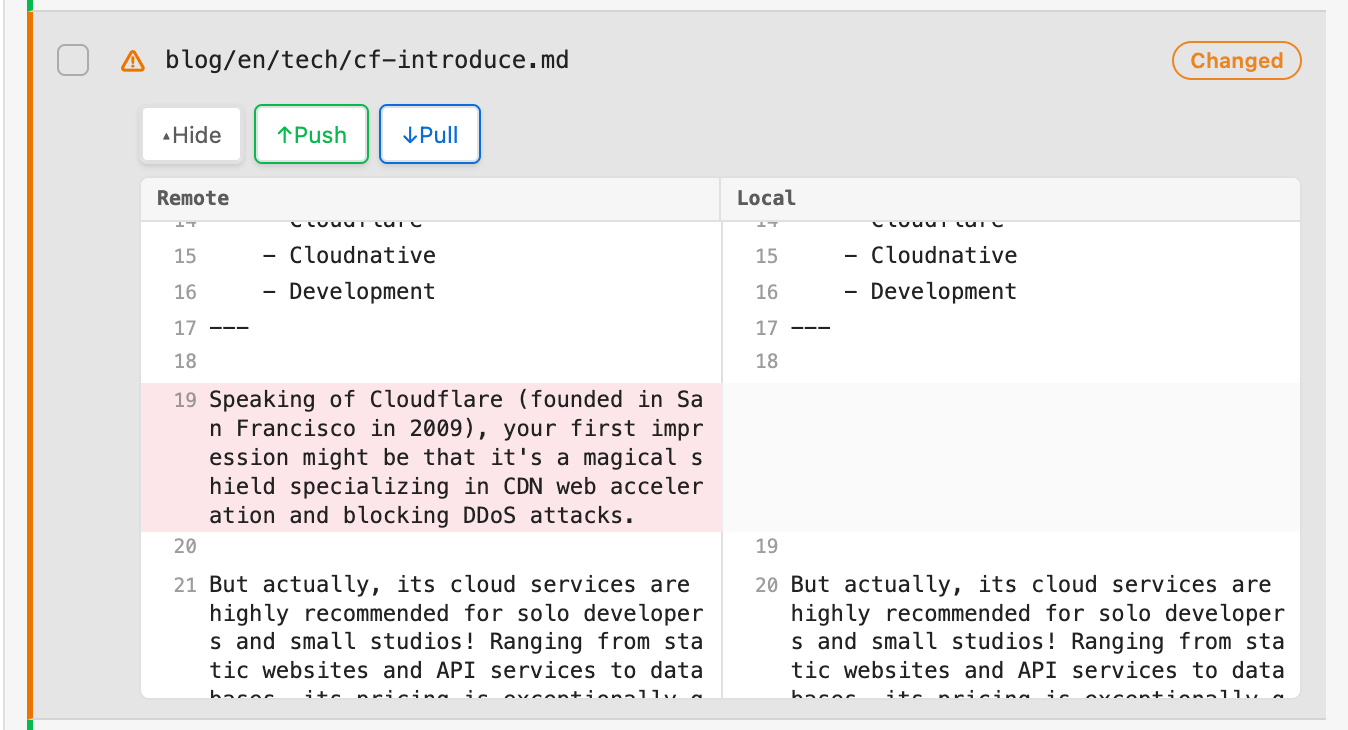
*The Built-in Diff Viewer lets you compare local and remote changes side-by-side before syncing.*
---
## Key Features
### Selective Synchronization
Don't sync your whole vault. Selectively push or pull individual notes, or use batch operations for specific folders. Perfect for keeping personal notes private while sharing project files.
### Visual Sync Dashboard
A comprehensive dashboard provides a bird's-eye view of your vault's status:
- **Status Filtering**: Instantly see what's modified, new, or missing.
- **Visual Diffs**: Compare local and remote changes line-by-line before syncing.
- **Remote-Only Detection**: Identify files existing on GitLab/GitHub that aren't in your vault yet.
### Intelligent Conflict Resolution
When versions clash, Git File Sync provides a dedicated diff viewer to help you resolve conflicts manually. Choose the local version, the remote version, or merge them with confidence.
### Mobile First
Full support for Obsidian Mobile. Push and pull your notes on the go with a responsive UI designed specifically for touch interfaces.
---
## Installation
### From Community Plugins (Recommended)
1. Open **Obsidian Settings** > **Community plugins**.
2. Click **Browse** and search for `Git File Sync`.
3. Click **Install**, then **Enable**.
### Manual Installation
1. Download the latest `main.js`, `manifest.json`, and `styles.css` from the [Releases](https://github.com/firstsun-dev/git-files-sync/releases) page.
2. Create a folder named `git-file-sync` in `/.obsidian/plugins/`.
3. Copy the downloaded files into that folder.
4. Reload Obsidian and enable the plugin.
---
## Configuration
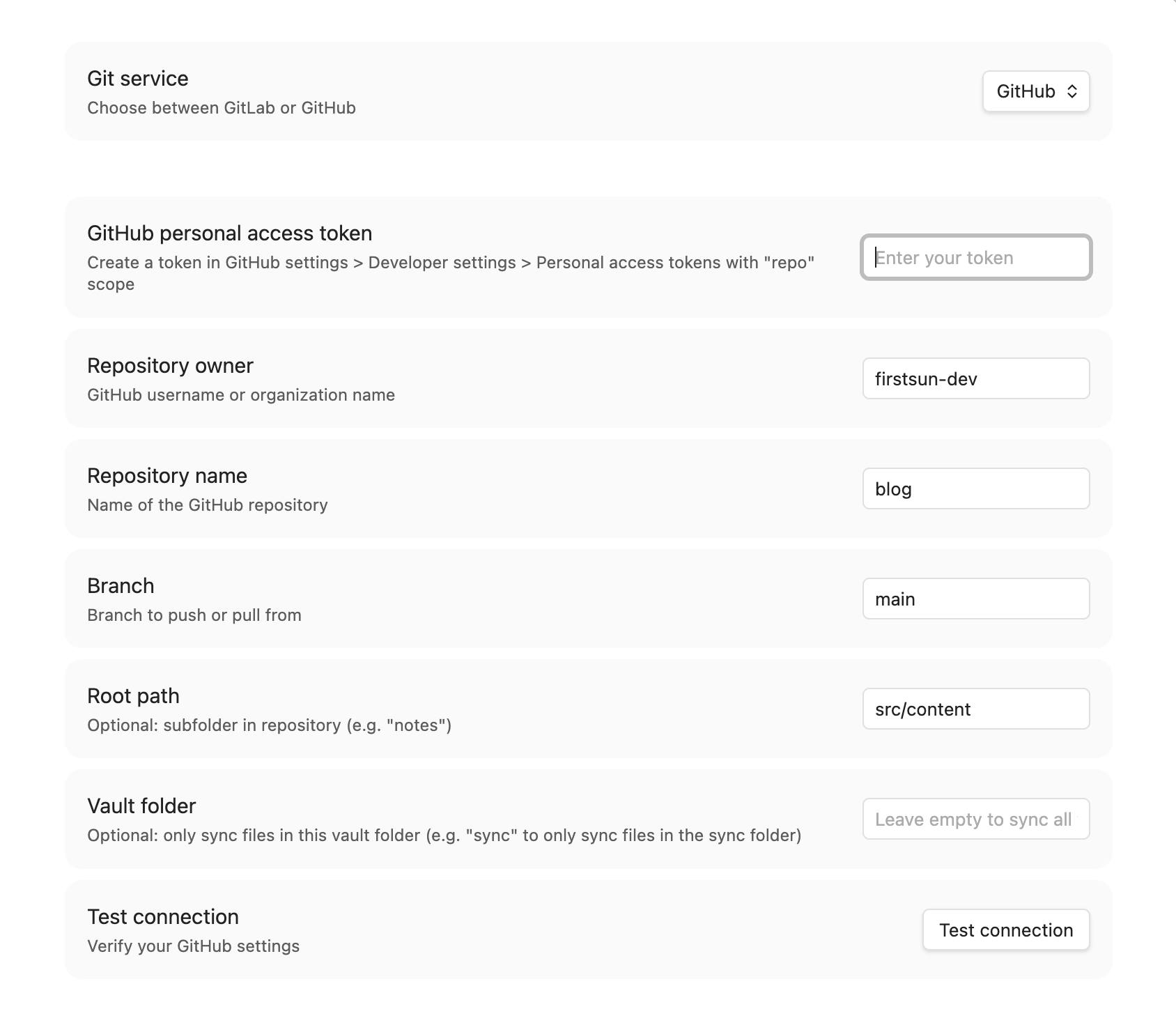
*Configure the plugin by selecting your preferred Git service and providing the necessary credentials.*
### 1. Choose Your Service
Go to **Settings** > **Git File Sync** and select either **GitLab** or **GitHub**.
### 2. Provider Setup
| Service | Required Info | Scope Needed |
| :--- | :--- | :--- |
| **GitLab** | Personal Access Token, Project ID, Base URL | `api` |
| **GitHub** | Personal Access Token, Owner, Repo Name | `repo` |
### 3. Common Settings
- **Branch**: Specify the target branch (default: `main`).
- **Root Path**: Prefix for files in the repository (e.g., `notes/`).
- **Vault Folder**: Limit sync to a specific folder in your vault.
---
## Usage Guide
### First-Time Setup
Once configured, you should perform an initial status check:
1. Open the **Sync Status View** by clicking the list icon in the left ribbon or using the Command Palette (`Open sync status view`).
2. Click **Refresh status**. The plugin will compare your local files with the remote repository.
3. Review the file list to see which files are synchronized, modified, or missing.
### Daily Workflow: Pushing Changes
When you finish editing a note and want to save it to Git:
- **Current Note**: Use the cloud icon in the ribbon or the command `Push current file to GitLab/GitHub`.
- **Multiple Notes**: Open the Sync Status View, use the **Modified** filter, select the files you want to sync, and click **Push selected**.
- **Context Menu**: Right-click any file in the File Explorer and select `Push to GitLab/GitHub`.
### Daily Workflow: Pulling Changes
To get the latest updates from other devices:
1. Open the Sync Status View and click **Refresh status**.
2. Files with remote updates will show as **Modified** or **Remote only**.
3. Select these files and click **Pull selected**.
4. **Warning**: Pulling will overwrite local changes. If there are conflicts, the Conflict Resolution tool will open.
### Handling Conflicts
If a file has changed both locally and on the remote server:
1. A **Conflict Resolution** window will appear.
2. The left pane shows your **Local** version, and the right pane shows the **Remote** version.
3. Review the differences.
4. Click **Keep Local** to overwrite the remote version on next push, or **Keep Remote** to accept the remote changes and overwrite your local file.
### Mobile Synchronization
On mobile devices:
- Swipe from the left to access the ribbon and open the Sync Status View.
- Use the **Pull** action to keep your mobile vault up to date before editing.
- After editing, use the **Push** action to save your changes back to the repository.
---
## Privacy and Security
- **Local Storage**: Your Personal Access Tokens (PAT) are stored locally in the plugin's data folder within your vault. They are never sent to any server other than GitLab/GitHub.
- **No Telemetry**: This plugin does not collect any data or usage analytics.
---
## Development
If you want to contribute or build from source:
```bash
# Clone and install
git clone https://github.com/firstsun-dev/git-files-sync.git
npm install
# Development build
npm run dev
# Production build
npm run build
```
---
## License
This project is licensed under the [MIT License](LICENSE).
---
**Created by [ClaudiaFang](https://github.com/ClaudiaFang)**