# Obsidian Immich Picker
 An Obsidian plugin to insert images from a self-hosted [Immich](https://immich.app/) photo server. Pick photos from your recent uploads and embed them directly into your notes.
Adapted from [obsidian-google-photos](https://github.com/alangrainger/obsidian-google-photos) for Immich. I created this as an alternative to [his Templater script](https://github.com/almarber/immich-templater-script).
## Features
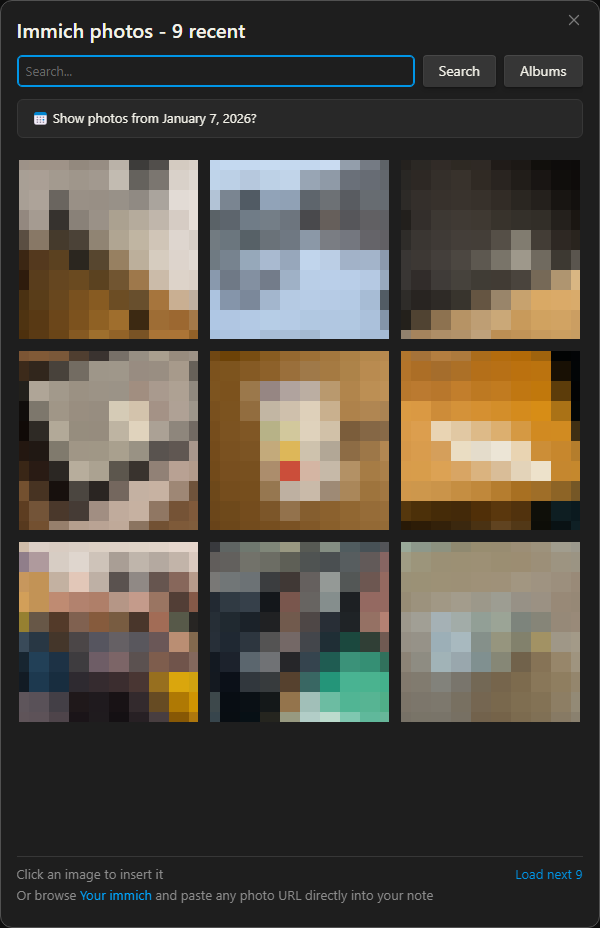
- **Photo Picker**: Command palette action to browse and select from your recent Immich photos
- **Smart Search**: Search your photos using Immich's AI-powered CLIP search (e.g., "beach sunset", "birthday party")
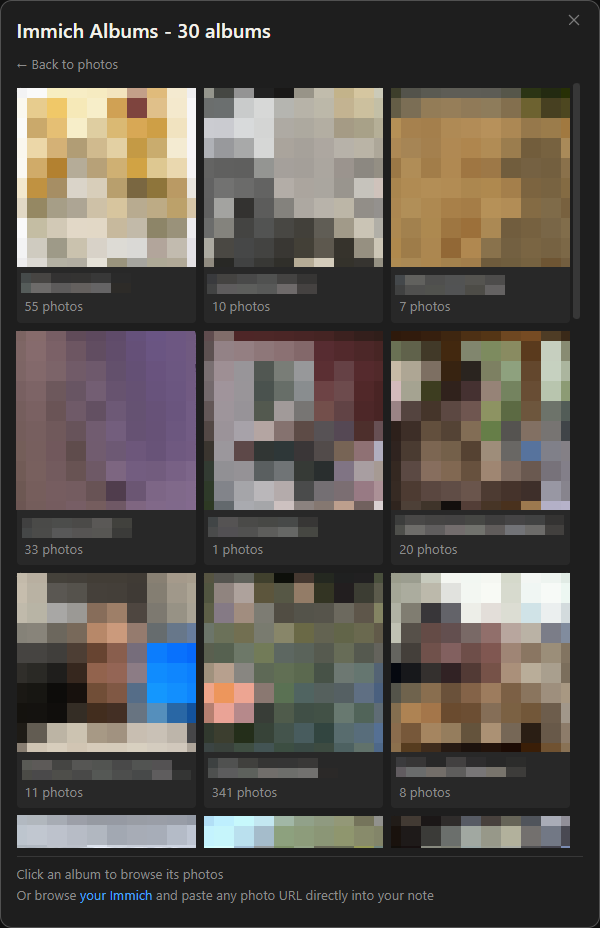
- **Album Browsing**: Browse your Immich albums, view album contents, and insert single photos or entire albums at once
- **Date Filtering**: Detect dates from note titles or frontmatter and show photos from that day
- **Paste URL Conversion**: Automatically converts pasted Immich photo URLs into embedded thumbnails
- **Image Modes**: Store images as local thumbnails, as links to your server, or as public shared links, and convert between them in bulk
- **Local & Public URLs**: Works with both local network URLs (e.g., `http://nas:2283`) and public URLs (e.g., `https://immich.example.com`)
- **Secure**: API key is stored in your OS credential manager, never embedded in your notes
## Requirements
- A self-hosted [Immich](https://immich.app/) server, version 2.x or 3.x. The plugin reads the server version and uses the matching API.
- An Immich API key with the following permissions:
- `asset.read` - for searching photos
- `asset.view` - for downloading thumbnails
- `album.read` - for browsing albums (optional)
## Installation
> **Note:** This plugin is not yet in the official Obsidian community plugin list. A [PR has been submitted](https://github.com/obsidianmd/obsidian-releases/pull/9367) and is pending review.
### Using BRAT (Recommended)
1. Install the [BRAT plugin](https://github.com/TfTHacker/obsidian42-brat) if you haven't already
2. Open Obsidian Settings → BRAT
3. Click "Add Beta plugin"
4. Enter: `eikowagenknecht/obsidian-immich-picker`
5. Enable the plugin in Settings → Community Plugins
### Manual Installation
1. Download `main.js`, `manifest.json`, and `styles.css` from the [latest release](https://github.com/eikowagenknecht/obsidian-immich-picker/releases)
2. Create a folder named `immich-picker` in your vault's `.obsidian/plugins/` directory
3. Copy the downloaded files into this folder
4. Reload Obsidian and enable the plugin in Settings → Community Plugins
## Setup
1. Open Settings → Immich Picker
2. Enter your Immich server URL (e.g., `https://immich.example.com`)
3. Enter your API key (create one in Immich under Account Settings → API Keys)
4. Click "Test Connection" to verify
Your API key is stored in your OS credential manager (Keychain on macOS, Credential Manager on Windows, libsecret on Linux), not in the plugin's data file. A key saved by an older version is migrated automatically on first load.
## Usage
### Insert Photo via Command
1. Open the command palette (Ctrl/Cmd + P)
2. Search for "Insert image from Immich"
3. Click on a photo to insert it
### Browse Albums
1. Open the photo picker via command palette
2. Click the "Albums" button (requires `album.read` permission)
3. Browse your albums sorted by most recently updated
4. Click an album to view its photos
5. Click a photo to insert it, or use "Insert all" to insert the entire album
### Filter by Note Date
If your note has a date in its title (e.g., `2024-01-15.md`) or frontmatter, the picker will suggest photos from that date:
1. Configure date detection in Settings → Note Date Detection
2. Open the photo picker on a note with a detectable date
3. A banner appears: "📅 Show photos from January 15, 2024?"
4. Click the banner to see all photos taken on that day
Photos are matched on the date the camera recorded, so a day spent in another
time zone still returns exactly that day's photos.
This is especially useful for daily notes or journal entries.
### Paste Immich URL
When you copy a photo URL from Immich (e.g., `https://immich.example.com/photos/abc-123`) and paste it into your note, the plugin will:
1. Detect the Immich URL
2. Download the thumbnail from your server
3. Save it locally using your configured settings
4. Insert the markdown with a clickable thumbnail linking to the original
This can be disabled in settings if you prefer to paste plain URLs.
### Choose How Images Are Stored
The **Image mode** setting controls what the plugin writes into your note:
| Mode | What it inserts | Notes |
|---------|-------------|---------|
| Local (default) | A thumbnail downloaded into your vault | Works offline and survives export |
| Remote | A markdown link to your Immich server | Nothing saved to your vault, but the plugin has to be installed to see the image |
| Shared | An Immich shared link | The URL works anywhere, and is readable by anyone who has it |
### Use Different Markdown for Different Notes
In local and shared mode, the plugin fills a named template to build the text it
inserts. Settings → Output templates starts with one, and you can add as many as
you like — useful when part of your vault goes somewhere else. The default wraps
the thumbnail in a link back to Immich, which is handy in Obsidian but trips up
publish plugins (Ghost, Hugo, and friends) that re-upload local embeds and only
recognise a plain ``:
```markdown
# Default — one click back to the original
[]({{immich_url}})
# Publish-safe — a plain embed, backlink parked in a comment

```
`{{display_width}}` is what carries the size — it becomes `|400` for a 400px
image, and nothing when "Original size" is picked. A template without it always
inserts full-size images, whatever the picker's size selector says.
Once there is more than one template, two things appear:
- **Default template** — used everywhere no folder rule applies.
- **Folder rules** — map a folder to a template. Notes in `Blog/posts` get the
publish-safe one, everything else keeps the default. The deepest matching rule
wins, so a rule on `Blog/drafts` overrides one on `Blog`.
The picker shows the resolved choice in a "Format" dropdown, so you can override
it for a single insert without touching settings. Pasted Immich URLs and bulk
conversion follow the folder rules on their own.
### Convert Between Formats
To move existing images from one mode to another, run "Convert Immich images" from the command palette:
1. Choose a scope: current note, a folder, or the whole vault
2. Choose the target format
3. Click "Scan" to see how many images will be converted
4. Click "Convert"
Converting to shared links asks for confirmation first, since those URLs are public and do not expire.
Conversion needs the note to record which Immich asset an image came from. Remote and shared images always carry it in their URL. Local images carry it only if the template that inserted them includes `{{immich_url}}` or `{{immich_thumbnail_url}}`, either in the image itself or in a trailing `` comment. Images inserted from a template with neither are skipped by the scan, because nothing in the note says which photo they are.
### Mobile
Everything works on mobile. The plugin adds a ribbon icon, reachable from the hamburger menu. To put it on the toolbar above the keyboard instead, go to Settings → Toolbar, tap +, and search for "Immich".
The [Commander](https://github.com/phibr0/obsidian-commander) plugin can also add Immich commands to the ribbon, context menus, and page headers.
## Settings
| Setting | Description | Default |
|---------|-------------|---------|
| Server URL | Your Immich server URL | - |
| API Key | Your Immich API key | - |
| Image mode | How images are stored (Local/Remote/Shared) | Local |
| Remote image format | Server link or code block, for remote mode | Server link |
| Render in edit mode | Show remote images inline while editing | Enabled |
| Display width | Default width for inserted images | Original size |
| Photos per page | Photos loaded at a time (recent, search, pagination) | 9 |
| Grid columns | Number of columns in the photo grid | 3 |
| Include archived photos | Show archived photos in recent, search and date results (albums always show them) | Disabled |
| Get date from | Where to extract date for filtering (Disabled/Note title/Frontmatter) | Disabled |
| Date format | MomentJS format for parsing dates | `YYYY-MM-DD` |
| Frontmatter key | Property name containing the date | `date` |
| Location | Where to save thumbnails | Same folder as note |
| Filename format | MomentJS format for saved files | `immich_2024-01-01--23-59-59.jpg` |
| Output templates | Named Markdown templates for inserted images | One, `[]({{immich_url}})` |
| Default template | Template for notes no folder rule matches | The first one |
| Folder rules | Folders that get a template of their own | None |
| Convert pasted Immich links | Auto-convert pasted URLs to thumbnails | Enabled |
### Template Variables
- `{{local_thumbnail_link}}` - Path to the local thumbnail (the shared URL in shared mode)
- `{{immich_thumbnail_url}}` - Direct thumbnail URL on the server
- `{{immich_url}}` - URL to the photo in Immich
- `{{immich_asset_id}}` - The Immich asset ID
- `{{original_filename}}` - Original filename from Immich
- `{{taken_date}}` - Date the photo was taken
- `{{description}}` - Photo description from Immich
- `{{display_width}}` - Width suffix for the alt text, e.g. `|400`, set by the display width setting and the picker's size selector
## Development
```bash
# Install dependencies
npm install
# Development mode (watch for changes)
npm run dev
# Production build
npm run build
# Lint
npm run lint
```
## Attribution
Based on [obsidian-google-photos](https://github.com/alangrainger/obsidian-google-photos) by Alan Grainger (GPL-3.0).
## License
GPL-3.0 - see [LICENSE](LICENSE) for details.
An Obsidian plugin to insert images from a self-hosted [Immich](https://immich.app/) photo server. Pick photos from your recent uploads and embed them directly into your notes.
Adapted from [obsidian-google-photos](https://github.com/alangrainger/obsidian-google-photos) for Immich. I created this as an alternative to [his Templater script](https://github.com/almarber/immich-templater-script).


## Features
- **Photo Picker**: Command palette action to browse and select from your recent Immich photos
- **Smart Search**: Search your photos using Immich's AI-powered CLIP search (e.g., "beach sunset", "birthday party")
- **Album Browsing**: Browse your Immich albums, view album contents, and insert single photos or entire albums at once
- **Date Filtering**: Detect dates from note titles or frontmatter and show photos from that day
- **Paste URL Conversion**: Automatically converts pasted Immich photo URLs into embedded thumbnails
- **Image Modes**: Store images as local thumbnails, as links to your server, or as public shared links, and convert between them in bulk
- **Local & Public URLs**: Works with both local network URLs (e.g., `http://nas:2283`) and public URLs (e.g., `https://immich.example.com`)
- **Secure**: API key is stored in your OS credential manager, never embedded in your notes
## Requirements
- A self-hosted [Immich](https://immich.app/) server, version 2.x or 3.x. The plugin reads the server version and uses the matching API.
- An Immich API key with the following permissions:
- `asset.read` - for searching photos
- `asset.view` - for downloading thumbnails
- `album.read` - for browsing albums (optional)
## Installation
> **Note:** This plugin is not yet in the official Obsidian community plugin list. A [PR has been submitted](https://github.com/obsidianmd/obsidian-releases/pull/9367) and is pending review.
### Using BRAT (Recommended)
1. Install the [BRAT plugin](https://github.com/TfTHacker/obsidian42-brat) if you haven't already
2. Open Obsidian Settings → BRAT
3. Click "Add Beta plugin"
4. Enter: `eikowagenknecht/obsidian-immich-picker`
5. Enable the plugin in Settings → Community Plugins
### Manual Installation
1. Download `main.js`, `manifest.json`, and `styles.css` from the [latest release](https://github.com/eikowagenknecht/obsidian-immich-picker/releases)
2. Create a folder named `immich-picker` in your vault's `.obsidian/plugins/` directory
3. Copy the downloaded files into this folder
4. Reload Obsidian and enable the plugin in Settings → Community Plugins
## Setup
1. Open Settings → Immich Picker
2. Enter your Immich server URL (e.g., `https://immich.example.com`)
3. Enter your API key (create one in Immich under Account Settings → API Keys)
4. Click "Test Connection" to verify
Your API key is stored in your OS credential manager (Keychain on macOS, Credential Manager on Windows, libsecret on Linux), not in the plugin's data file. A key saved by an older version is migrated automatically on first load.
## Usage
### Insert Photo via Command
1. Open the command palette (Ctrl/Cmd + P)
2. Search for "Insert image from Immich"
3. Click on a photo to insert it
### Browse Albums
1. Open the photo picker via command palette
2. Click the "Albums" button (requires `album.read` permission)
3. Browse your albums sorted by most recently updated
4. Click an album to view its photos
5. Click a photo to insert it, or use "Insert all" to insert the entire album
### Filter by Note Date
If your note has a date in its title (e.g., `2024-01-15.md`) or frontmatter, the picker will suggest photos from that date:
1. Configure date detection in Settings → Note Date Detection
2. Open the photo picker on a note with a detectable date
3. A banner appears: "📅 Show photos from January 15, 2024?"
4. Click the banner to see all photos taken on that day
Photos are matched on the date the camera recorded, so a day spent in another
time zone still returns exactly that day's photos.
This is especially useful for daily notes or journal entries.
### Paste Immich URL
When you copy a photo URL from Immich (e.g., `https://immich.example.com/photos/abc-123`) and paste it into your note, the plugin will:
1. Detect the Immich URL
2. Download the thumbnail from your server
3. Save it locally using your configured settings
4. Insert the markdown with a clickable thumbnail linking to the original
This can be disabled in settings if you prefer to paste plain URLs.
### Choose How Images Are Stored
The **Image mode** setting controls what the plugin writes into your note:
| Mode | What it inserts | Notes |
|---------|-------------|---------|
| Local (default) | A thumbnail downloaded into your vault | Works offline and survives export |
| Remote | A markdown link to your Immich server | Nothing saved to your vault, but the plugin has to be installed to see the image |
| Shared | An Immich shared link | The URL works anywhere, and is readable by anyone who has it |
### Use Different Markdown for Different Notes
In local and shared mode, the plugin fills a named template to build the text it
inserts. Settings → Output templates starts with one, and you can add as many as
you like — useful when part of your vault goes somewhere else. The default wraps
the thumbnail in a link back to Immich, which is handy in Obsidian but trips up
publish plugins (Ghost, Hugo, and friends) that re-upload local embeds and only
recognise a plain ``:
```markdown
# Default — one click back to the original
[]({{immich_url}})
# Publish-safe — a plain embed, backlink parked in a comment

```
`{{display_width}}` is what carries the size — it becomes `|400` for a 400px
image, and nothing when "Original size" is picked. A template without it always
inserts full-size images, whatever the picker's size selector says.
Once there is more than one template, two things appear:
- **Default template** — used everywhere no folder rule applies.
- **Folder rules** — map a folder to a template. Notes in `Blog/posts` get the
publish-safe one, everything else keeps the default. The deepest matching rule
wins, so a rule on `Blog/drafts` overrides one on `Blog`.
The picker shows the resolved choice in a "Format" dropdown, so you can override
it for a single insert without touching settings. Pasted Immich URLs and bulk
conversion follow the folder rules on their own.
### Convert Between Formats
To move existing images from one mode to another, run "Convert Immich images" from the command palette:
1. Choose a scope: current note, a folder, or the whole vault
2. Choose the target format
3. Click "Scan" to see how many images will be converted
4. Click "Convert"
Converting to shared links asks for confirmation first, since those URLs are public and do not expire.
Conversion needs the note to record which Immich asset an image came from. Remote and shared images always carry it in their URL. Local images carry it only if the template that inserted them includes `{{immich_url}}` or `{{immich_thumbnail_url}}`, either in the image itself or in a trailing `` comment. Images inserted from a template with neither are skipped by the scan, because nothing in the note says which photo they are.
### Mobile
Everything works on mobile. The plugin adds a ribbon icon, reachable from the hamburger menu. To put it on the toolbar above the keyboard instead, go to Settings → Toolbar, tap +, and search for "Immich".
The [Commander](https://github.com/phibr0/obsidian-commander) plugin can also add Immich commands to the ribbon, context menus, and page headers.
## Settings
| Setting | Description | Default |
|---------|-------------|---------|
| Server URL | Your Immich server URL | - |
| API Key | Your Immich API key | - |
| Image mode | How images are stored (Local/Remote/Shared) | Local |
| Remote image format | Server link or code block, for remote mode | Server link |
| Render in edit mode | Show remote images inline while editing | Enabled |
| Display width | Default width for inserted images | Original size |
| Photos per page | Photos loaded at a time (recent, search, pagination) | 9 |
| Grid columns | Number of columns in the photo grid | 3 |
| Include archived photos | Show archived photos in recent, search and date results (albums always show them) | Disabled |
| Get date from | Where to extract date for filtering (Disabled/Note title/Frontmatter) | Disabled |
| Date format | MomentJS format for parsing dates | `YYYY-MM-DD` |
| Frontmatter key | Property name containing the date | `date` |
| Location | Where to save thumbnails | Same folder as note |
| Filename format | MomentJS format for saved files | `immich_2024-01-01--23-59-59.jpg` |
| Output templates | Named Markdown templates for inserted images | One, `[]({{immich_url}})` |
| Default template | Template for notes no folder rule matches | The first one |
| Folder rules | Folders that get a template of their own | None |
| Convert pasted Immich links | Auto-convert pasted URLs to thumbnails | Enabled |
### Template Variables
- `{{local_thumbnail_link}}` - Path to the local thumbnail (the shared URL in shared mode)
- `{{immich_thumbnail_url}}` - Direct thumbnail URL on the server
- `{{immich_url}}` - URL to the photo in Immich
- `{{immich_asset_id}}` - The Immich asset ID
- `{{original_filename}}` - Original filename from Immich
- `{{taken_date}}` - Date the photo was taken
- `{{description}}` - Photo description from Immich
- `{{display_width}}` - Width suffix for the alt text, e.g. `|400`, set by the display width setting and the picker's size selector
## Development
```bash
# Install dependencies
npm install
# Development mode (watch for changes)
npm run dev
# Production build
npm run build
# Lint
npm run lint
```
## Attribution
Based on [obsidian-google-photos](https://github.com/alangrainger/obsidian-google-photos) by Alan Grainger (GPL-3.0).
## License
GPL-3.0 - see [LICENSE](LICENSE) for details.