# Note Share Image Exporter
English | [中文](README.zh-CN.md)
Export Obsidian notes, selections, and folders as shareable images or PDFs with live preview, split output, watermarks, and author info.
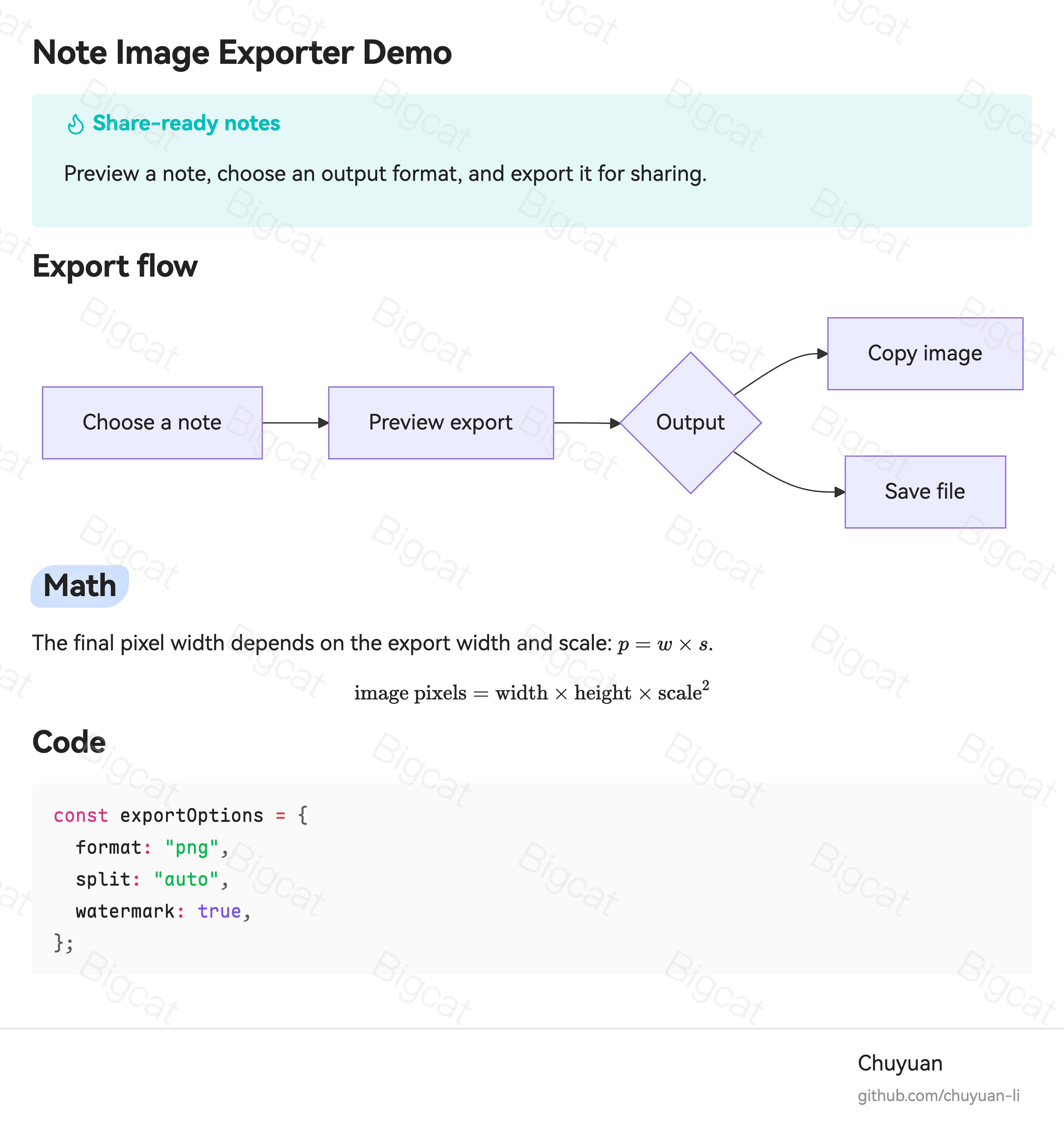 Note Share Image Exporter keeps Obsidian rendering in the result, so a shared image can include content such as Mermaid diagrams, math, code blocks, callouts, metadata, and your current note styling.
## Quick start
1. Right-click a note, selected text, or folder.
2. Choose **Export to image**, **Export selection to image**, or **Export all notes to image**.
3. Adjust the preview, then copy the result or save it as a file.
Note Share Image Exporter keeps Obsidian rendering in the result, so a shared image can include content such as Mermaid diagrams, math, code blocks, callouts, metadata, and your current note styling.
## Quick start
1. Right-click a note, selected text, or folder.
2. Choose **Export to image**, **Export selection to image**, or **Export all notes to image**.
3. Adjust the preview, then copy the result or save it as a file.
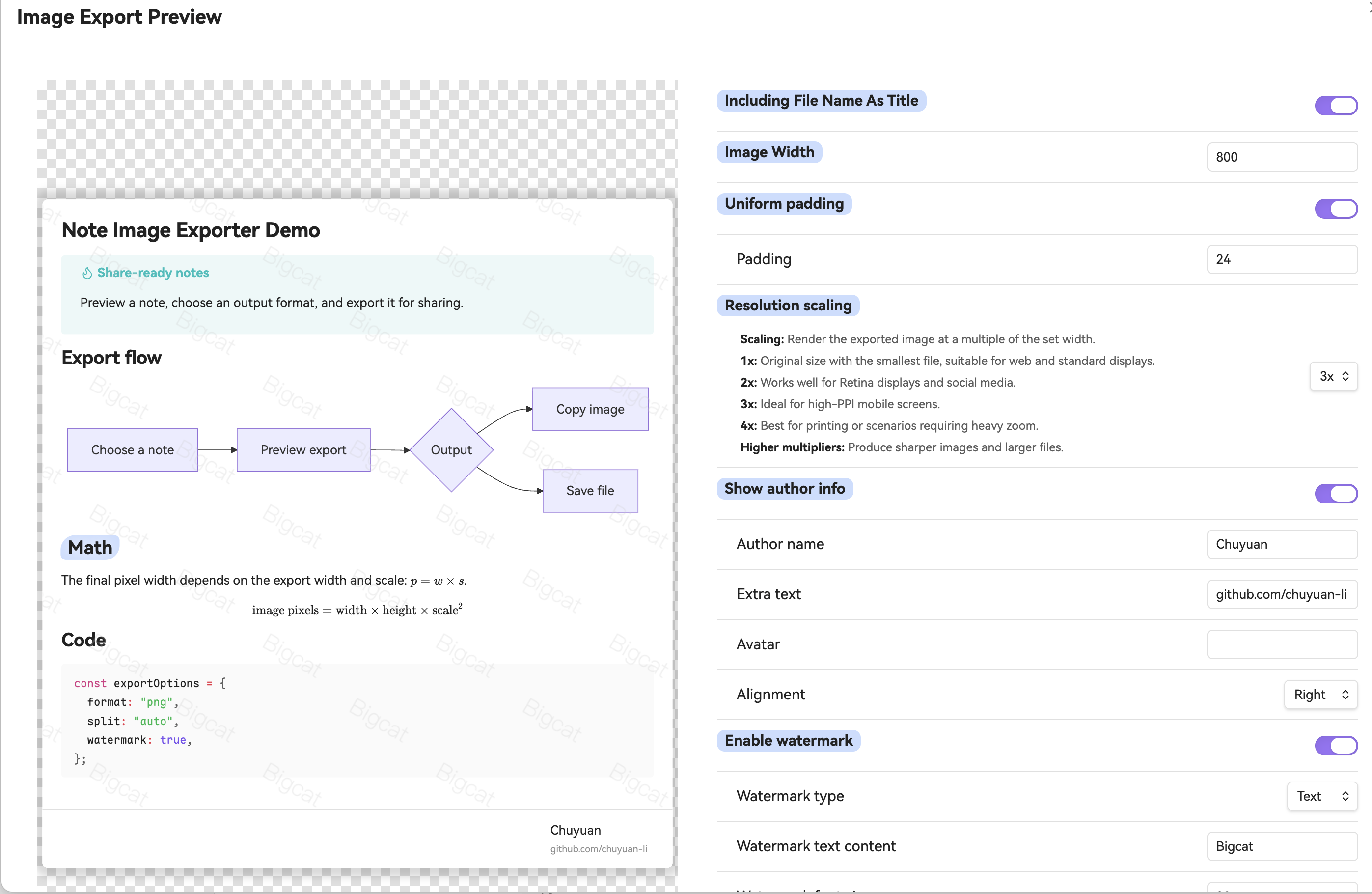 ## Features
- Export notes as PNG, JPG, WebP, or PDF.
- Copy an image directly from the export preview when the selected format supports it.
- Preview changes before export, including width, padding, format, resolution, watermark, and author info.
- Split long notes with fixed-height, horizontal-rule, or automatic paragraph-based pagination.
- Add text or image watermarks for shared images.
- Embed a hidden asset mark **(invisible watermark)** into exported image pixels for later matching.
- Add author name, extra text, avatar, alignment, and placement to exported images.
- Export every Markdown note in a folder from the file menu.
- Use the plugin in any of its 20 available languages.
## Usage
### Export a note
- Right-click a Markdown file in the file explorer and choose **Export to image**.
- Right-click inside the editor and choose **Export to image**.
- Open the command palette and run **Export as an image**.
### Export from the Obsidian CLI
The plugin exposes `exportFileToPath()` for Obsidian's official `eval` command. This uses Obsidian's own Markdown renderer, theme, and plugin runtime, but skips the preview modal and writes directly to an output path.
Prerequisites:
- Obsidian desktop is installed and the official `obsidian` command is available.
- This plugin is installed and enabled in the target vault.
- After manually replacing `main.js`, reload the plugin or restart Obsidian before calling the API.
Basic PNG export:
```bash
obsidian vault="My Vault" eval code="(async()=>await app.plugins.plugins['note-share-image-exporter'].exportFileToPath({\
input:'Folder/Note.md',\
output:'/Users/me/Downloads/note.png',\
options:{\
format:'png0',\
resolutionMode:'3x',\
width:900,\
split:{mode:'none'}\
}\
}))()"
```
PDF export:
```bash
obsidian vault="My Vault" eval code="(async()=>await app.plugins.plugins['note-share-image-exporter'].exportFileToPath({\
input:'Folder/Note.md',\
output:'/Users/me/Downloads/note.pdf',\
options:{\
format:'pdf',\
split:{mode:'none'}\
}\
}))()"
```
Split image export writes a ZIP file:
```bash
obsidian vault="My Vault" eval code="(async()=>await app.plugins.plugins['note-share-image-exporter'].exportFileToPath({\
input:'Folder/Note.md',\
output:'/Users/me/Downloads/note.zip',\
options:{\
format:'png0',\
split:{\
mode:'fixed',\
height:1000,\
overlap:80\
}\
}\
}))()"
```
`input` can be a vault-relative Markdown path or an absolute path inside the vault. `output` must be an absolute desktop file path. Options are optional; omitted fields use the plugin's saved settings. Output extensions must match the result type: `.png`, `.jpg`, `.webp`, `.pdf`, or `.zip` for split image exports.
You can confirm the API is loaded with:
```bash
obsidian vault="My Vault" eval code="typeof app.plugins.plugins['note-share-image-exporter'].exportFileToPath"
```
## Platform notes
- On desktop, saved exports are downloaded as files.
- On mobile, saved exports are written into the current vault.
- Clipboard copy availability depends on the output format and platform. Save the file when copy is unavailable.
- `exportFileToPath()` is desktop-only because it writes to an absolute local file path.
## Installation
### Community plugins
Install **Note Share Image Exporter** from Obsidian's Community plugins browser when it is available there.
### Manual installation
1. Download `main.js`, `manifest.json`, and `styles.css` from a release.
2. Put them in `/.obsidian/plugins/note-share-image-exporter/`.
3. Enable **Note Share Image Exporter** in **Settings** -> **Community plugins**.
## Privacy and network use
Notes are rendered and exported locally. The plugin does not send note content to a service.
Network requests are only used for remote image URLs that you provide for export assets, such as an image watermark or avatar. Use local vault images or uploaded images when you do not want a remote image fetched during export.
## Development
```bash
npm install
npm run dev
npm run build
npm run typesafe-i18n
```
## Author
Created by [chuyuan-li](https://github.com/chuyuan-li).
## License
MIT
## Features
- Export notes as PNG, JPG, WebP, or PDF.
- Copy an image directly from the export preview when the selected format supports it.
- Preview changes before export, including width, padding, format, resolution, watermark, and author info.
- Split long notes with fixed-height, horizontal-rule, or automatic paragraph-based pagination.
- Add text or image watermarks for shared images.
- Embed a hidden asset mark **(invisible watermark)** into exported image pixels for later matching.
- Add author name, extra text, avatar, alignment, and placement to exported images.
- Export every Markdown note in a folder from the file menu.
- Use the plugin in any of its 20 available languages.
## Usage
### Export a note
- Right-click a Markdown file in the file explorer and choose **Export to image**.
- Right-click inside the editor and choose **Export to image**.
- Open the command palette and run **Export as an image**.
### Export from the Obsidian CLI
The plugin exposes `exportFileToPath()` for Obsidian's official `eval` command. This uses Obsidian's own Markdown renderer, theme, and plugin runtime, but skips the preview modal and writes directly to an output path.
Prerequisites:
- Obsidian desktop is installed and the official `obsidian` command is available.
- This plugin is installed and enabled in the target vault.
- After manually replacing `main.js`, reload the plugin or restart Obsidian before calling the API.
Basic PNG export:
```bash
obsidian vault="My Vault" eval code="(async()=>await app.plugins.plugins['note-share-image-exporter'].exportFileToPath({\
input:'Folder/Note.md',\
output:'/Users/me/Downloads/note.png',\
options:{\
format:'png0',\
resolutionMode:'3x',\
width:900,\
split:{mode:'none'}\
}\
}))()"
```
PDF export:
```bash
obsidian vault="My Vault" eval code="(async()=>await app.plugins.plugins['note-share-image-exporter'].exportFileToPath({\
input:'Folder/Note.md',\
output:'/Users/me/Downloads/note.pdf',\
options:{\
format:'pdf',\
split:{mode:'none'}\
}\
}))()"
```
Split image export writes a ZIP file:
```bash
obsidian vault="My Vault" eval code="(async()=>await app.plugins.plugins['note-share-image-exporter'].exportFileToPath({\
input:'Folder/Note.md',\
output:'/Users/me/Downloads/note.zip',\
options:{\
format:'png0',\
split:{\
mode:'fixed',\
height:1000,\
overlap:80\
}\
}\
}))()"
```
`input` can be a vault-relative Markdown path or an absolute path inside the vault. `output` must be an absolute desktop file path. Options are optional; omitted fields use the plugin's saved settings. Output extensions must match the result type: `.png`, `.jpg`, `.webp`, `.pdf`, or `.zip` for split image exports.
You can confirm the API is loaded with:
```bash
obsidian vault="My Vault" eval code="typeof app.plugins.plugins['note-share-image-exporter'].exportFileToPath"
```
## Platform notes
- On desktop, saved exports are downloaded as files.
- On mobile, saved exports are written into the current vault.
- Clipboard copy availability depends on the output format and platform. Save the file when copy is unavailable.
- `exportFileToPath()` is desktop-only because it writes to an absolute local file path.
## Installation
### Community plugins
Install **Note Share Image Exporter** from Obsidian's Community plugins browser when it is available there.
### Manual installation
1. Download `main.js`, `manifest.json`, and `styles.css` from a release.
2. Put them in `/.obsidian/plugins/note-share-image-exporter/`.
3. Enable **Note Share Image Exporter** in **Settings** -> **Community plugins**.
## Privacy and network use
Notes are rendered and exported locally. The plugin does not send note content to a service.
Network requests are only used for remote image URLs that you provide for export assets, such as an image watermark or avatar. Use local vault images or uploaded images when you do not want a remote image fetched during export.
## Development
```bash
npm install
npm run dev
npm run build
npm run typesafe-i18n
```
## Author
Created by [chuyuan-li](https://github.com/chuyuan-li).
## License
MIT