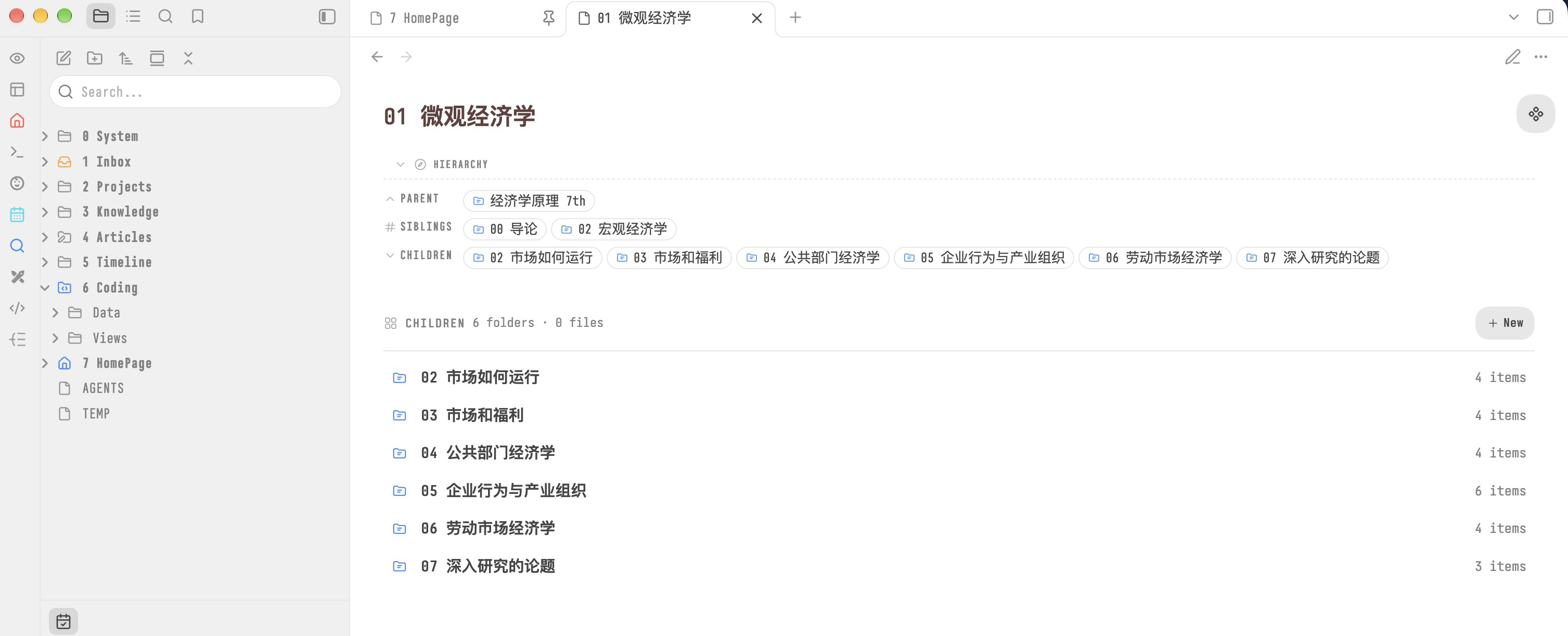
Hierarchy Navigator

A parent / siblings / children navigation block for every Obsidian note

Requires Obsidian 1.13.0 or later

简体中文 | English

[![Version](https://img.shields.io/badge/Version-0.3.4-3DA639)](https://github.com/butfool/obsidian-hierarchy-navigator/releases/latest) [![Community plugins](https://img.shields.io/obsidian/plugins?id=hierarchy-navigator&label=Community%20plugins&logo=obsidian&logoColor=white)](https://obsidian.md/plugins?id=hierarchy-navigator) [![Obsidian](https://img.shields.io/badge/Obsidian-1.13.0%2B-7C3AED?logo=obsidian&logoColor=white)](https://obsidian.md) [![License](https://img.shields.io/badge/License-MIT-3DA639?logo=opensourceinitiative&logoColor=white)](LICENSE)


---

Hierarchy Navigator

## What is this Hierarchy Navigator renders a navigation block at the top of every note in your vault, telling you where that note sits in the folder tree: which folder holds it, what else lives beside it, and what is inside it. Open any note and you see its parent, its siblings, and its children without switching to the file explorer. The header block is injected at render time in Reading view and Live Preview. The body children index is shown only in Reading view. Your `.md` files are never rewritten — the plugin writes to disk only when you explicitly ask it to create something. Inspired by SiYuan's [`hierarchyNavigate`](https://github.com/OpaqueGlass/syplugin-hierarchyNavigate) and built on [AidenLx's Folder Note](https://github.com/aidenlx/alx-folder-note) semantics. ## Features - Renders the same header navigation block in Reading view and Live Preview; the body children index appears only in Reading view - Works with Folder Note, so a Folder Note navigates as the folder it represents - Filters extensions through Obsidian's own view registry, showing only files the app can open - Sorts folders before files in natural order, so `9` comes before `10` - Uses consistently sized navigation pills for folders and notes; Folder Notes have an accent-colored icon - Tints each pill by file type: note, Canvas, Base, PDF, image, audio, video, code - Renders a children index while a Folder Note's body is empty; when there are no children, only a compact “New child item” action appears - The create dialog offers Note / Folder note / Folder with icons in a segmented selector, defaults to Folder note, preserves the name across type changes, and previews the resulting directory structure; its height stays fixed across types and fits smaller screens - Notes open after creation; Folder notes create a folder and its same-named entry note, then open that note; empty folders refresh the index - Creates notes through Obsidian's own `createNewMarkdownFile`, never overwriting an existing path - Ships English and 简体中文; switch under Settings and it applies immediately ## Install The plugin is on the community plugin store. ### Community plugin store (recommended) 1. Open **Settings → Community plugins** in Obsidian, click **Browse**, and search for `Hierarchy Navigator`. 2. Click **Install**, then enable **Hierarchy Navigator** under **Installed plugins**. You can also install it with this link: [obsidian://show-plugin?id=hierarchy-navigator](obsidian://show-plugin?id=hierarchy-navigator) Store page: ### Manual install 1. Open [Releases](https://github.com/butfool/obsidian-hierarchy-navigator/releases/latest) and download `main.js`, `manifest.json`, and `styles.css` from the same release. 2. Create `YOUR_VAULT/.obsidian/plugins/hierarchy-navigator/` and place all three files in it. 3. Enable **Hierarchy Navigator** under **Settings → Community plugins → Installed plugins**. The community plugin installer uses these three individual release assets. Users do not need Node.js or a local build. ### BRAT preview Add the repository to your BRAT plugin list: ``` https://github.com/butfool/obsidian-hierarchy-navigator ``` ## Settings **Settings → Hierarchy Navigator** controls: | Setting | Options | Default | |---|---|---| | Language | English / 简体中文 | 简体中文 | | Header label | free text | `Hierarchy` | | Show parent folder | toggle | on | | Show siblings | toggle | off | | Show folders | toggle | on | | Show files | toggle | on | | Section layout | Single line / Wrap | Single line | | Max items per section | number ≥ 1 | 6 | | Show a children index in the note body | toggle | on | | Show a create button in the body index | toggle | on | Turn off the create button and the plugin becomes strictly read-only. Add `hierarchy-nav: hide` to a note's frontmatter to skip that one note. Clicking the header row folds the whole block away, and the folded state survives switching notes. ## Commands Assign shortcuts under **Settings → Hotkeys**. Command names follow the plugin's interface language. | Command | What it does | |---|---| | 在文件浏览器中定位父文件夹 | Selects the parent folder in the file explorer | | 打开第一个子文件 | Opens the first entry under the current Folder Note using the same navigation ordering | ## Development ```bash git clone https://github.com/butfool/obsidian-hierarchy-navigator.git cd obsidian-hierarchy-navigator npm install npm run dev # watches src/ and rebuilds main.js on every change ``` Keep the repository at `YOUR_VAULT/.obsidian/plugins/hierarchy-navigator/` while developing, then reload Obsidian after each build. ## Releasing The `.github/workflows/release.yml` workflow builds only the committed source at the pushed tag. It installs locked dependencies, validates the version, runs the checks, and generates build provenance attestations for the three standard assets. 1. Set the same new `x.y.z` version in `manifest.json`, `package.json`, and `package-lock.json`, update `versions.json`, and update the README version badges. If `minAppVersion` increases, add a compatible version mapping to `versions.json`. 2. Verify, commit, and push all intended release changes. Never upload a build containing uncommitted source. 3. Create and push a tag that exactly matches the manifest version, without a `v` prefix: ```bash git tag -a 0.3.4 -m "0.3.4" git push origin 0.3.4 ``` 4. Wait for **Actions → Release Obsidian plugin** to succeed. It creates a draft release with `main.js`, `manifest.json`, and `styles.css` attached. 5. Check the assets and release notes, then select **Publish release**. Draft releases are not public installation sources. The `0.3.4` tag above is only a next-version example; replace it with the actual manifest version. New releases are reviewed automatically by the Obsidian Community directory. The store listing renders this repository's `README.md`. ## License [MIT](LICENSE) © 2026 butcool ## Friend links [Linux Do](https://linux.do)