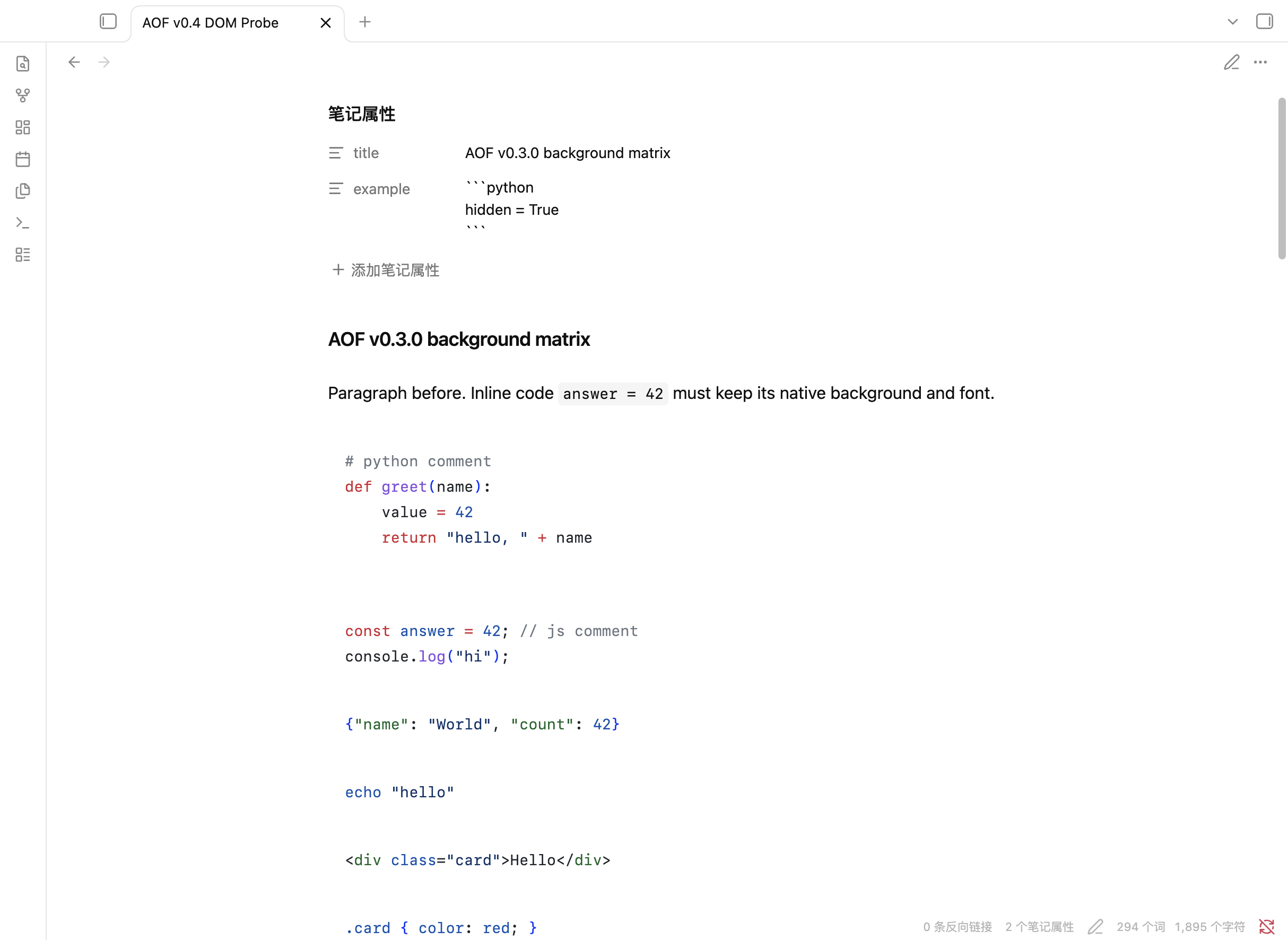
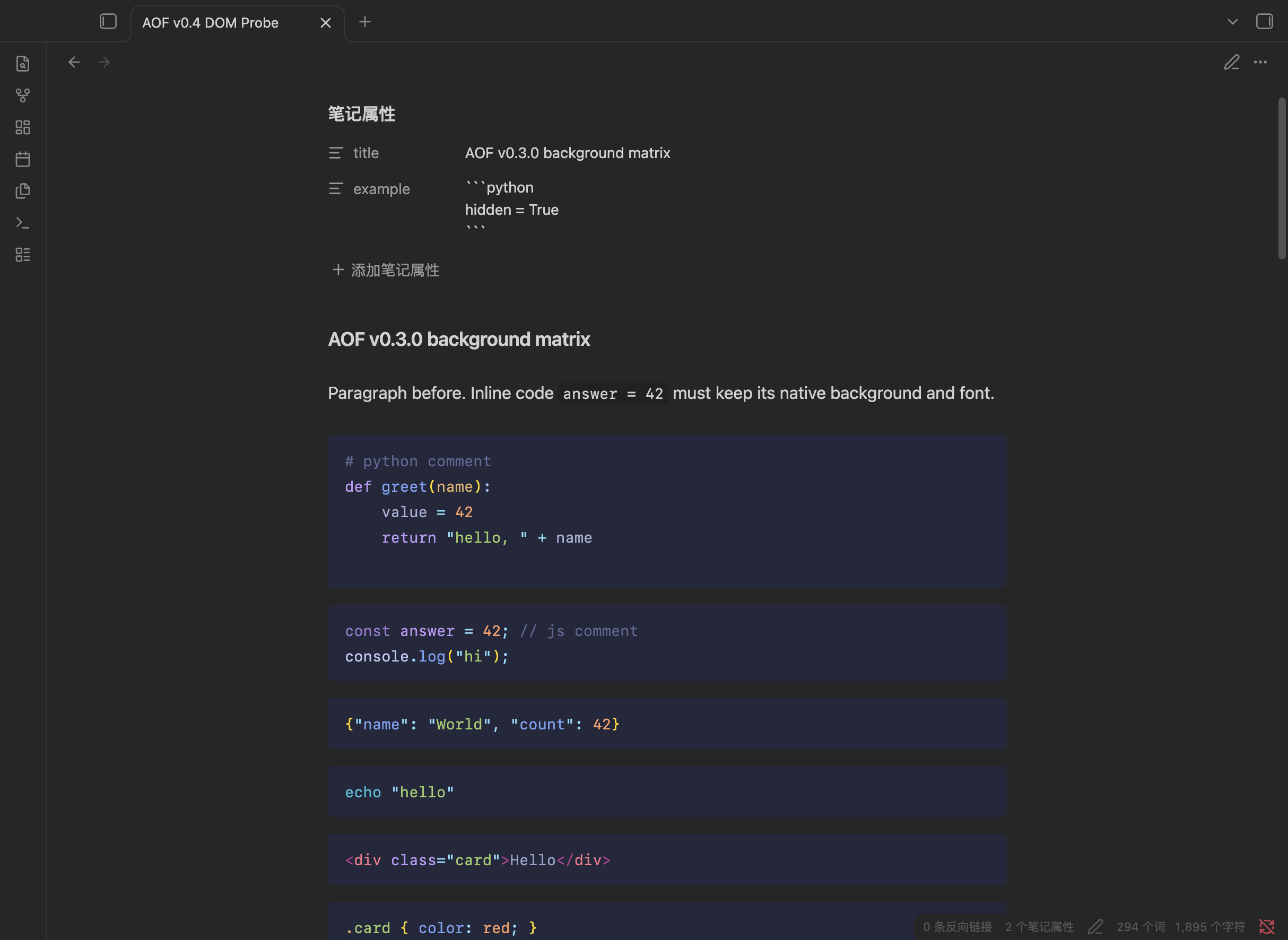
Light and dark appearances with different code palettes.
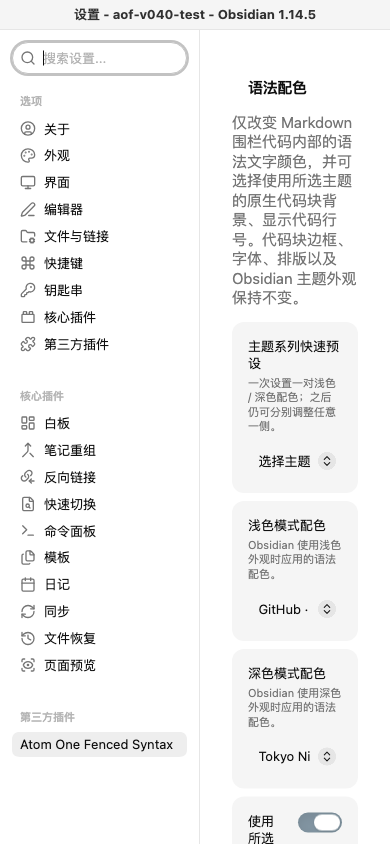
The settings page lets you choose palettes and optional code-block features.
These are genuine screenshots from an isolated Obsidian test vault, captured with the v0.5.2 development build before the plugin was renamed from **Atom One Fenced Syntax**. The settings screenshot still shows that earlier name; the code colors and controls shown are real. ## What changes — and what stays the same Obsidian's theme controls the whole app. Syntax Palette gives Markdown fenced code blocks their own color choices, so you can keep your favorite Obsidian theme and choose code colors that suit you. The palette applies inside fenced code blocks. It does not recolor regular text or inline code, and it never edits your Markdown content. An optional setting can also change the fenced block's background. ## Choose a palette Pick from **39 color variants across 15 theme families**, including GitHub, Atom One, Catppuccin, Tokyo Night, Ayu, Dracula, Nord, and more. Choose a light palette and a dark palette separately, so each follows the matching Obsidian appearance. You can also: - Turn code-block backgrounds on or off. They are off by default. - Show line numbers, with each code block starting at 1. They are off by default and are not copied into your notes. - Choose whether long lines wrap in the editor (off by default). With wrapping off, each code block scrolls horizontally on its own; the rest of the note stays put. - Keep Obsidian's normal wrapping for regular text. The code-wrapping option only affects fenced code in the editor. Syntax coloring is available for common languages including Python, JavaScript and TypeScript, JSON, Bash, HTML, and CSS. Unsupported or untagged code blocks keep Obsidian's own syntax colors. ## How to use it Once Syntax Palette is installed: 1. Open **Settings → Community plugins → Syntax Palette**. 2. Choose a palette for **Light mode** and another for **Dark mode**. You can use a family preset first, then adjust either choice separately. 3. Turn on code-block backgrounds or line numbers if you want them. 4. Set editor code wrapping to match how you like to read long lines. Changes apply immediately and are saved for your next Obsidian session. ## Availability and installation Syntax Palette is preparing its first public release and is **not yet listed in Obsidian Community plugins**. No public release has been published yet. Once the release is available, you can install it manually by downloading `main.js`, `manifest.json`, and `styles.css` from the [GitHub release](https://github.com/bilibilijojo/obsidian-syntax-palette/releases). Put all three files in your vault's `.obsidian/plugins/syntax-palette/` folder, reload Obsidian, and enable Syntax Palette under **Settings → Community plugins**. These three files contain everything the plugin needs; no additional WASM file is required. For a local source build, use those same three files from `plugin/syntax-palette/`. See the [installation notes](docs/INSTALLATION.md). ## Compatibility and known limits - Desktop Obsidian only. iOS, iPadOS, and Android are not supported. - macOS has been tested with Obsidian 1.14.5. Windows and Linux are target platforms but have not yet been tested on those systems. - Pop-out windows are not supported. - The 39 built-in palettes cannot be extended with custom theme files. - When editor wrapping is off, long code lines use horizontal scrolling inside each fenced block. ## For developers The plugin source is in `plugin-src/`; bundled theme data, source details, and third-party license texts are in `sources/`. The build embeds the Oniguruma WASM payload into `main.js`, so the Community Plugins file set does not need a separate runtime asset. Full third-party notices ship in both `main.js` and `THIRD-PARTY-NOTICES.txt`. See [theme provenance](docs/THEME-PROVENANCE.md) for theme credits and licensing, and [development guide](docs/DEVELOPMENT.md) for the development and testing notes. To build from source: ```sh npm ci npm run verify npm run build npm run package npm run verify-build ``` ## License Public author: [Frank](https://github.com/bilibilijojo). This project credit does not establish copyright ownership of historical code or third-party resources. Syntax Palette's own project code is offered under the [Apache License 2.0](LICENSE). Bundled themes, grammar files, parser-derived code, and runtime components keep their original licenses; see [THIRD-PARTY-NOTICES.txt](THIRD-PARTY-NOTICES.txt) for the notices and full license texts. The theme snapshots and their exact versions are documented in [THEME-PROVENANCE.md](docs/THEME-PROVENANCE.md). Before contributing, please open an issue to discuss the change. See [LICENSE-AUDIT.md](docs/release/LICENSE-AUDIT.md) and [RELEASE-AUDIT.md](docs/release/RELEASE-AUDIT.md) for the current owner-review items.