[English](README.md) · [繁體中文](README.zh-TW.md) · [日本語](README.ja.md) · [한국어](README.ko.md)
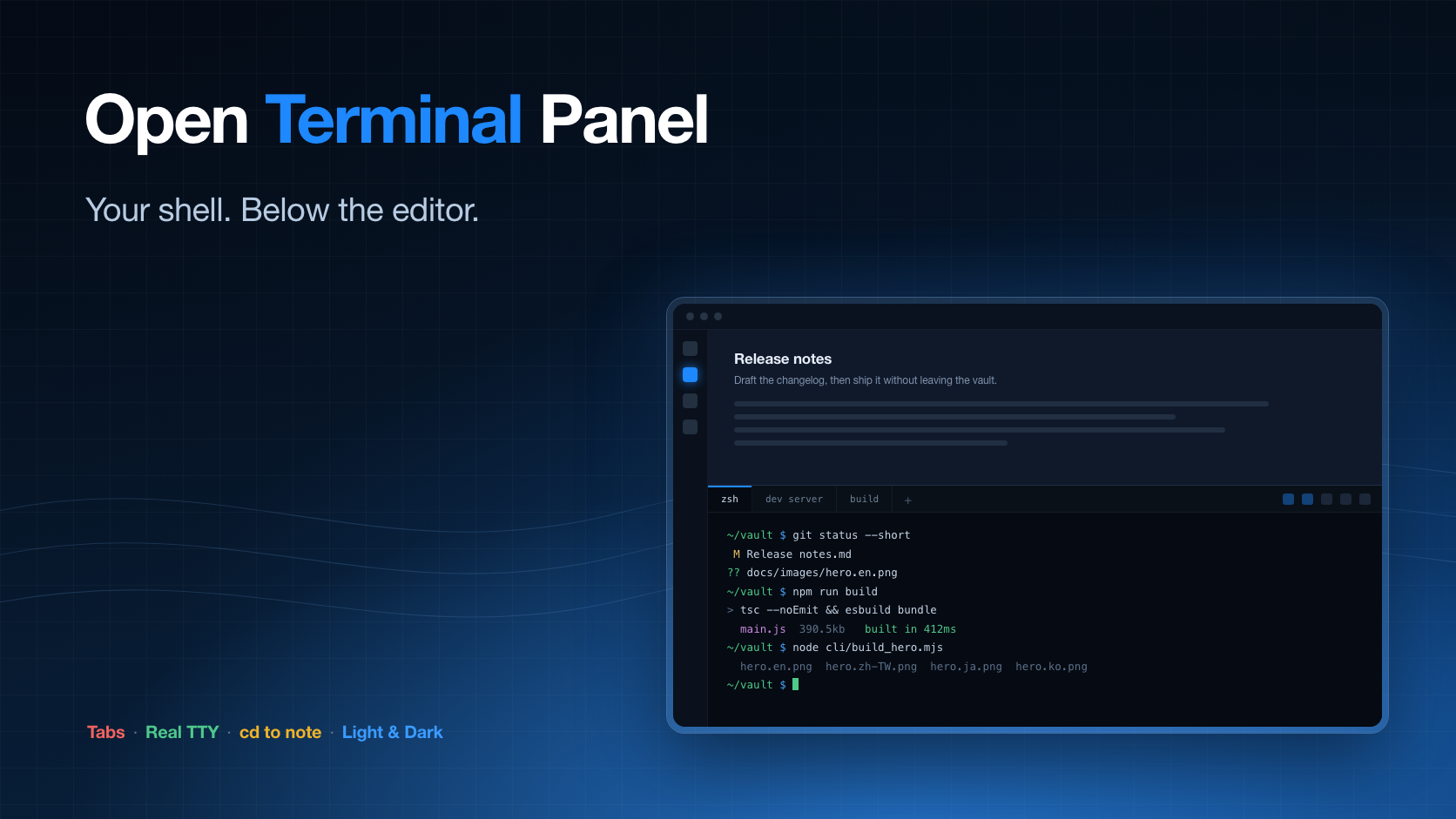
# Open Terminal Panel
**An Obsidian plugin that docks a real terminal below the editor — several shells in tabs, each with its own TTY. Desktop only.**
[](../../releases/latest)
[](../../releases)
[](#install)
[](#install)
[](#install)
[](LICENSE)
A real terminal inside Obsidian. It opens as a panel **below the editor** — where a
terminal belongs in an editor window — and keeps several shells in tabs.
[📥 Download](../../releases/latest) · [💡 What it does](#what-it-does) · [⚙️ Settings](#settings) · [🖥️ Real TTY](#how-it-works) · [🐞 Report an issue](../../issues/new)
---
Not a fake shell: every tab gets a real TTY, so `vim`, `htop`, `git rebase -i`, a dev
server and colored output all behave the way they do in your terminal app.
> Desktop only. The plugin drives a native pty and cannot run on mobile.
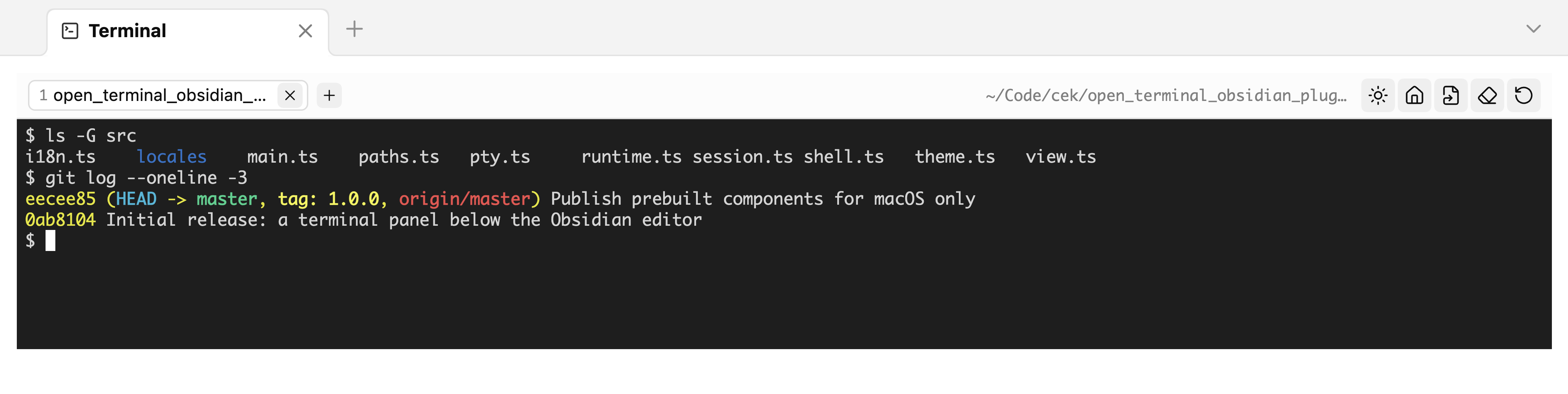
## What it does
- **Opens below the editor**, and comes back on the next start if you left it open. Its height is a
share of the editor area that you set once; the divider stays draggable.
- **Tabs.** Each tab is its own shell. Closing one kills that shell and nothing else,
and a shell that exits keeps its output so you can still read what happened.
- **Jump to a folder.** One button types `cd` to the vault, another to the folder of
the note you are editing. Paths are quoted, so a folder named `$(id)` is typed, not
executed.
- **Its own palette.** Light or dark, deliberately independent of the Obsidian theme:
the 16 ANSI colors need a fixed contrast baseline to stay readable.
- **Six interface languages**, following Obsidian by default.
## Install
### From the community store
Install and enable **Open Terminal Panel**, then open the panel. The first time, it asks to
download one more piece: `node-pty`, the native module that provides the TTY.
The store only ever installs `main.js`, `manifest.json` and `styles.css`, so a native
binary cannot travel with a plugin. Instead the panel shows the exact URL — an asset
on this repository's own release, matching the plugin version and your platform — and
waits for you to press the button. Nothing is downloaded in the background, and the
archive is unpacked only into the plugin's own folder. The SHA-256 of what was
downloaded is printed after the install, and the same checksum is published next to
the release as `node-pty-.tar.gz.sha256.txt`.
To do it yourself instead, unpack that archive into
`/.obsidian/plugins/open-terminal-panel/`.
Prebuilt components are published for macOS on Apple silicon and Intel — those are
the builds this project can produce and verify. On Windows or Linux the panel says so
and you install from source instead, which builds `node-pty` on the machine itself.
### From source
```bash
git clone https://github.com/aione314159/open-terminal.git
cd open-terminal
./cli/install_obsidian_plugin.sh # first vault found in obsidian.json
./cli/install_obsidian_plugin.sh /path/to/vault
```
This builds the bundle, copies it into the vault, and installs `node-pty` from your
own `npm install` — so the download step never appears. Then reload community plugins
in Obsidian and enable **Open Terminal Panel**.
## Use
| Where | What |
|---|---|
| Ribbon icon | Open the panel |
| Command palette | Open / toggle the panel, new tab |
| `+` in the tab strip | New tab in the configured working folder |
| Middle click a tab | Close it |
| Header buttons | cd to vault · cd to the note's folder · clear · restart · light/dark |
A tab whose shell has exited keeps its output, struck through in the tab strip. Press
restart to get a live shell back in the same folder.
## Settings
| Setting | Default | Notes |
|---|---|---|
| Working folder | vault folder | Where new tabs start. `~` is expanded. A folder that no longer exists falls back to the vault. |
| Shell path | `$SHELL` | Started as a login shell, so `PATH` and your profile are complete — Obsidian is launched from the GUI and inherits almost nothing. |
| Always open on startup | off | Opens the panel on every start. Off, the panel follows the saved workspace: it comes back only if it was open when you quit. |
| Panel height | 30 % | Share of the editor area. |
| Palette | dark | Terminal only; does not follow the Obsidian theme. |
| Font size | 12 px | Applies to every tab. |
| Interface language | follow Obsidian | English and 繁體中文 are reviewed; 日本語, 한국어, Deutsch, Français are community translations. |
"Test the setup" in the settings tab checks the shell path, the working folder and
whether the native component is installed.
## How it works
```
main.ts plugin, settings tab, panel placement below the editor
view.ts the panel: tab strip, header actions, one visible session
session.ts one shell — an xterm instance bound to a pty
runtime.ts first-run download and unpack of the native component
pty.ts loads node-pty from the plugin folder by absolute path
theme.ts the two 16-color palettes
i18n.ts string lookup; tables live in src/locales/
```
`node-pty` is native and cannot be bundled by esbuild, nor is it on Obsidian's module
resolution path — hence loading it by absolute path out of the plugin folder, and
hence the first-run download that puts it there.
Placing the panel uses `createLeafBySplit` on the most recent leaf of the root split,
so it lands under the editor rather than inside a sidebar. Its height is set through
`setDimension` on the leaf's tab container — and on every sibling, because a container
left unsized is treated as "as small as possible" and the terminal would take the
whole area. `setDimension` is not public API; if a future Obsidian release drops it,
the panel simply opens at the default split height and stays usable.
## Development
```bash
npm install
npm run dev # esbuild watch
npm run build # tsc --noEmit + production bundle
./cli/pack_pty_runtime.sh # build the node-pty archive for this platform
node cli/test_unpack.mjs # unpack it with the plugin's own reader and verify
node cli/build_hero.mjs # regenerate docs/images/hero..png
```
Adding a language means one file in `src/locales/` and one line in its `index.ts`.
`src/locales/zh.ts` is the source of truth for the key set — the build fails if any
other table is missing a key.
Releasing: tag the commit with the version in `manifest.json`, attach `main.js`,
`manifest.json`, `styles.css` and the `node-pty-.tar.gz` archives with their
`.sha256.txt` files.
## License
MIT