# Custom Syntax Highlights
[](https://github.com/Outsiders17711/Obsidian-Custom-Syntax-Highlights/releases)
[](LICENSE)
[](https://nodejs.org/)
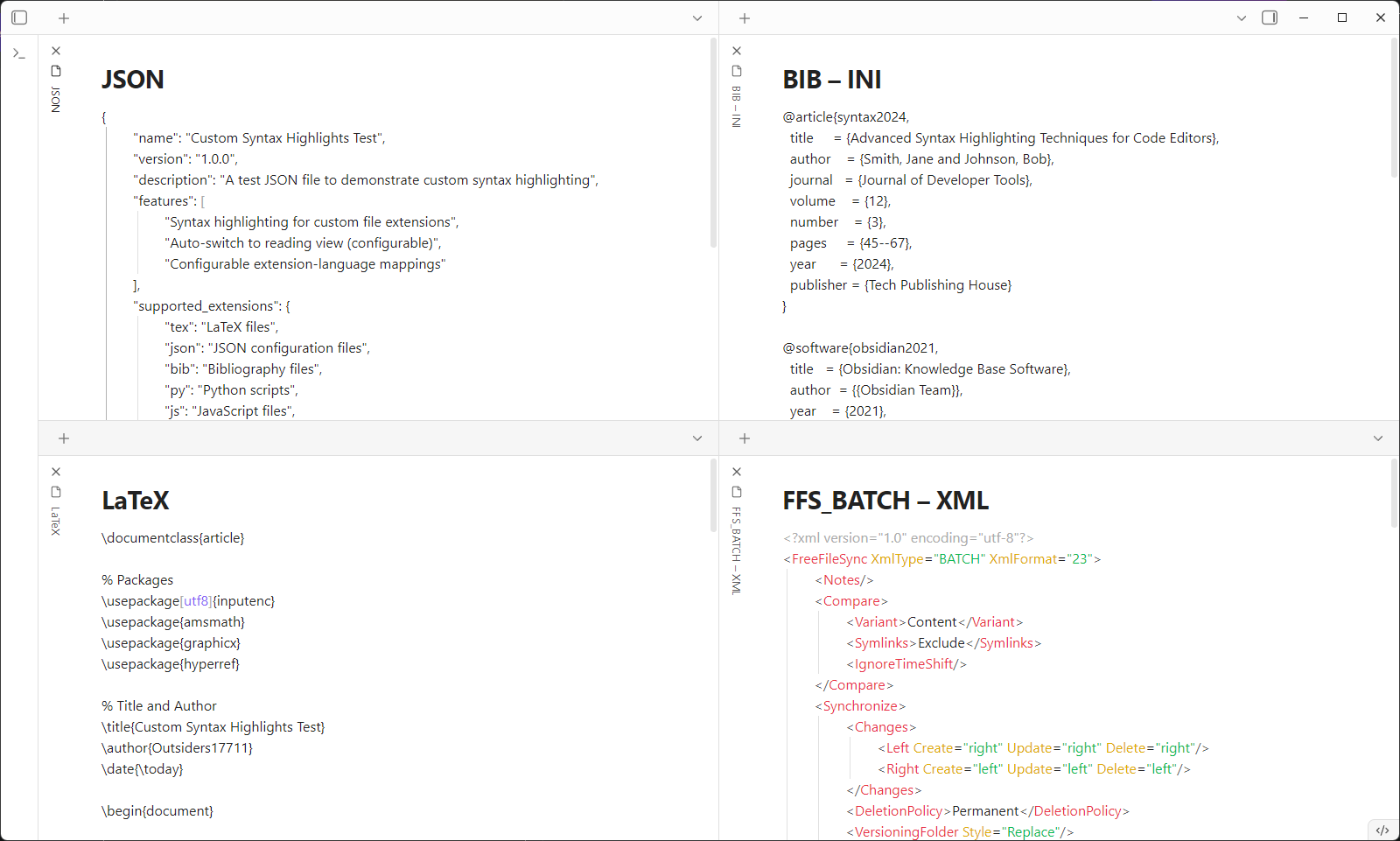
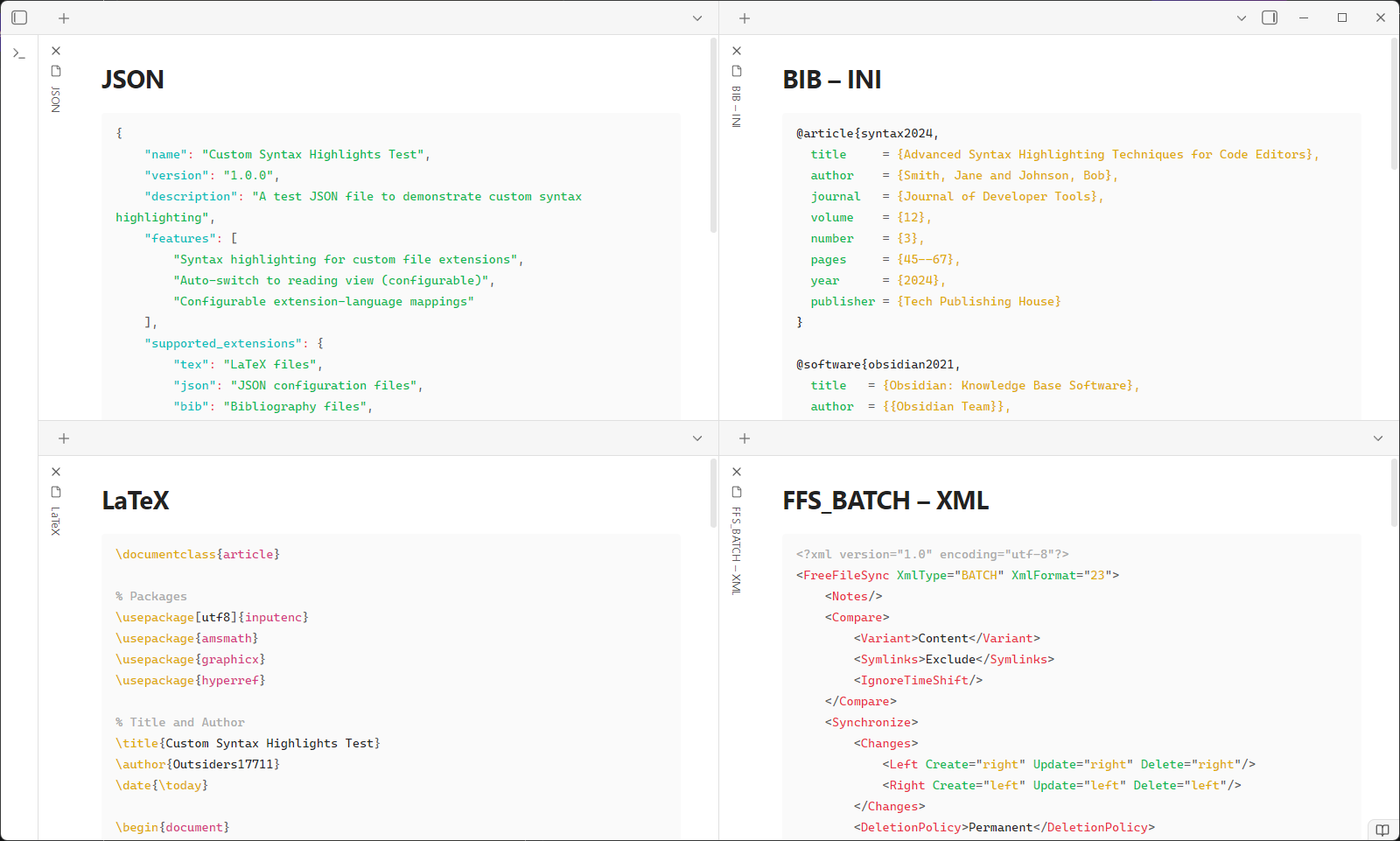
An Obsidian plugin that displays files with custom extensions as syntax-highlighted code blocks in reading view, with configurable extension-to-language mappings.
## Features
- **Custom Extension Mapping**: Configure any file extension to display with specific syntax highlighting
- **Auto-Switch to Reading View**: Automatically switch configured file extensions to reading view when opened
- **Flexible Language Support**: Map extensions to any supported syntax highlighting language
- **Clean Display**: Files are rendered as single, properly formatted code blocks
## Demo
On the left is Source Mode, and on the right is Reading Mode. Click either image to enlarge.
## Installation
### From Community Plugins (Recommended)
You can install the plugin directly from Obsidian's Community Plugins browser:
1. Open Obsidian and go to **Settings > Community plugins**
2. Click on **Browse** and search for "Custom Syntax Highlights"
3. Click **Install** and then **Enable** the plugin
You can also install the plugin directly from its Community Plugins entry: [Custom Syntax Highlights on Obsidian](https://obsidian.md/plugins?id=custom-syntax-highlights).
### Manual Installation
1. Download the latest release from [GitHub Releases](https://github.com/Outsiders17711/Obsidian-Custom-Syntax-Highlights/releases)
2. Extract `main.js`, `manifest.json`, and `styles.css` to your vault's `.obsidian/plugins/custom-syntax-highlights/` directory
3. Reload Obsidian and enable the plugin in Settings → Community plugins
## Configuration
### Extension Mappings
Configure extension-to-language mappings in **Settings → Community plugins → Custom File Extensions**:
- **Extension**: The file extension (without the dot)
- **Language**: The syntax highlighting language to use (leave empty to use the extension name)
### Example Configurations
| Extension | Language | Result |
| --------- | :-------: | ------------------------------------------------ |
| `tex` | _(empty)_ | LaTeX files with TeX syntax highlighting |
| `json` | _(empty)_ | JSON files with JSON syntax highlighting |
| `bib` | `ini` | Bibliography files with INI-style highlighting |
| `py` | `python` | Python files with Python syntax highlighting |
| `txt` | `md` | Text files with normal editing (no highlighting) |
### Important Notes
- **Markdown files (`.md`)**: Not supported - handled natively by Obsidian
- **Normal editing**: Set language to `md` or `markdown` to disable highlighting and enable normal editing
- **Auto-switch**: Toggle whether files automatically open in reading view
## Usage
1. Configure extension mappings in plugin settings
2. Open any file with a configured extension
3. File automatically switches to reading view with syntax highlighting
## Development
### Building
```bash
npm install # install dependencies
npm run dev # development build with watch mode
npm run build # production build
npm run test # update the plugin in the test vault
```
### Release
```bash
npm run release # automated patch release
npm run release:minor # minor version release
npm run release:major # major version release
```
**Requirements**: Node.js 16+, Git repository with GitHub origin
## Documentation
- **[Release Process](docs/RELEASE.md)** - Complete guide for maintainers
- **[Changelog](docs/CHANGELOG.md)** - Version history and release notes
## Inspiration
Built upon the foundation of [MeepTech/obsidian-custom-file-extensions-plugin](https://github.com/MeepTech/obsidian-custom-file-extensions-plugin) for file extension registration. This plugin now implements a complete 2-in-1 solution with both file extension registration and syntax highlighting.
## License
MIT License