Asset Weaver for Obsidian.md
https://community.obsidian.md/plugins/asset-weaver




## Overview
An Obsidian plugin that autonomously scans your vault for untagged image assets and leverages a local Vision-Language Model (VLM) to generate structured markdown sidecar files. Perfect for creative professionals, artists, and researchers looking to weave their visual libraries into their knowledge graphs without relying on cloud APIs.
### Visual Comparison (Before vs. After)
| Before (Image Only) | After (Weaved Metadata) |
|:---:|:---:|
| 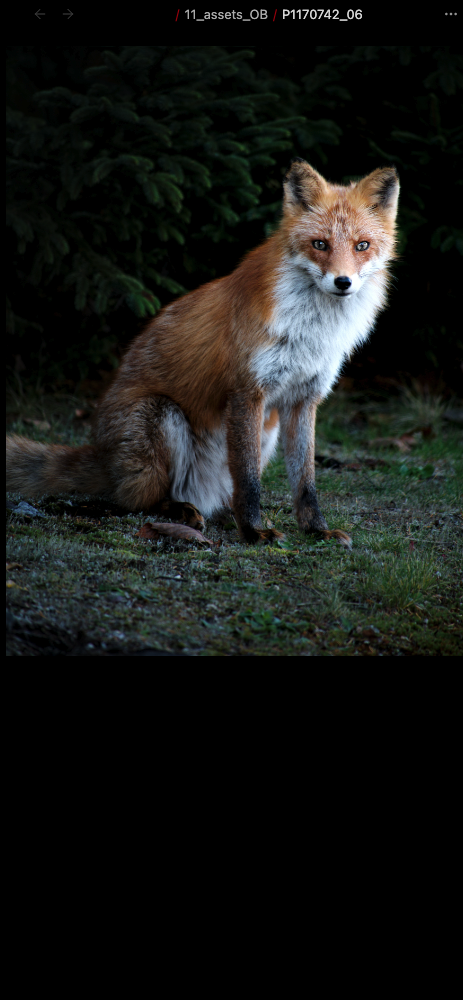 | 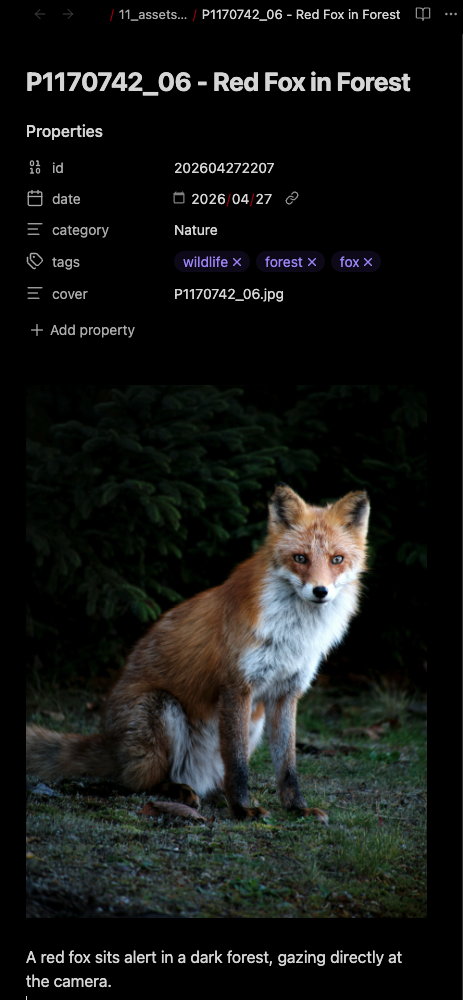 |
> 📂 See the [Library-Scale Transformation](docs/library-transformation.md) guide for before/after directory screenshots.
## Features
- **Automated Metadata Generation**: Analyzes images to generate a descriptive title, category, keywords, and a short description.
- **Sidecar Markdown Creation**: Creates a markdown note alongside your image containing the generated YAML frontmatter, making your images searchable and easily queryable in Obsidian.
- **Backlink Extraction**: Automatically detects and lists other notes in your vault that embed or link to the image.
- **Privacy First (Local AI)**: Designed to work seamlessly with local LLM/VLM servers like [LM Studio](https://lmstudio.ai/) or [Ollama](https://ollama.com/), ensuring your assets never leave your machine.
- **Batch Processing**: Scans your designated asset folder and processes all untagged images sequentially to manage server load.
> 💡 **Pro tip**: See [how to create Dataview galleries](docs/dataview-integration.md) from your tagged assets — query by tags, categories, and more.
## Prerequisites
This plugin requires an OpenAI-compatible API endpoint that supports Vision capabilities. We highly recommend using a local VLM for privacy and cost-efficiency.
### Recommended Local Setup (LM Studio)
1. Download and install [LM Studio](https://lmstudio.ai/).
2. Search and download a Vision-Language Model (e.g., `qwen2-vl-7b-instruct` or `llava`).
3. Load the model and go to the **Local Server** tab (`<->`).
4. Click **Start Server**. Note the port number (default is usually `1234`).
## Installation
### Manual Installation (Current)
1. Download the latest release (`main.js`, `manifest.json`, `styles.css`) from the Releases page.
2. Create a folder named `asset-weaver` in your vault's `.obsidian/plugins/` directory.
3. Place the downloaded files into that folder.
4. Reload Obsidian and enable the plugin in **Settings -> Community plugins**.
## Configuration
Go to Obsidian **Settings -> AssetWeaver Settings** to configure the plugin:
- **API Base URL**: The endpoint of your local server. For LM Studio, use `http://localhost:1234/v1`. For Ollama, use `http://localhost:11434/v1`.
- **Model Name**: The exact name of the model you have loaded (e.g., `qwen2-vl:7b`).
- **API Key**: A dummy key (e.g., `lm-studio`) for local servers, or your actual API key if using a remote service.
- **Target Folder**: The path to the folder in your vault where your images are stored (e.g., `11_assets_OB`).
## How to Use
1. Ensure your local VLM server is running.
2. Place your image files (`.jpg`, `.png`, `.webp`, etc.) into your designated Target Folder.
3. Click the **"Run AssetWeaver"** ribbon icon on the left sidebar, or open the Command Palette (`Ctrl/Cmd + P`) and run **"Scan and weave new assets"**.
4. The plugin will scan the folder for images that do not have a corresponding markdown sidecar file.
5. It will process the new images sequentially, generating detailed markdown files with YAML metadata right next to your images.
## Troubleshooting & Technical Details
During the development of this plugin, several edge cases were identified and resolved to ensure enterprise-grade stability:
### 1. VLM Memory Overload & Connection Timeouts
**Issue**: Sending raw, high-resolution images (e.g., 4K photos or large screenshots) converted to Base64 resulted in massive payload sizes (7MB+). This frequently caused the local VLM server (LM Studio) to crash due to out-of-memory (OOM) errors or connection timeouts.
**Solution**: Implemented an internal HTML5 `